
Table of Contents
Add-on Overview
Google Sheets Add-on for StoreMove connects StoreMove with Google Sheets so you can use spreadsheets as part of your existing StoreMove workflow.
- Export StoreMove-supported data to a Google Sheet.
- Import StoreMove-supported data from a Google Sheet.
- Works with products, coupons, and any supported data types added by active StoreMove add-ons.
- Uses StoreMove’s existing import, export, mapping, preview, history, and batch processing flow.
The add-on is not a separate store migration tool. It acts as a Google Sheets source and destination for StoreMove.
Installation
- Upload or install the Google Sheets Add-on for StoreMove plugin in WordPress.
- Activate the add-on from the WordPress Plugins screen.
- Make sure the main StoreMove plugin is installed and active.
- Make sure WooCommerce is active.
- Activate any extra StoreMove add-ons if you want to import or export the data types they add.
After activation, open StoreMove > Google Sheets to manage the add-on.
License Management
Open StoreMove > Google Sheets > License to manage the add-on license.
- Enter your license key in the License tab.
- Click Activate License to activate the add-on for this site.
- Use Check Status to refresh the current license status.
- If needed, you can revoke the license or remove local license data from the same tab.
Add-on Admin Page
The add-on admin page is available under StoreMove > Google Sheets. It includes three tabs:
Overview
Shows the add-on status, required plugin status, Google connection status, Drive folder status, and available StoreMove data types detected from the current StoreMove registry.
Connection
Used to enter Google OAuth credentials, connect or reconnect the Google account, test the connection, refresh Drive folders, and disconnect Google.
License
Used to activate the license, check license status, view license details, and access documentation or support links.
Connect With Google
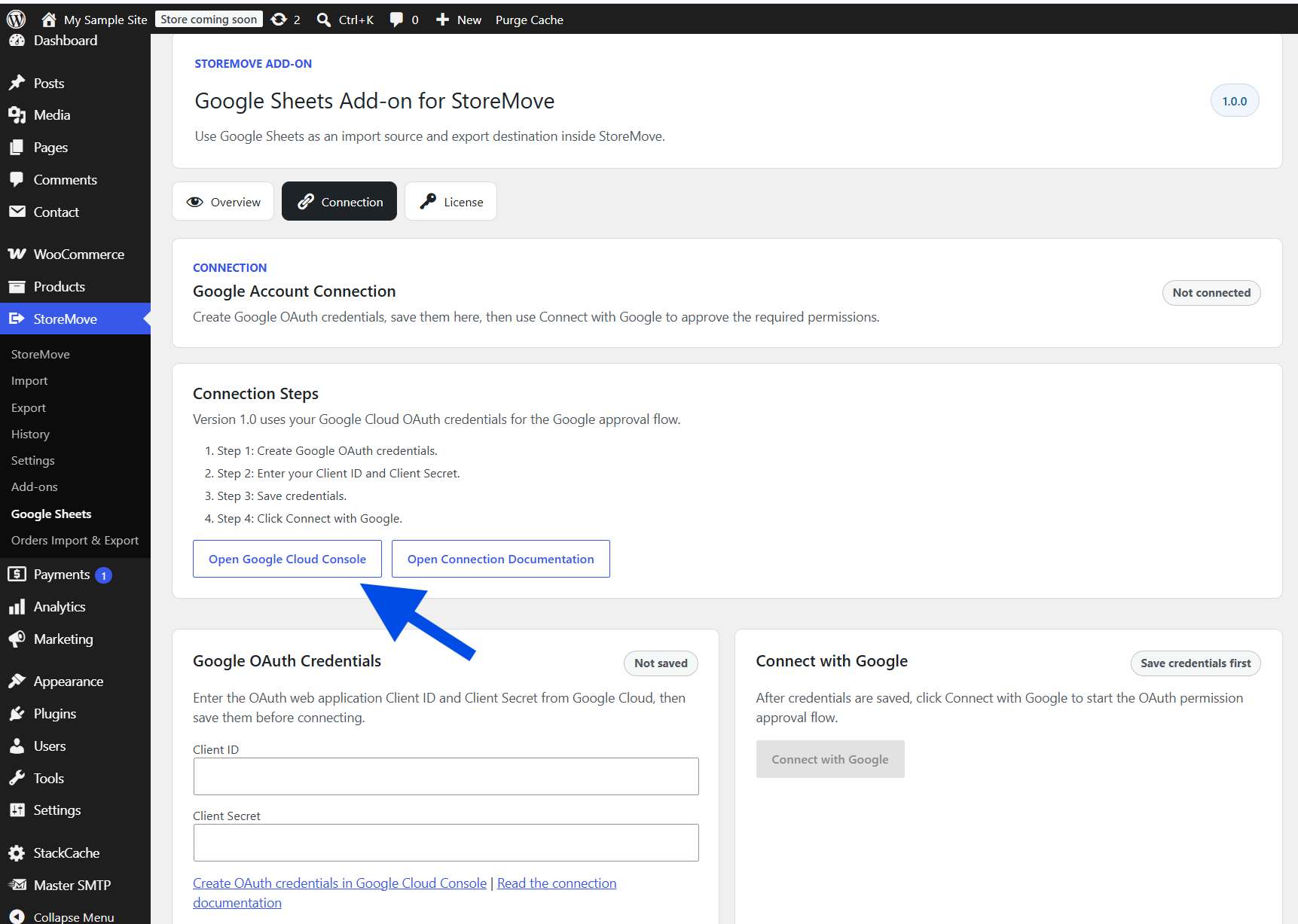
The add-on uses manual Google OAuth credentials. You need a Google OAuth Client ID and Client Secret from Google Cloud.
Connect Google Sheets Add-on for StoreMove to Google
1. Open Google Cloud Credentials
Go to the Google Cloud Credentials page to create and manage the OAuth credentials required to connect StoreMove with Google Sheets and Google Drive.
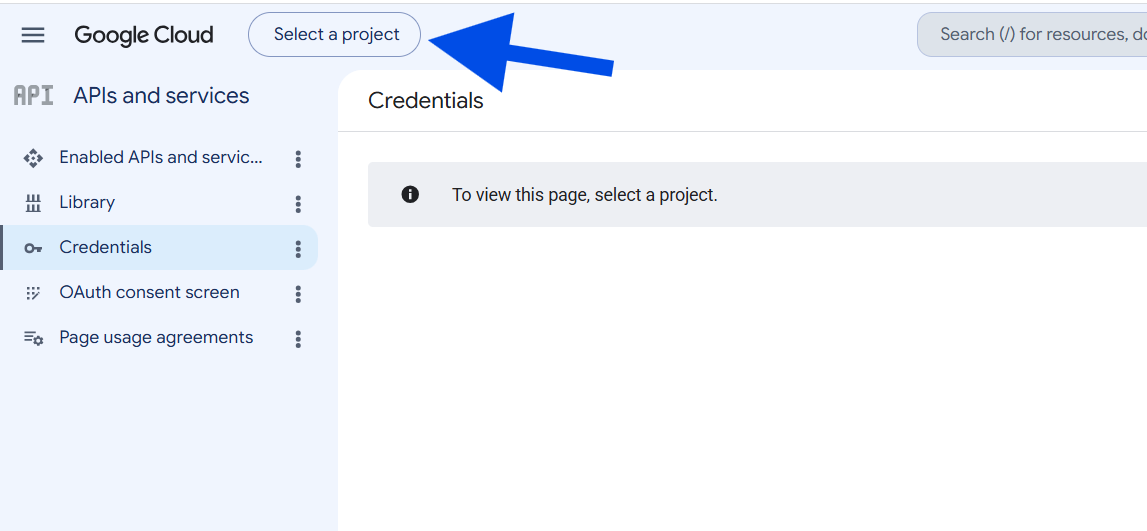
2. Select or Create a Google Cloud Project
Click Select a project and choose an existing project or create a new one for the StoreMove Google Sheets integration.
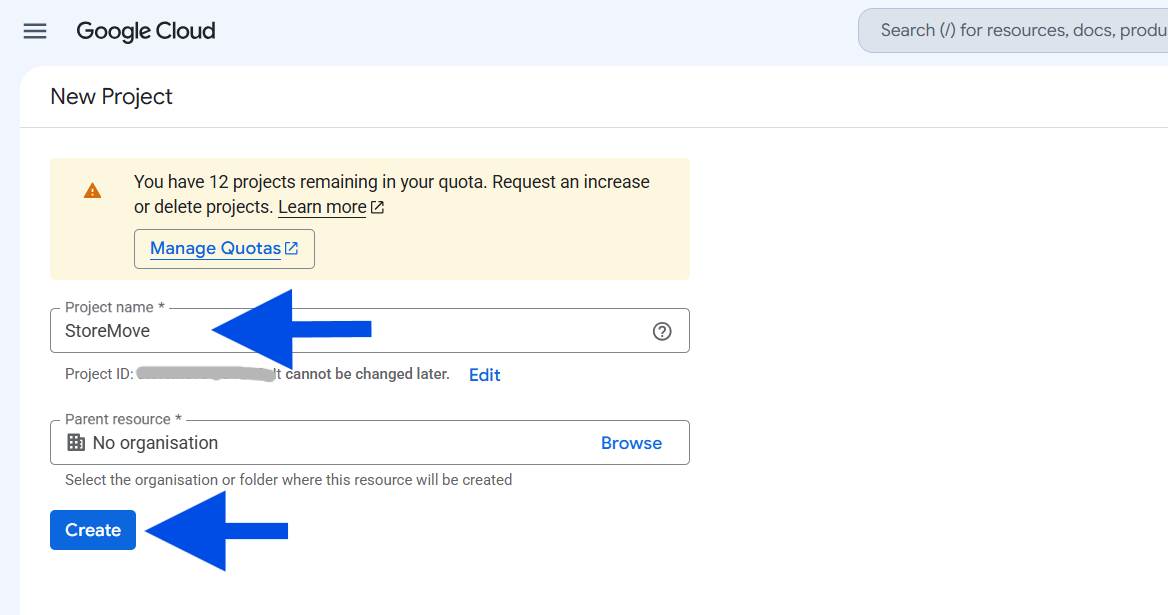
Enter a project name such as StoreMove, keep the appropriate parent resource selected, and click Create to create the project.
3. Enable Google Sheets API
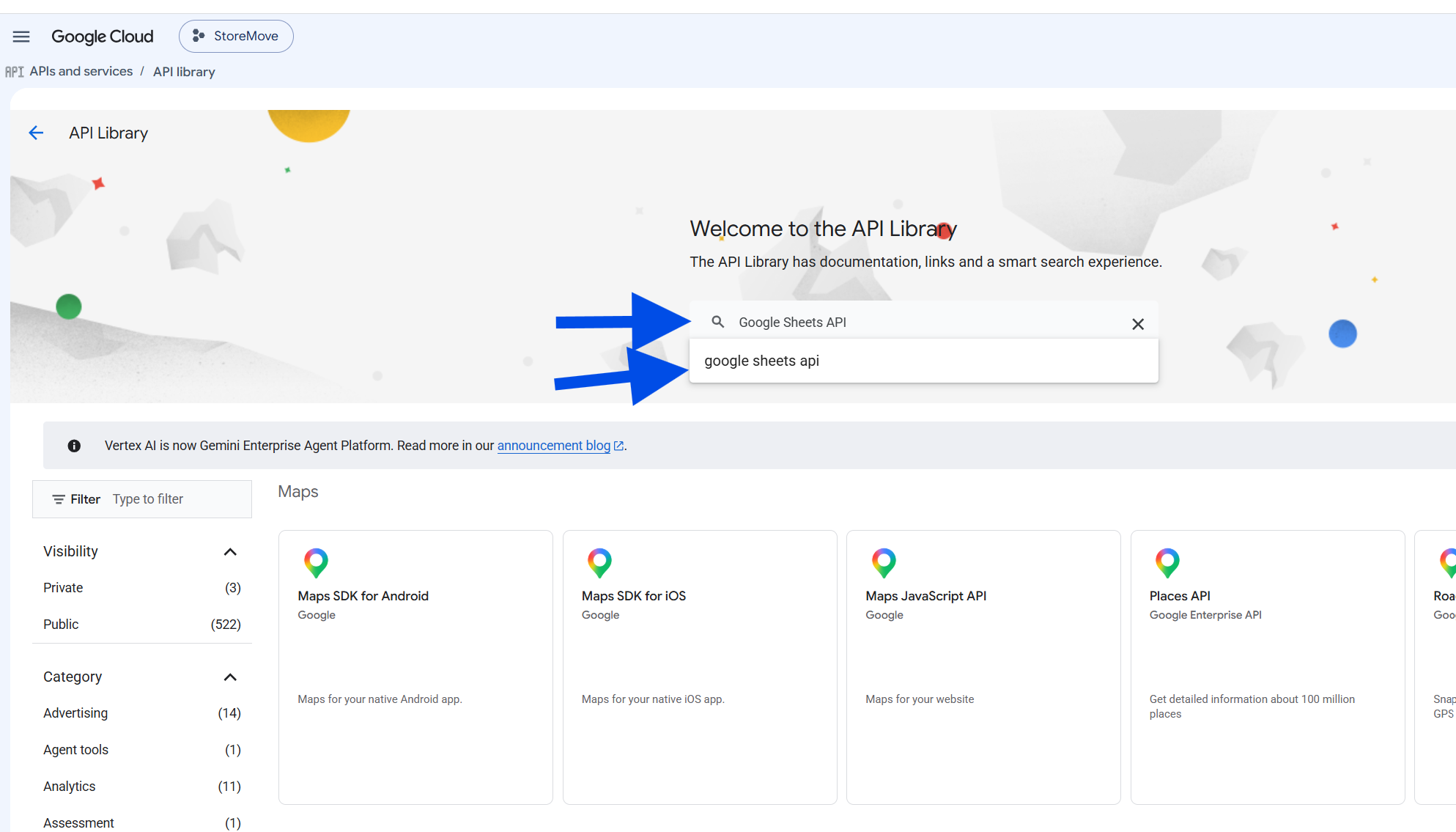
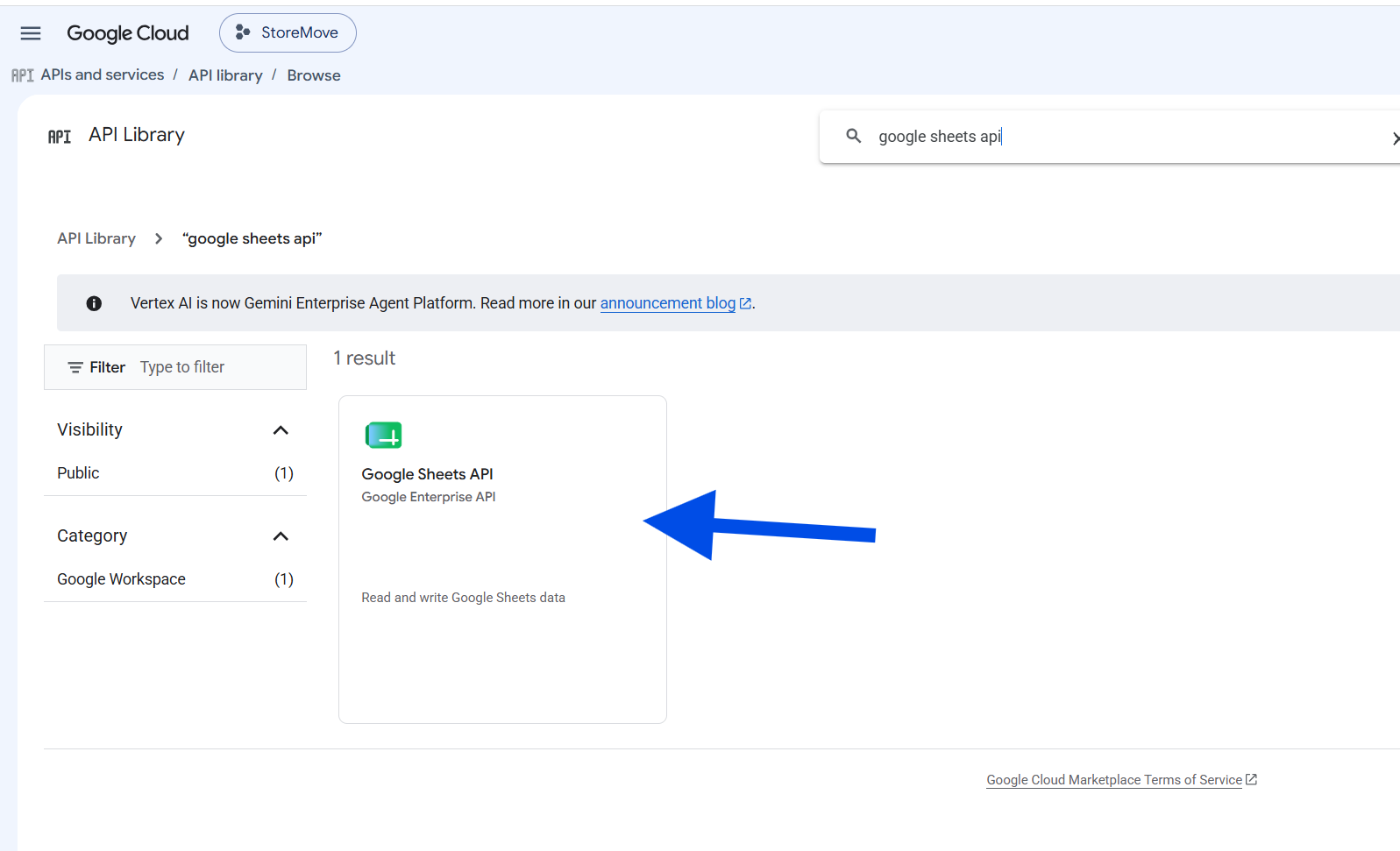
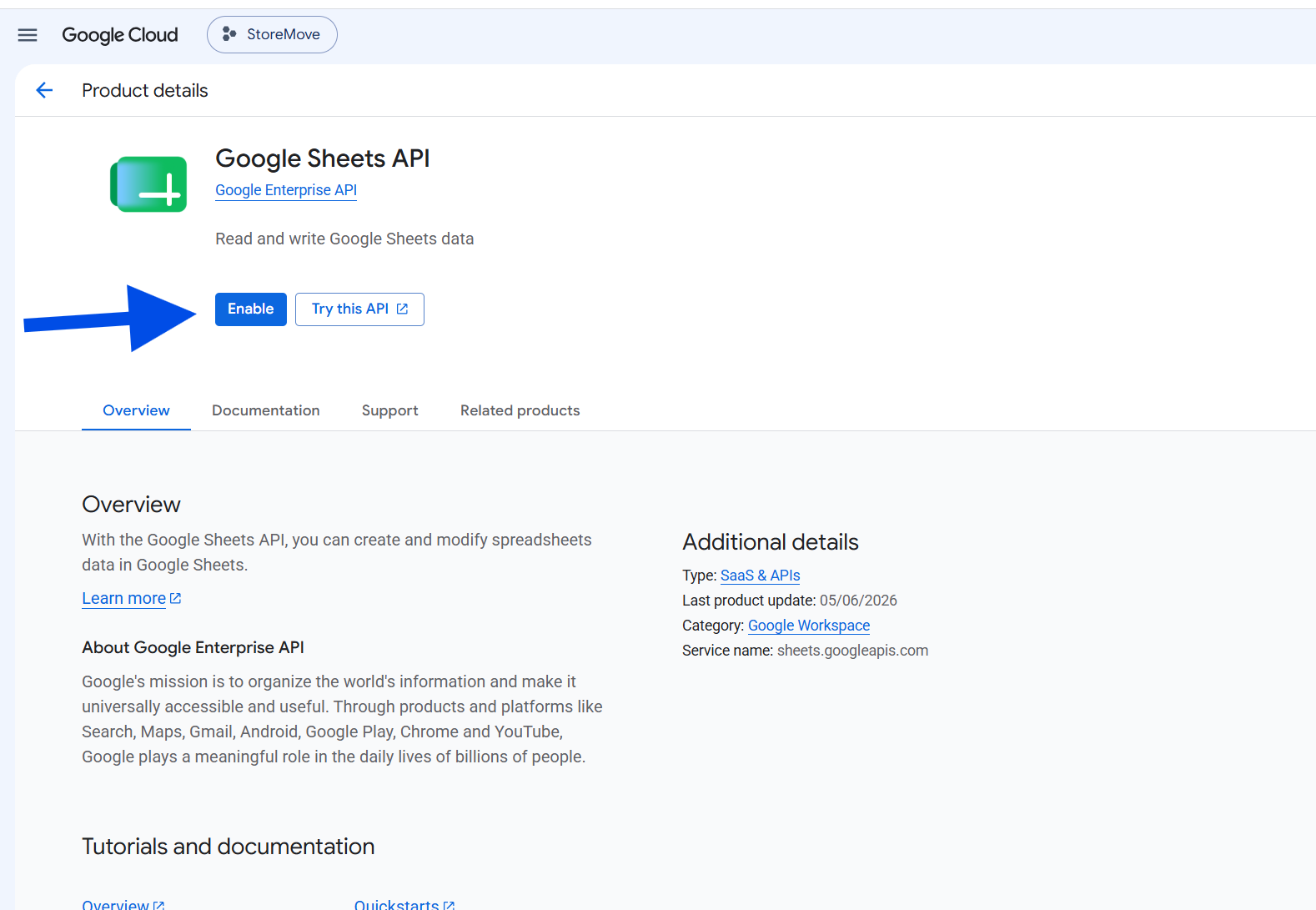
After selecting your project, click Library under APIs and services to find and enable the APIs required by the add-on.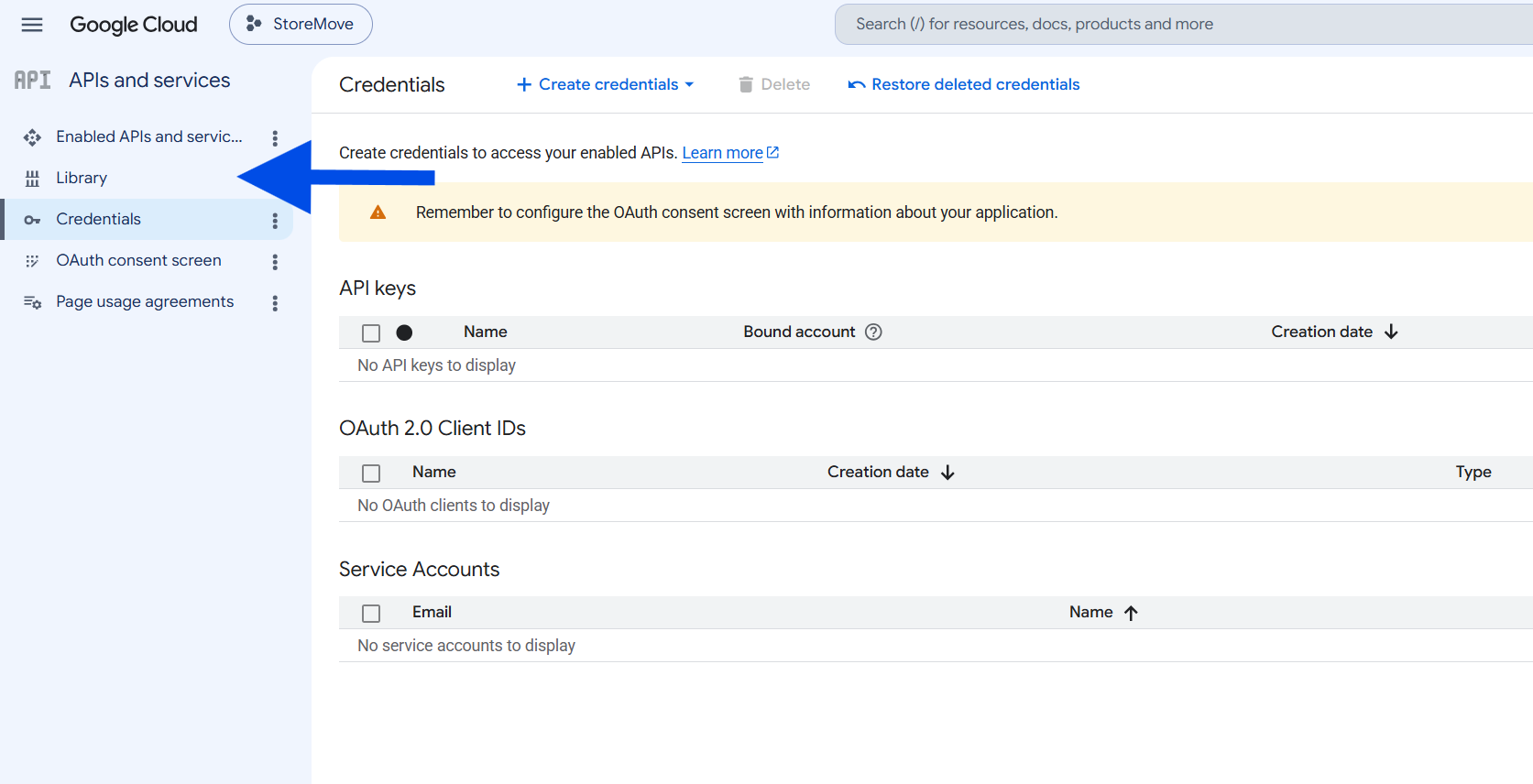
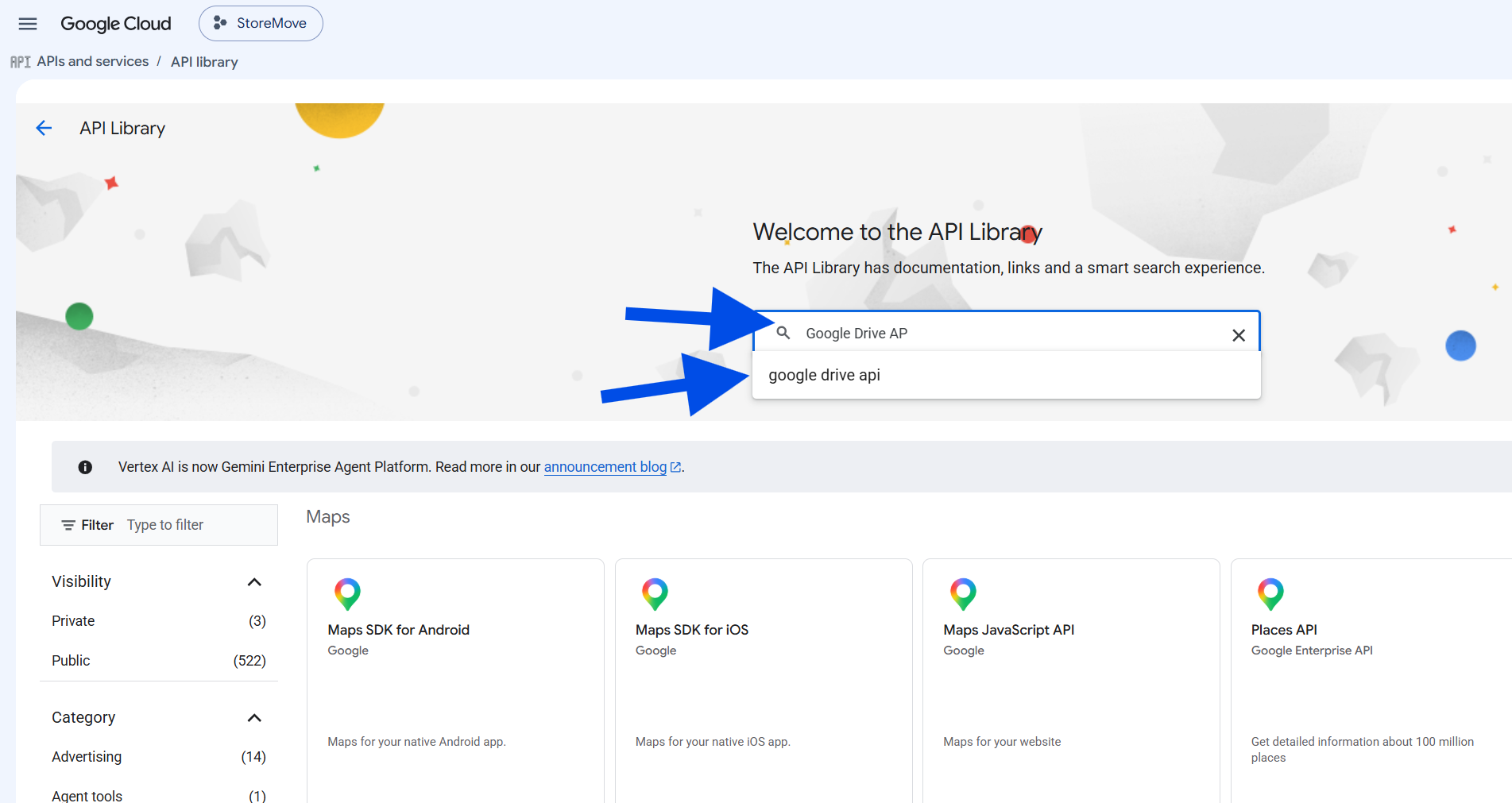
4. Enable the Google Drive API
After enabling the Google Sheets API, click Library again to enable the Google Drive API required by the add-on.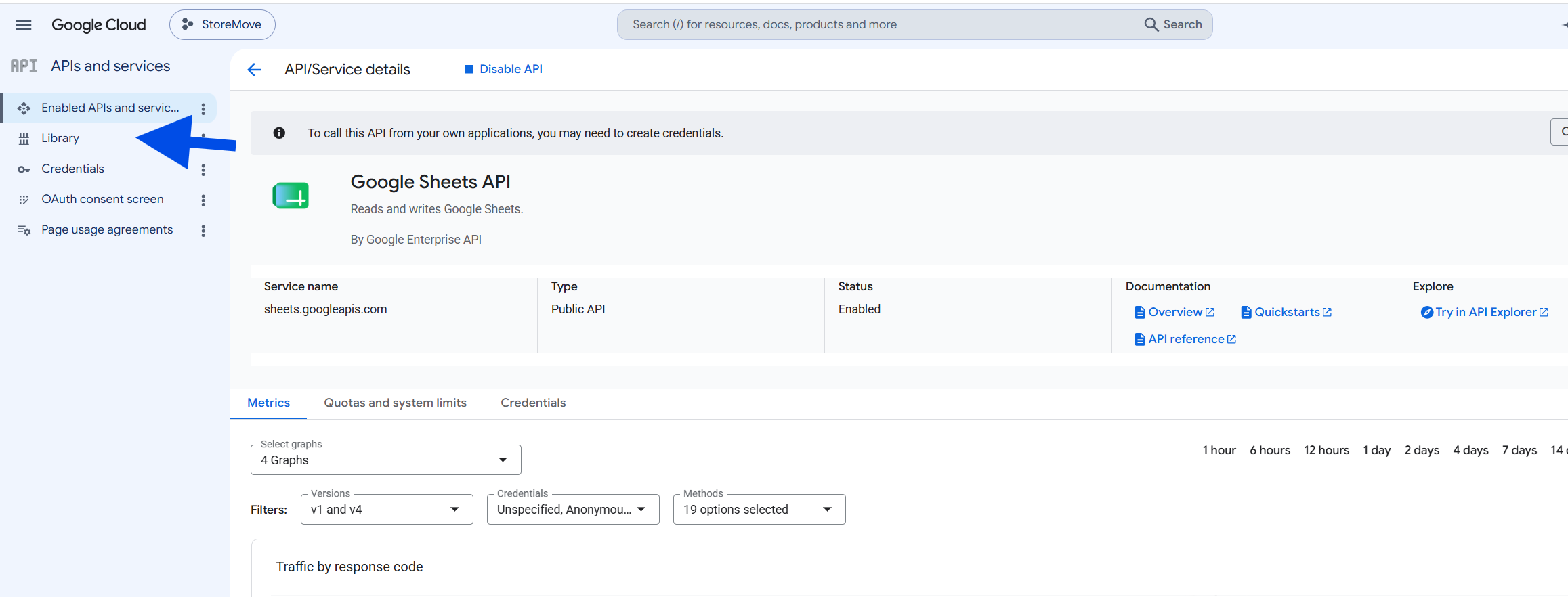
In the API Library search box, enter Google Drive API, then select it from the search results.
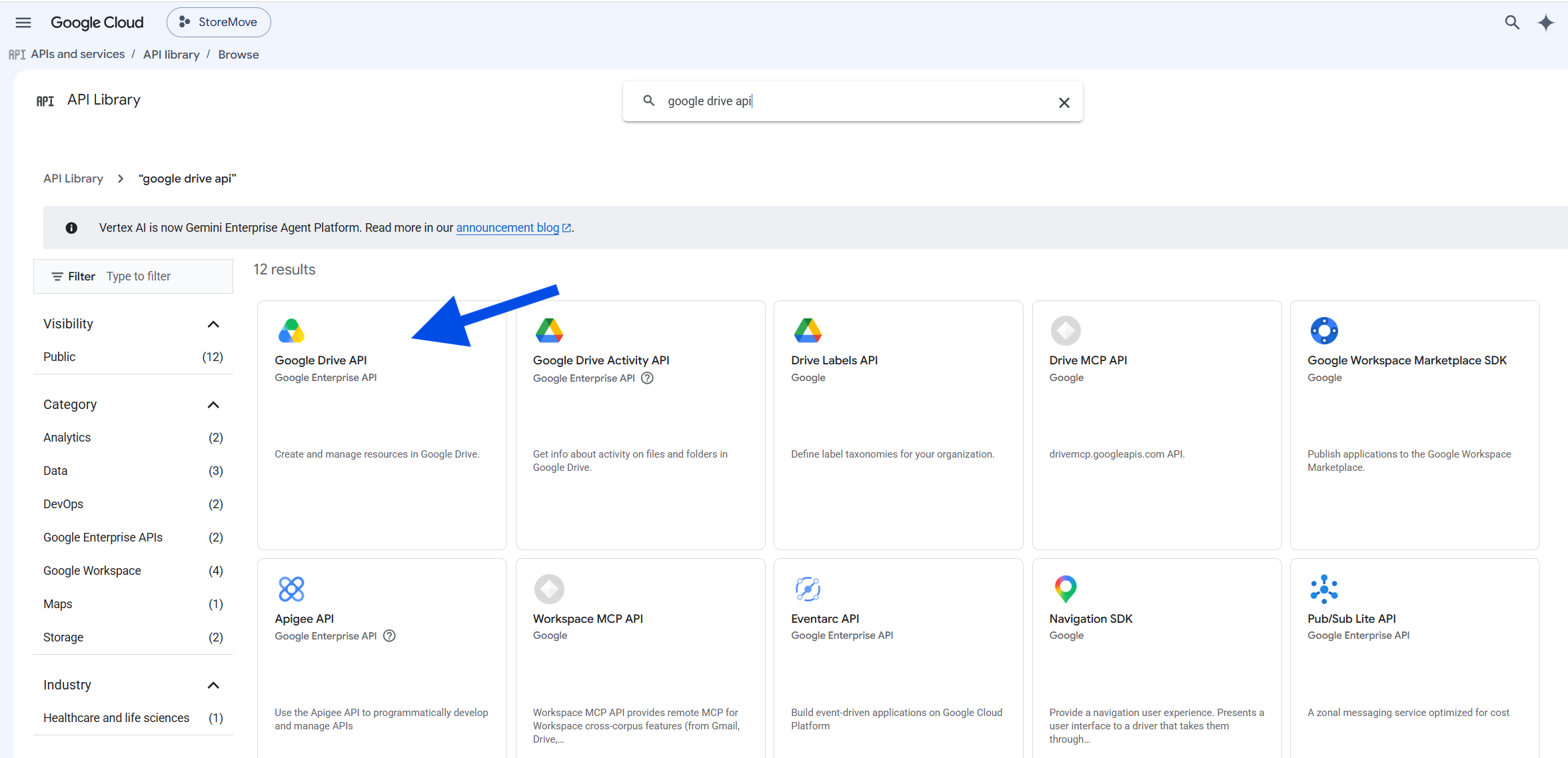
Click Enable to activate the Google Drive API for your Google Cloud project.
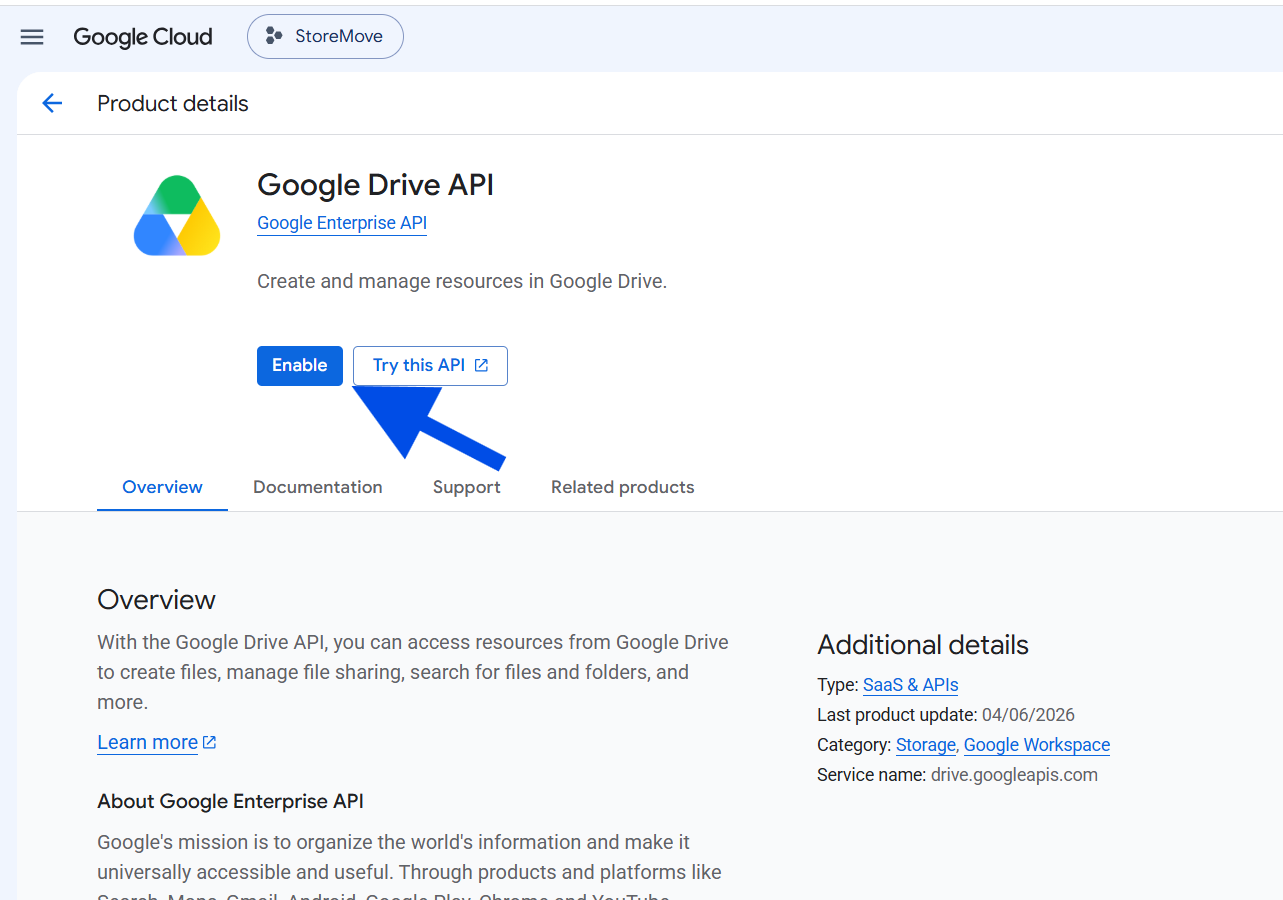
5. Configure the OAuth Consent Screen
Click OAuth consent screen to configure Google Auth Platform and prepare the OAuth connection settings for StoreMove.
Click Get started to begin configuring the Google Auth Platform for the StoreMove connection.
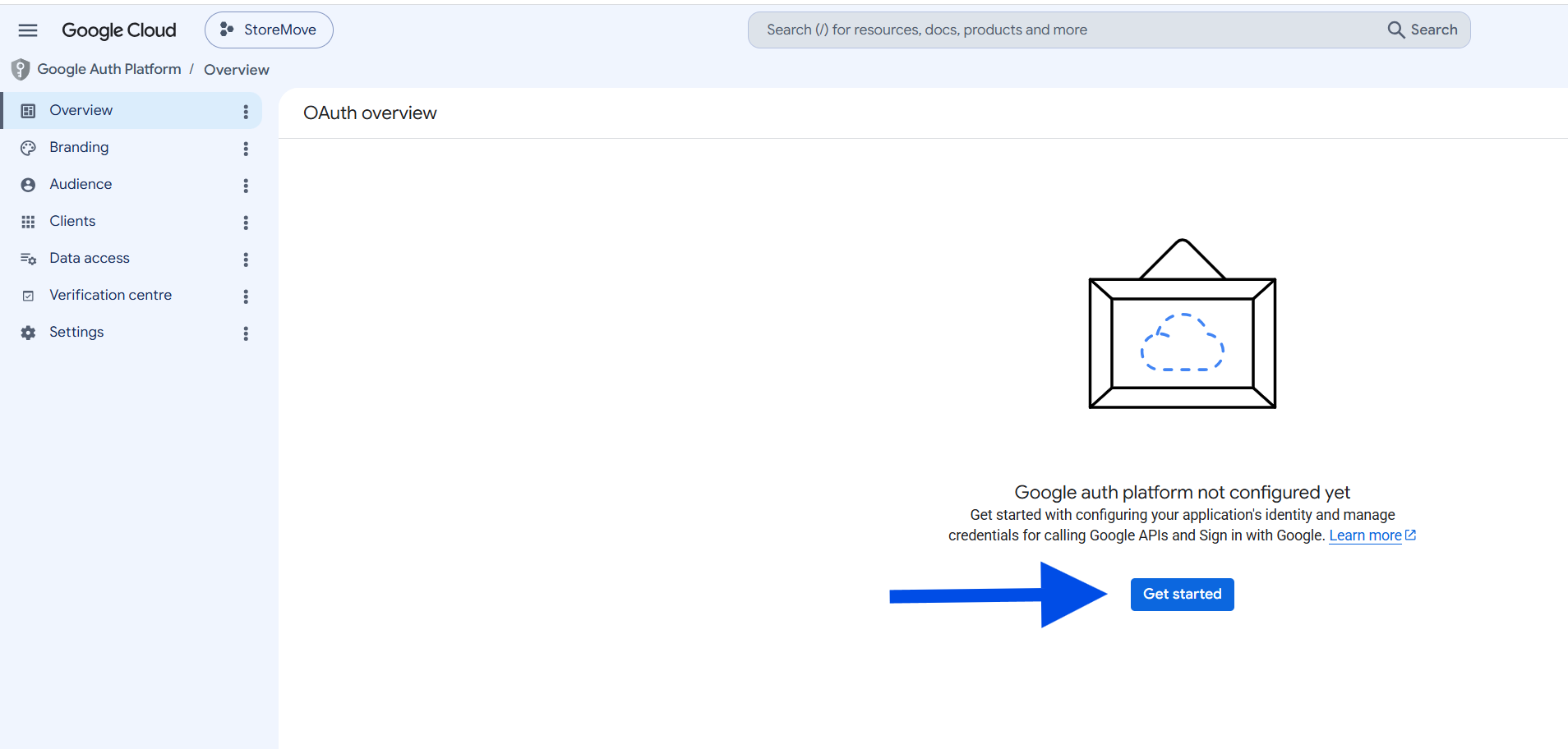
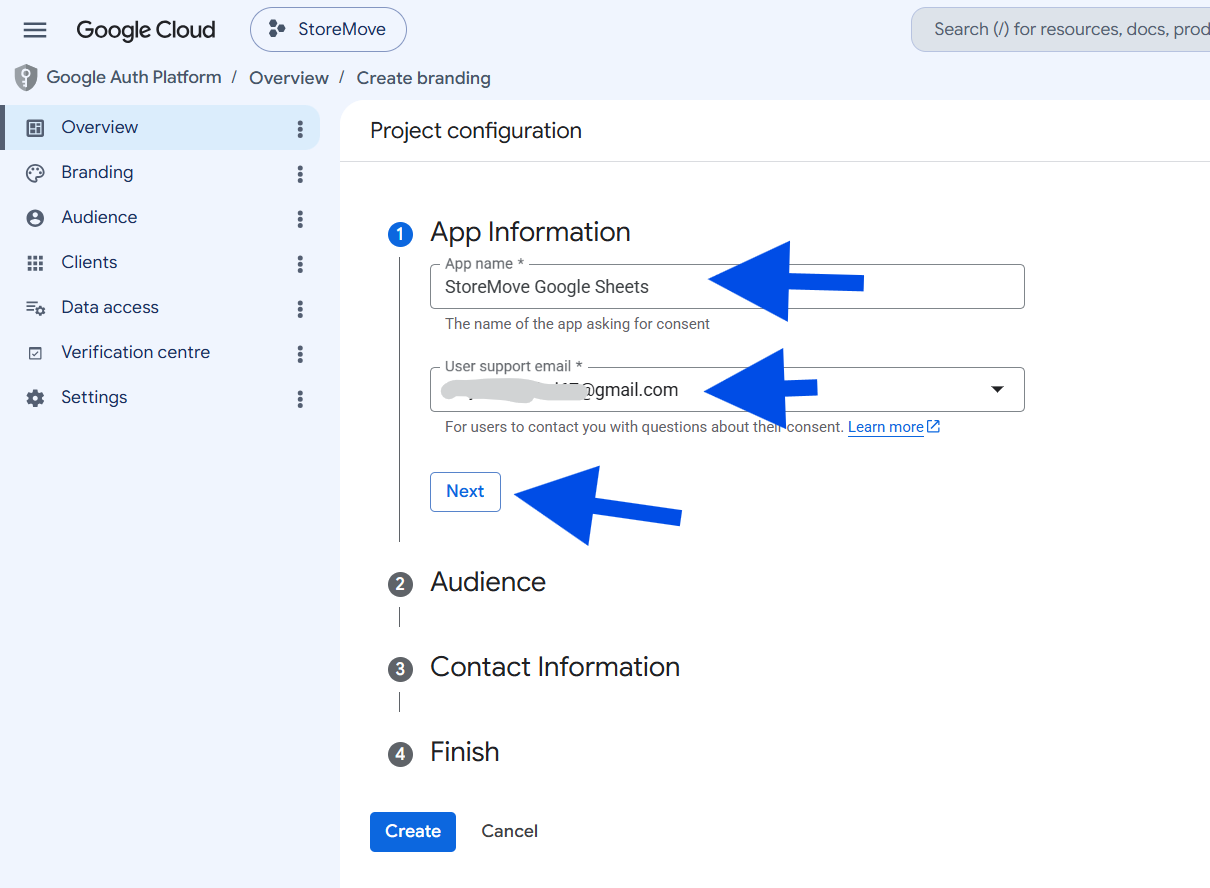
Enter an app name such as StoreMove Google Sheets, select your support email, then click Next to continue.
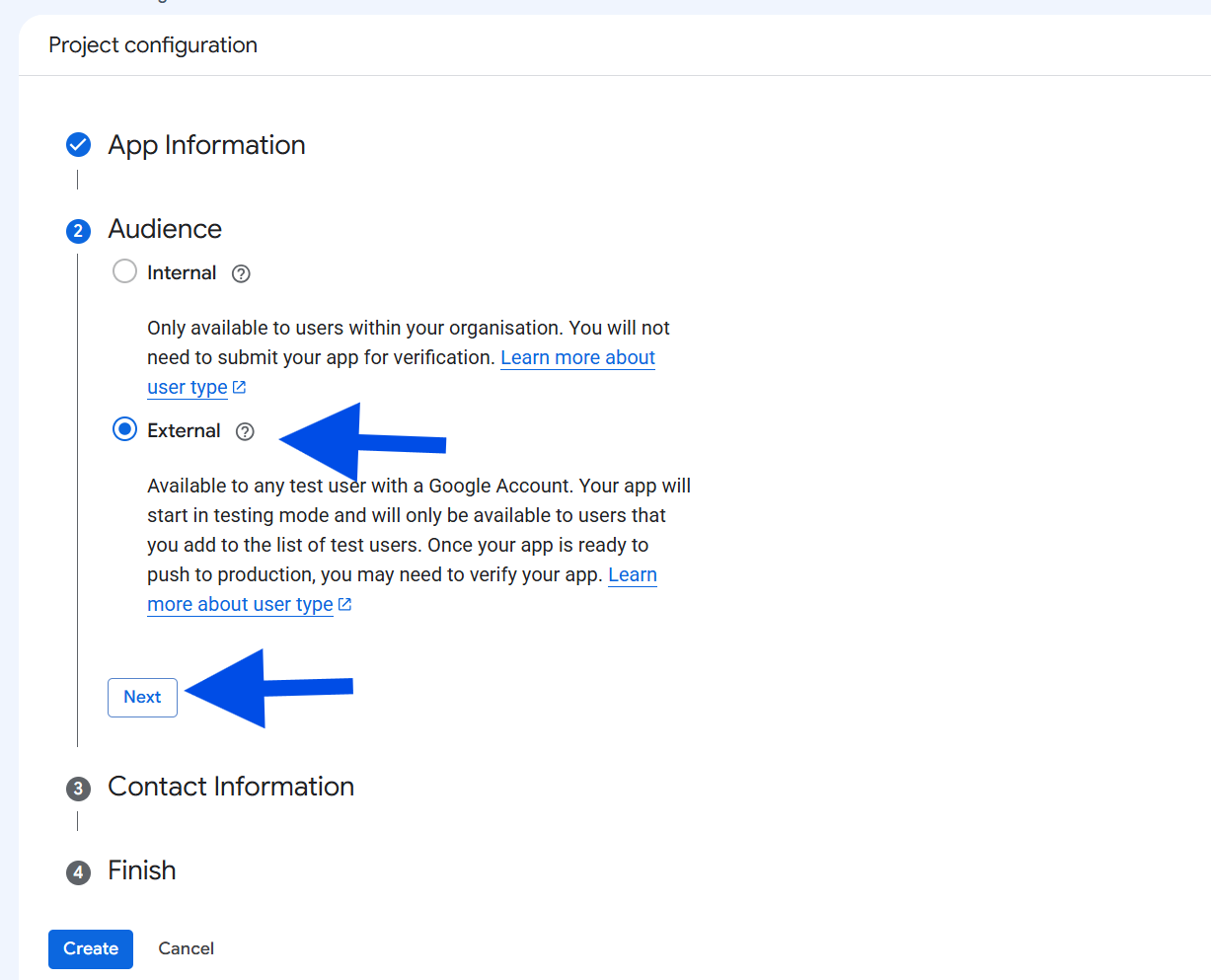
Select External so the connection can be used with Google accounts outside your organization, then click Next.
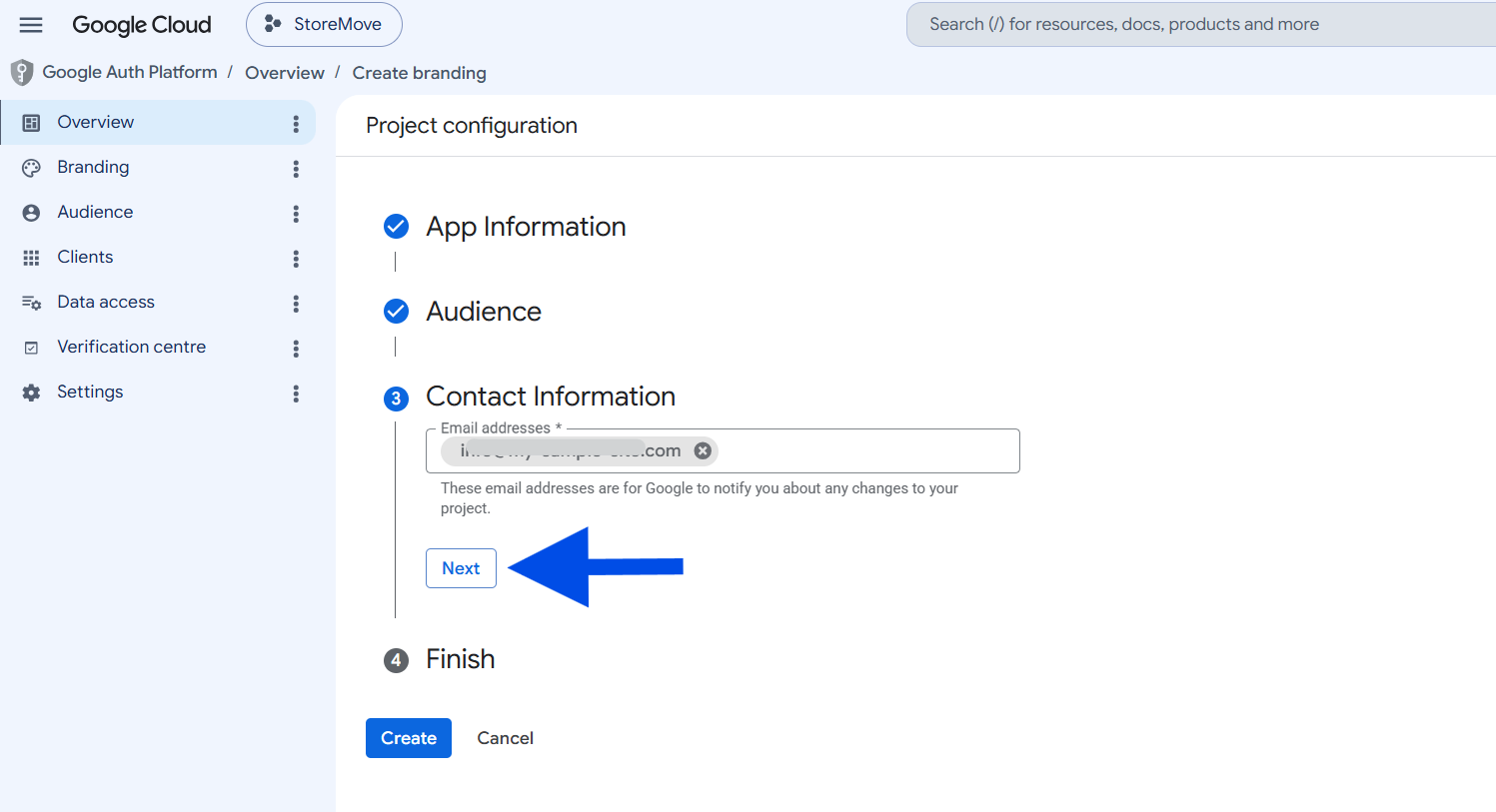
Enter an email address where Google can send important notifications about your project, then click Next.
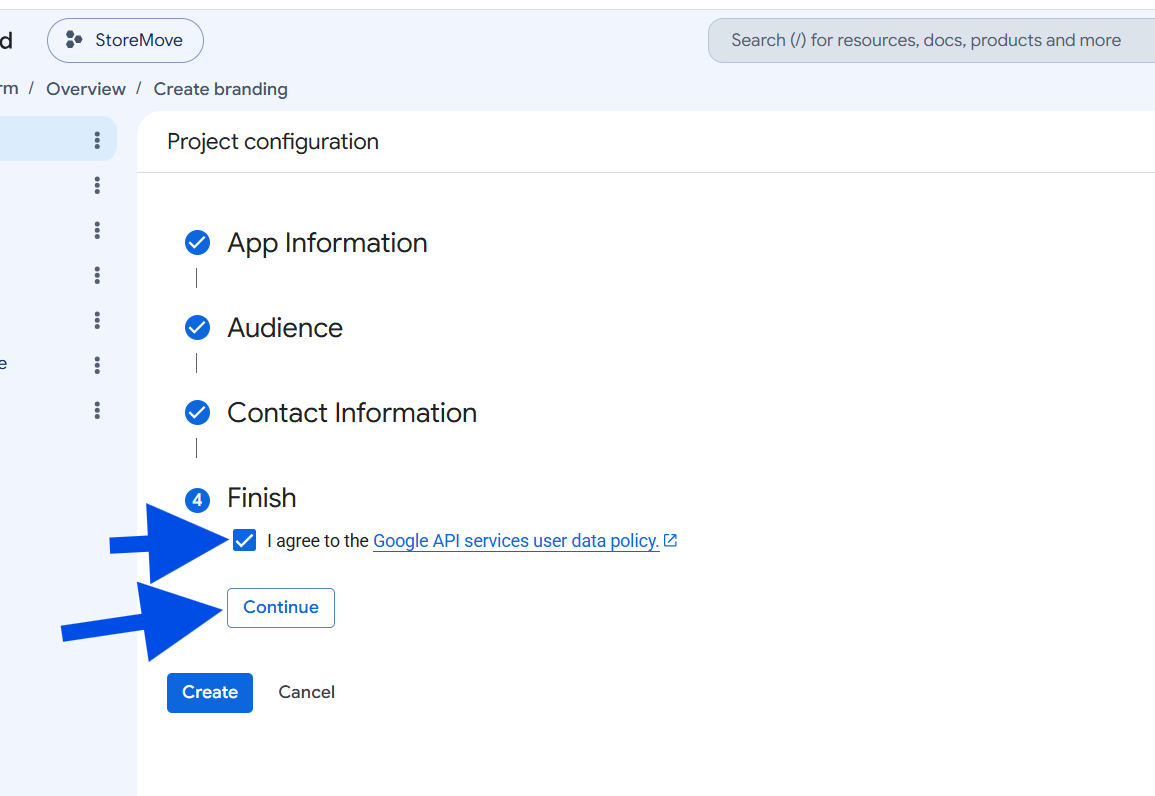
Check the box to agree to the Google API Services User Data Policy, then click Continue to proceed with the Google Auth Platform setup.
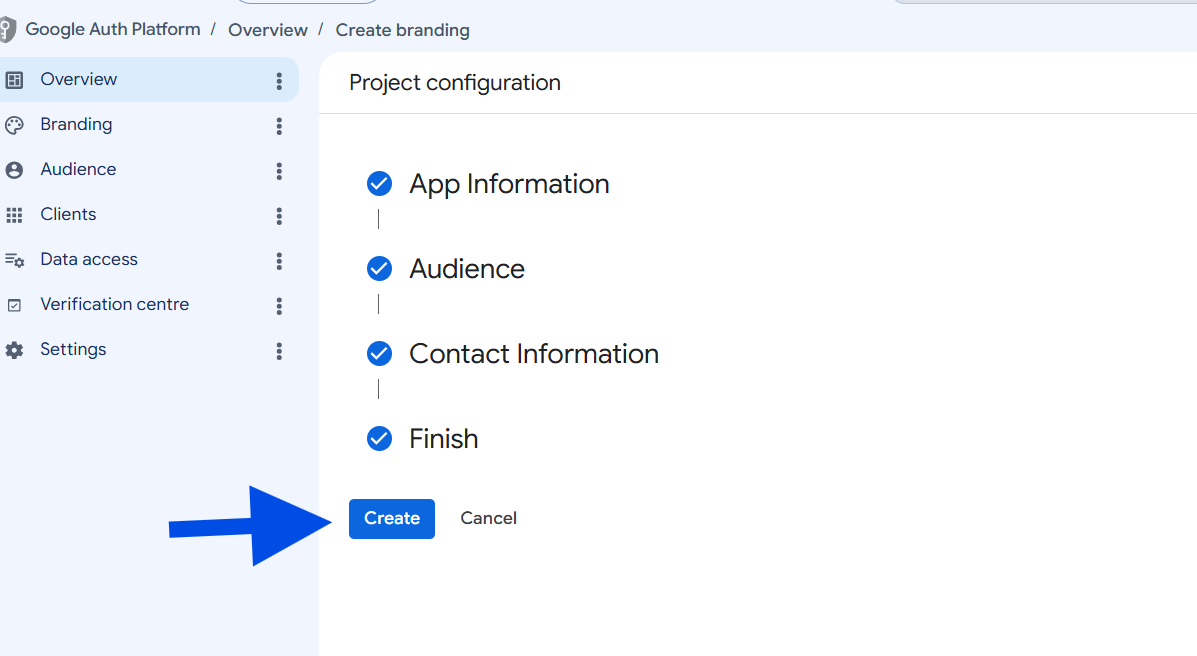
Review the completed setup sections, then click Create to finish configuring Google Auth Platform for your project.
6. Create an OAuth Client
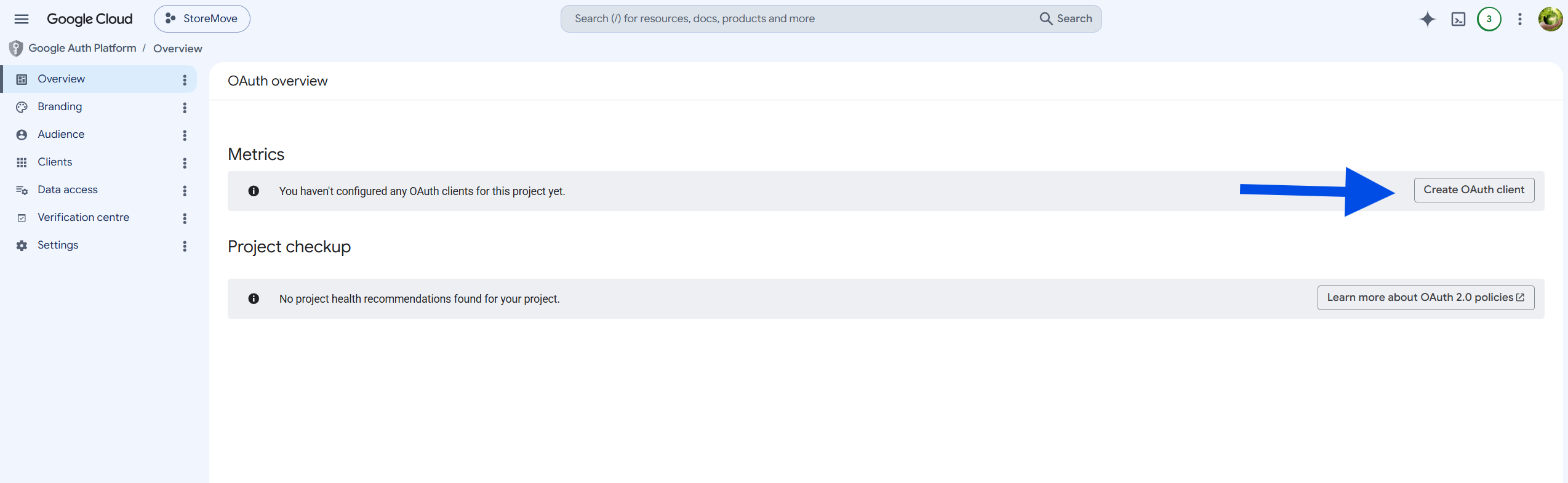
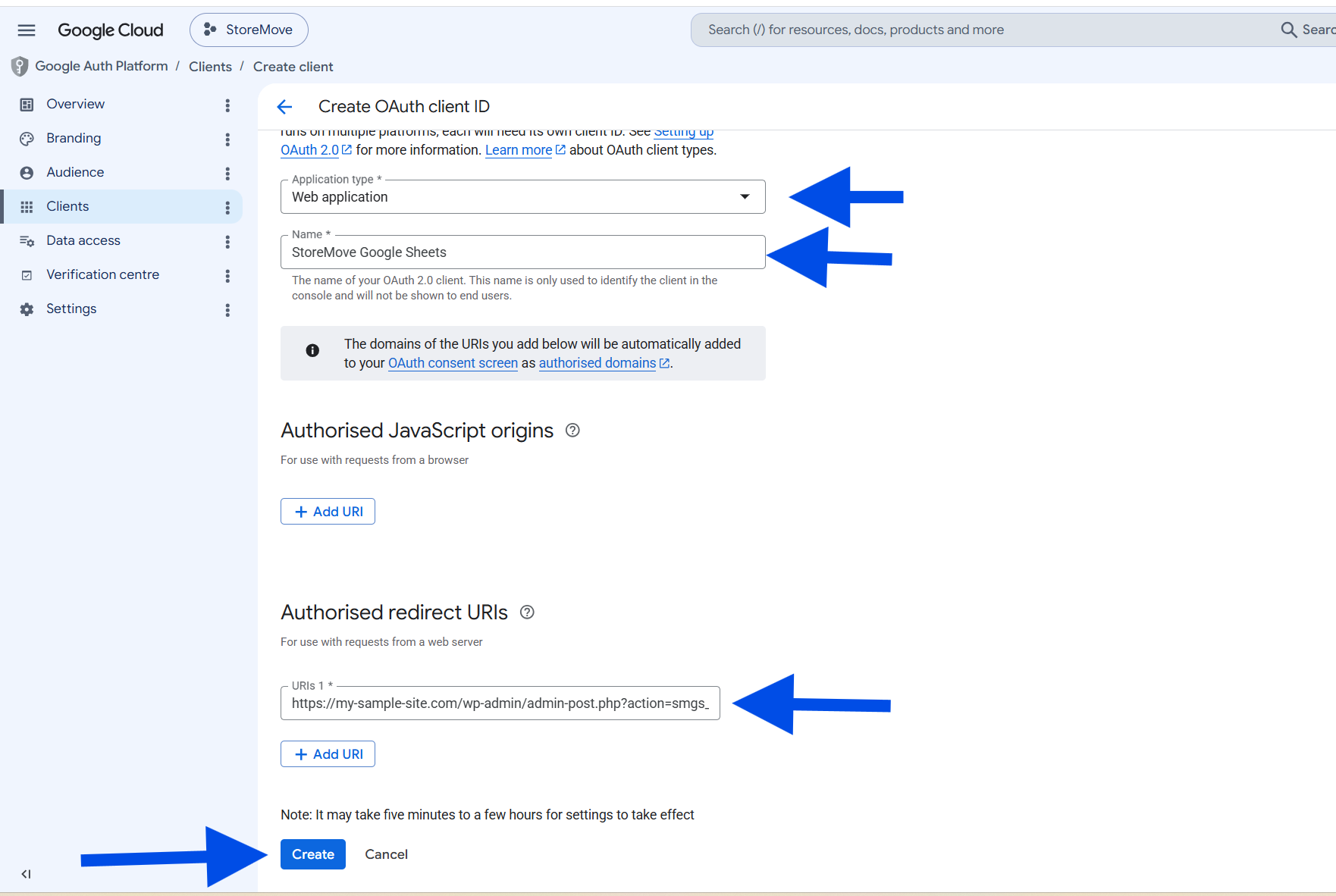
Click Create OAuth client to create the OAuth 2.0 credentials required to connect StoreMove with Google Sheets and Google Drive.
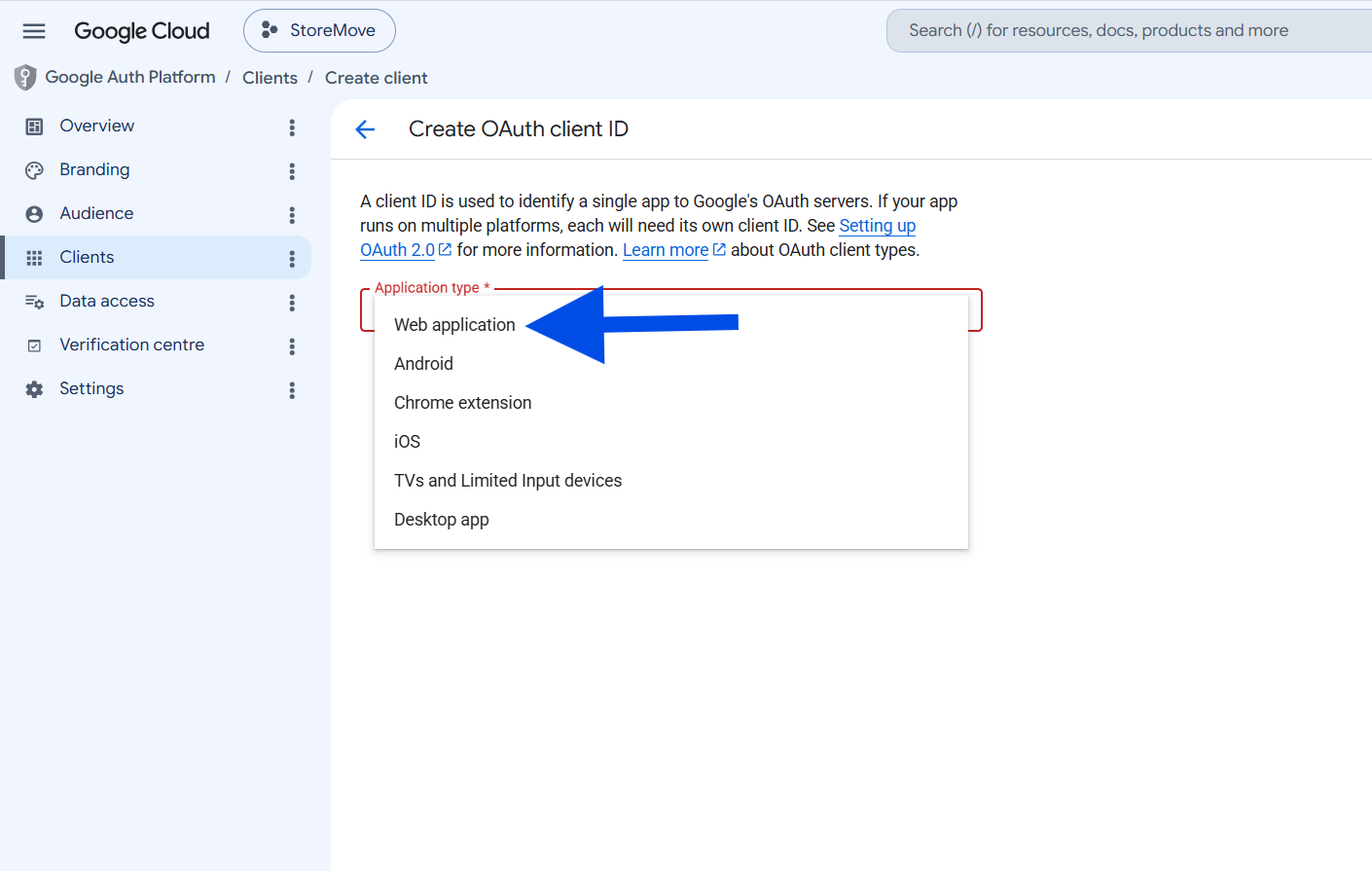
From the Application type dropdown, select Web application to create the correct OAuth client type for the StoreMove connection.
Enter a name for the OAuth client, add the Authorized redirect URI provided by the Google Sheets Add-on for StoreMove, then click Create.
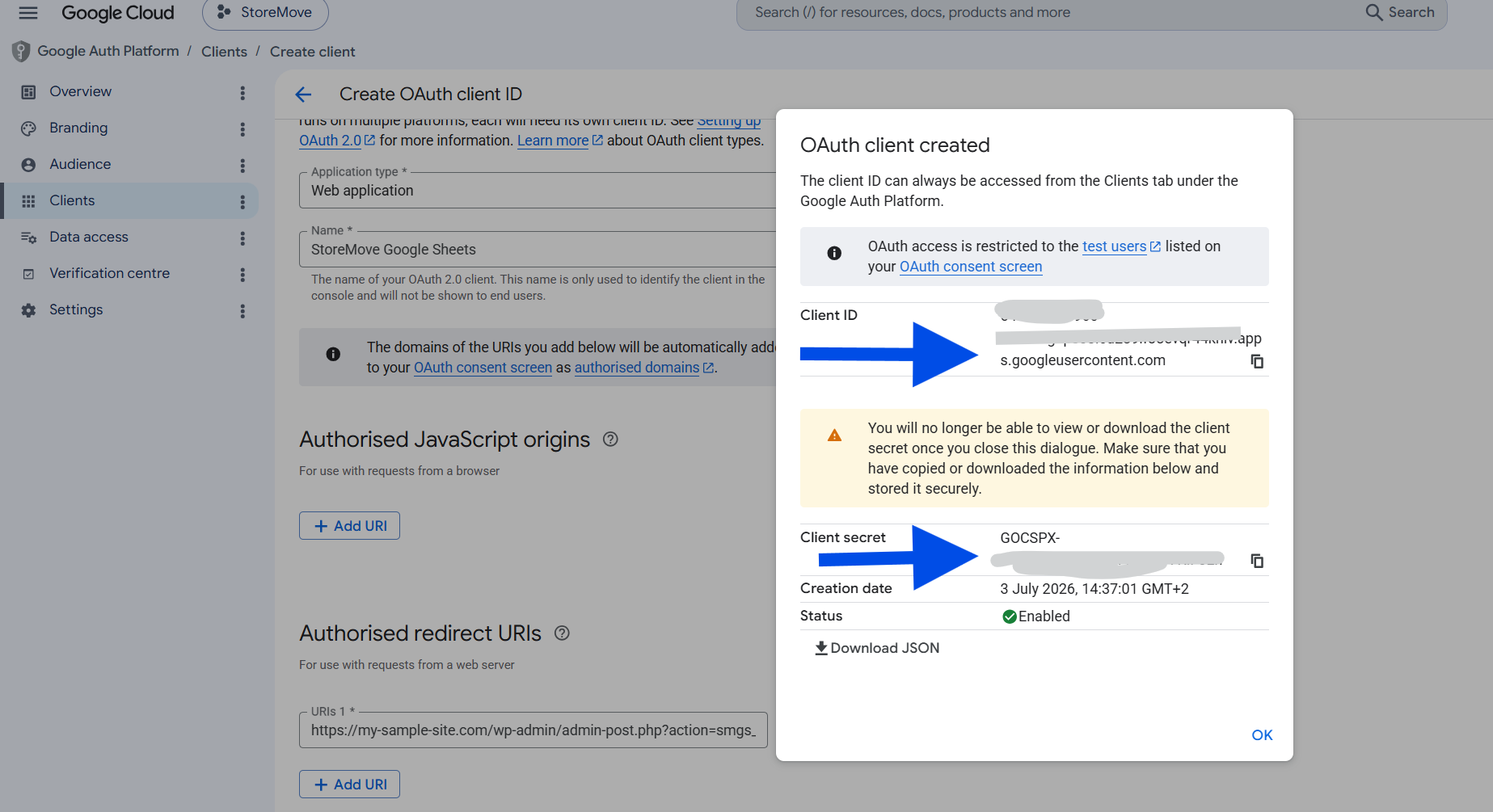
Copy the Client ID and Client Secret shown in the dialog. You will need both values to connect the Google Sheets Add-on for StoreMove to your Google account.
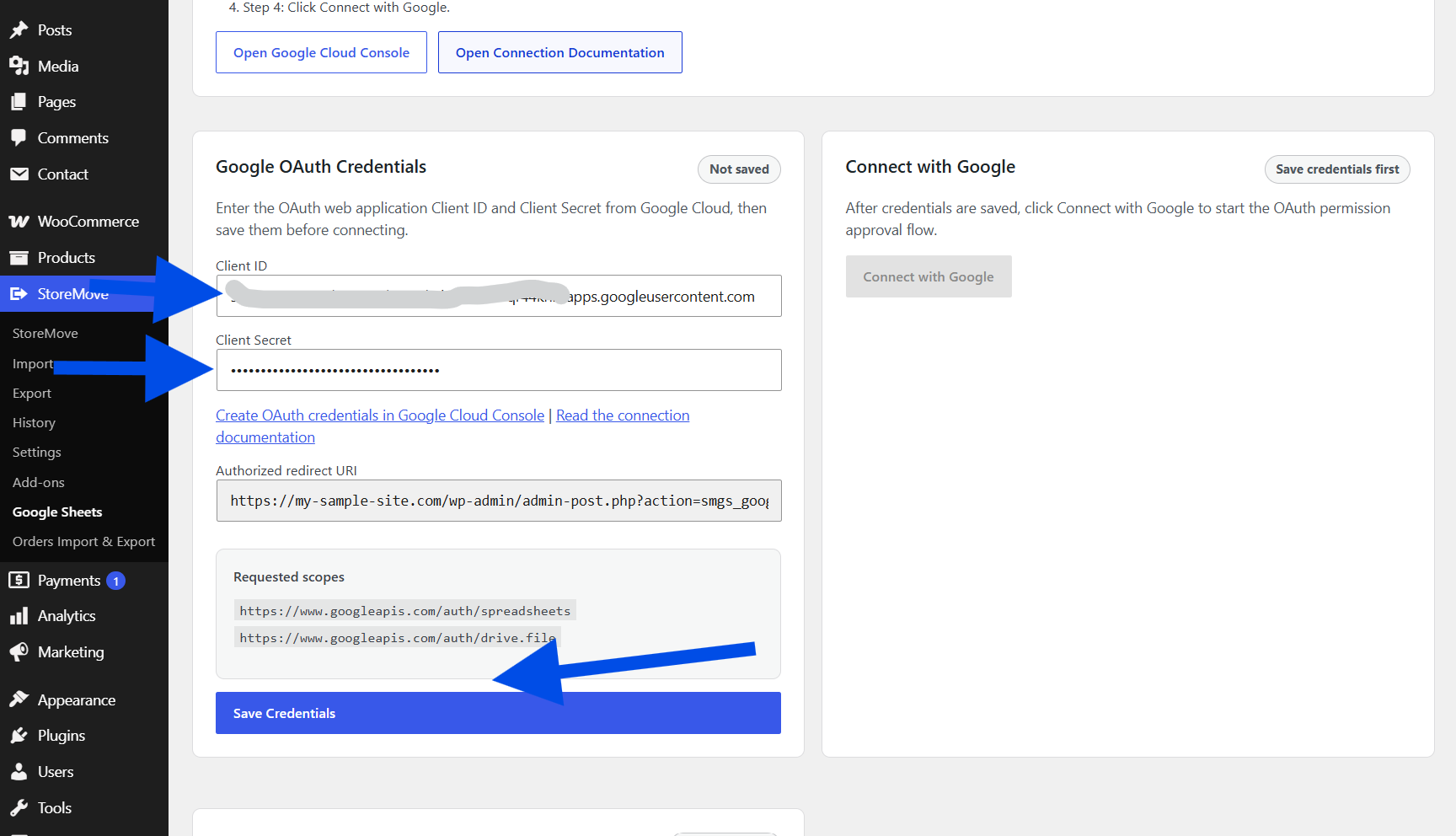
In WordPress, go to StoreMove > Google Sheets > Connection.
Paste the Client ID and Client Secret into the Google Sheets Add-on for StoreMove connection settings, then click Save Credentials.
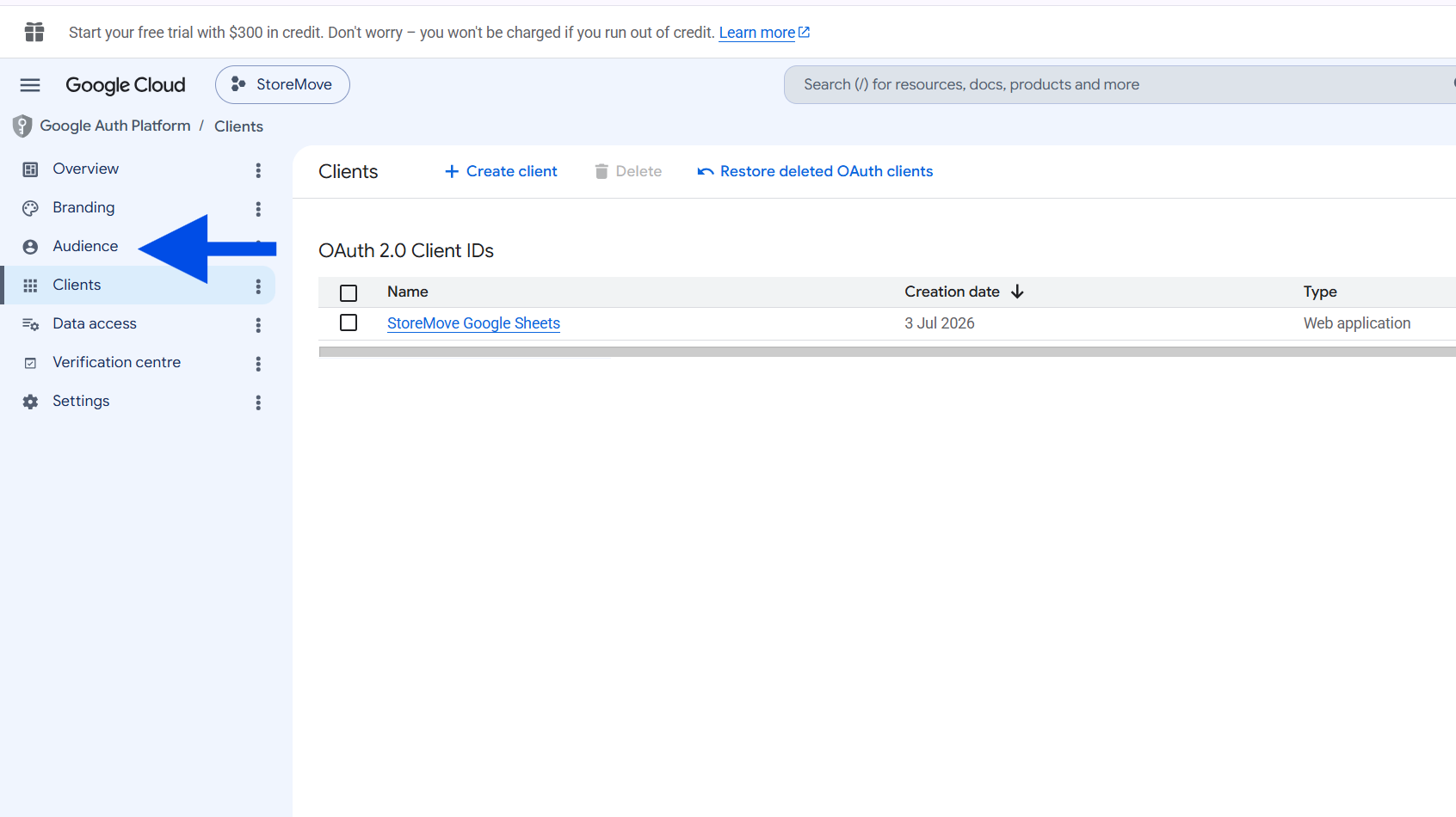
7. Make the App Available to External Users
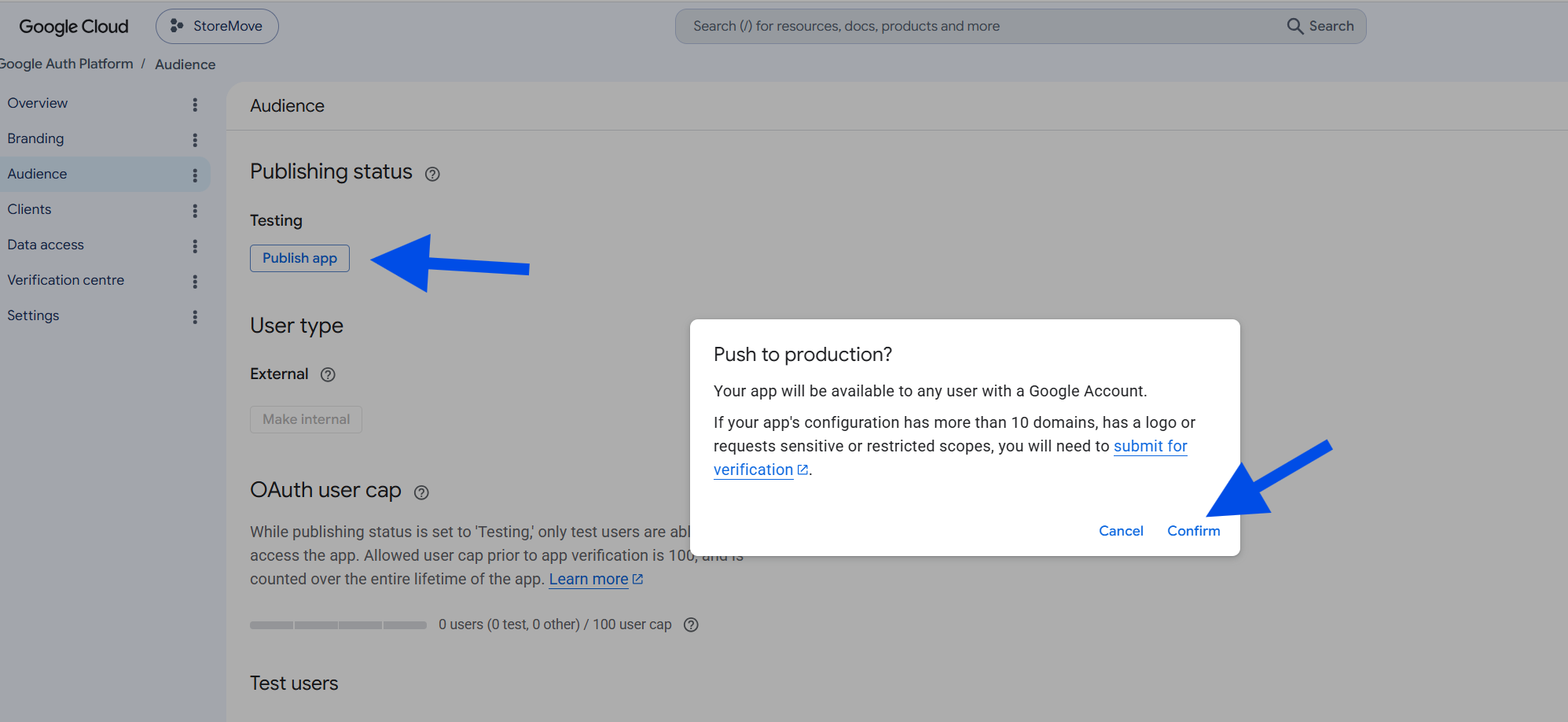
In your Google Cloud project, open the Audience section, then publish the app so the OAuth connection is no longer limited to test users.
Click Publish app, then click Confirm in the confirmation dialog to move the OAuth app from testing to production.
Connect StoreMove with Google
Return to StoreMove > Google Sheets > Connection in WordPress and click Connect with Google to start the OAuth authorization process.
Select both requested permissions for Google Drive and Google Sheets, then click Continue to authorize the connection.
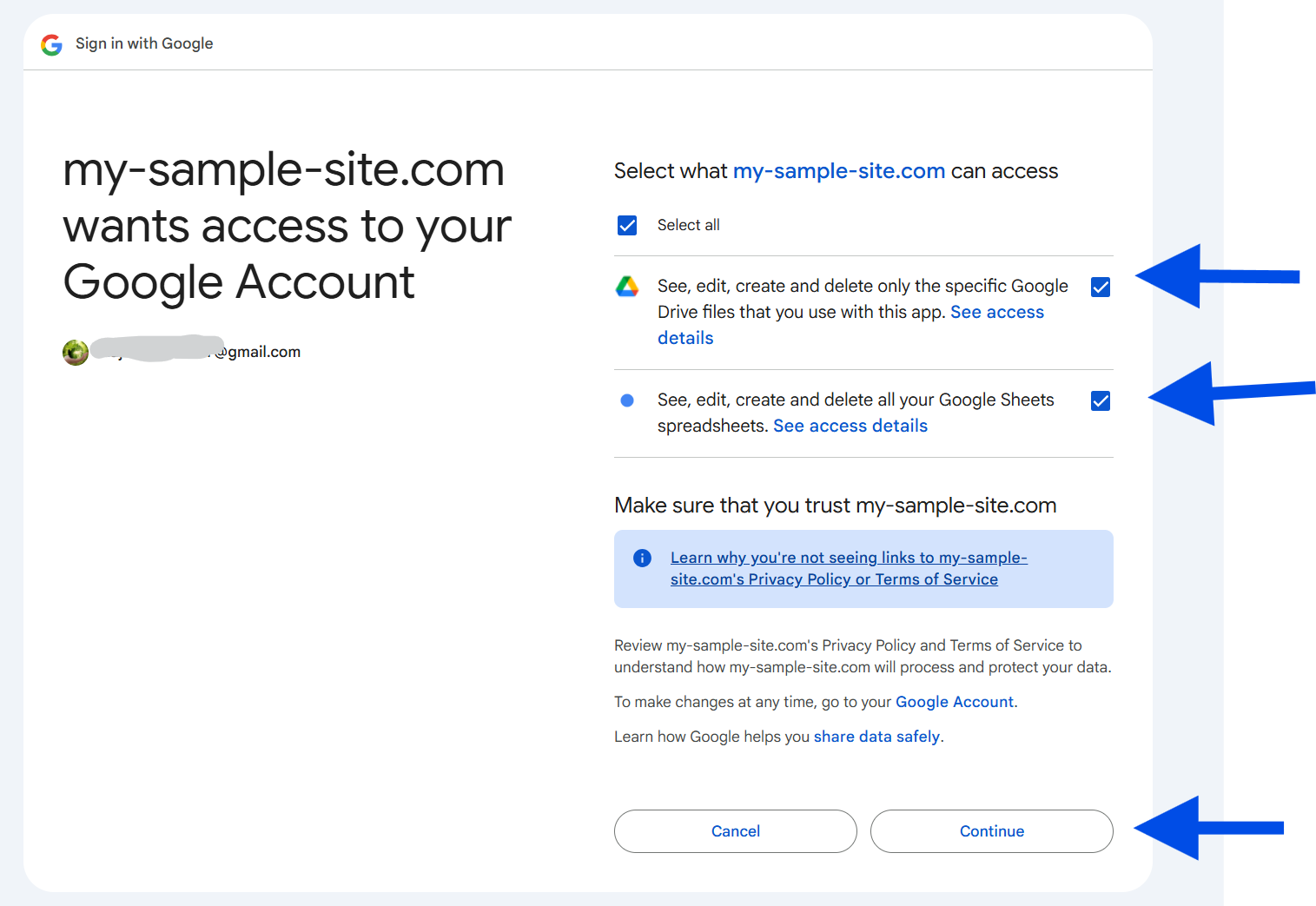
Your Google account is now connected, and the Google Sheets Add-on for StoreMove is ready to import and export data with Google Sheets and Google Drive.
Export to Google Drive
Use StoreMove’s normal export screen to send data to Google Sheets.
- Go to StoreMove > Export.
- Select the data type you want to export.
- Choose the fields and any available StoreMove export options.
- Choose Google Sheets as the export destination.
- Run the export.
The add-on creates a Google spreadsheet in the StoreMove folder structure in Google Drive. The exported sheet uses the same StoreMove column structure that StoreMove uses for CSV exports.
Import from Google Drive
Use StoreMove’s normal import screen to import from a Google Sheet.
- Go to StoreMove > Import.
- Select the correct StoreMove data type before loading the Google Sheet.
- Choose Google Sheets as the source.
- Enter the Google Sheet URL or spreadsheet ID.
- Click Load Sheet Tabs.
- Select the sheet tab you want to import.
- Click Preview Google Sheet.
- Continue with StoreMove’s normal mapping, preview, and import flow.
The selected StoreMove data type is preserved through loading tabs, previewing the sheet, and running the final import. Available import and export data types are detected dynamically from StoreMove and active StoreMove add-ons.