
Table of Contents
Note: Microsoft Teams incoming webhook templates do not require a premium license. However, webhook creation depends on the Workflows app and your Microsoft Teams environment. If you are using Microsoft Teams Free and only see Communities, Microsoft’s official webhook documentation does not clearly confirm support for this setup.
Create a Microsoft Teams Account or Sign In
To begin, sign in to your Microsoft Teams work or school account at teams.microsoft.com. After signing in, you can create or open a team and continue with the Microsoft Teams notification setup.
Note: In Microsoft Teams Free, you can create communities and add channels. However, incoming webhooks in Microsoft Teams use the Workflows feature, and Microsoft’s official documentation does not clearly confirm that this webhook setup is available in the Teams Free Communities environment. If the Workflows option is not available in your account, you will not be able to create an incoming webhook in the free version.
Create a New Team
For detailed instructions, see Microsoft’s official guide: Create a team from scratch in Microsoft Teams.
Create a Channel
For detailed instructions, see Microsoft’s official guide: Create a standard, private, or shared channel in Microsoft Teams.
Create an Incoming Webhook with Workflows
For detailed instructions, see Microsoft’s official guide: Create incoming webhooks with Workflows for Microsoft Teams.
Enable Microsoft Teams Notifications in Master SMTP
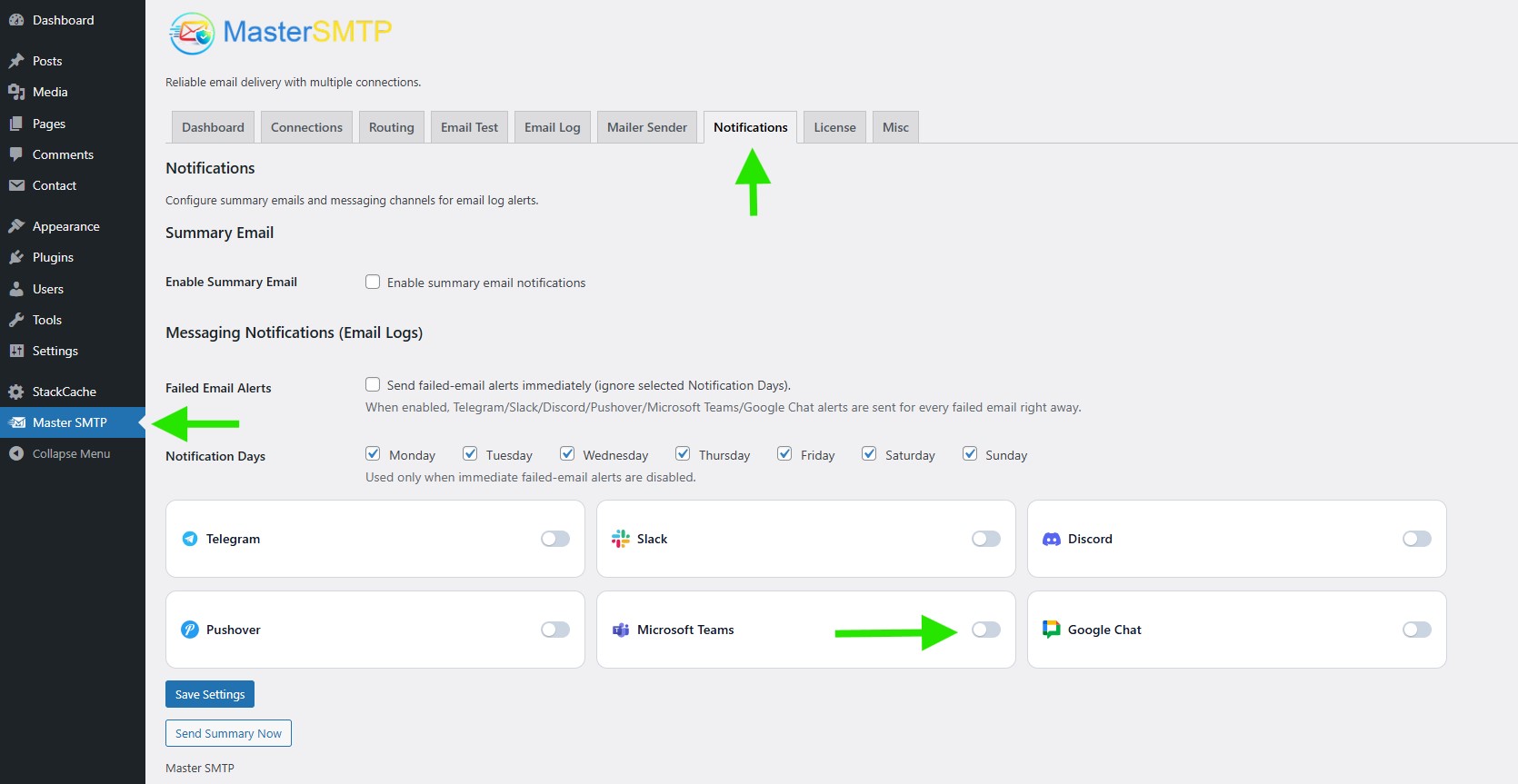
After creating the incoming webhook in Microsoft Teams and copying its webhook URL, go to your WordPress dashboard and open Master SMTP > Notifications. Then find Microsoft Teams under Messaging Notifications (Email Logs) and enable it to display the Microsoft Teams notification settings.
Configure the Microsoft Teams Notification Settings
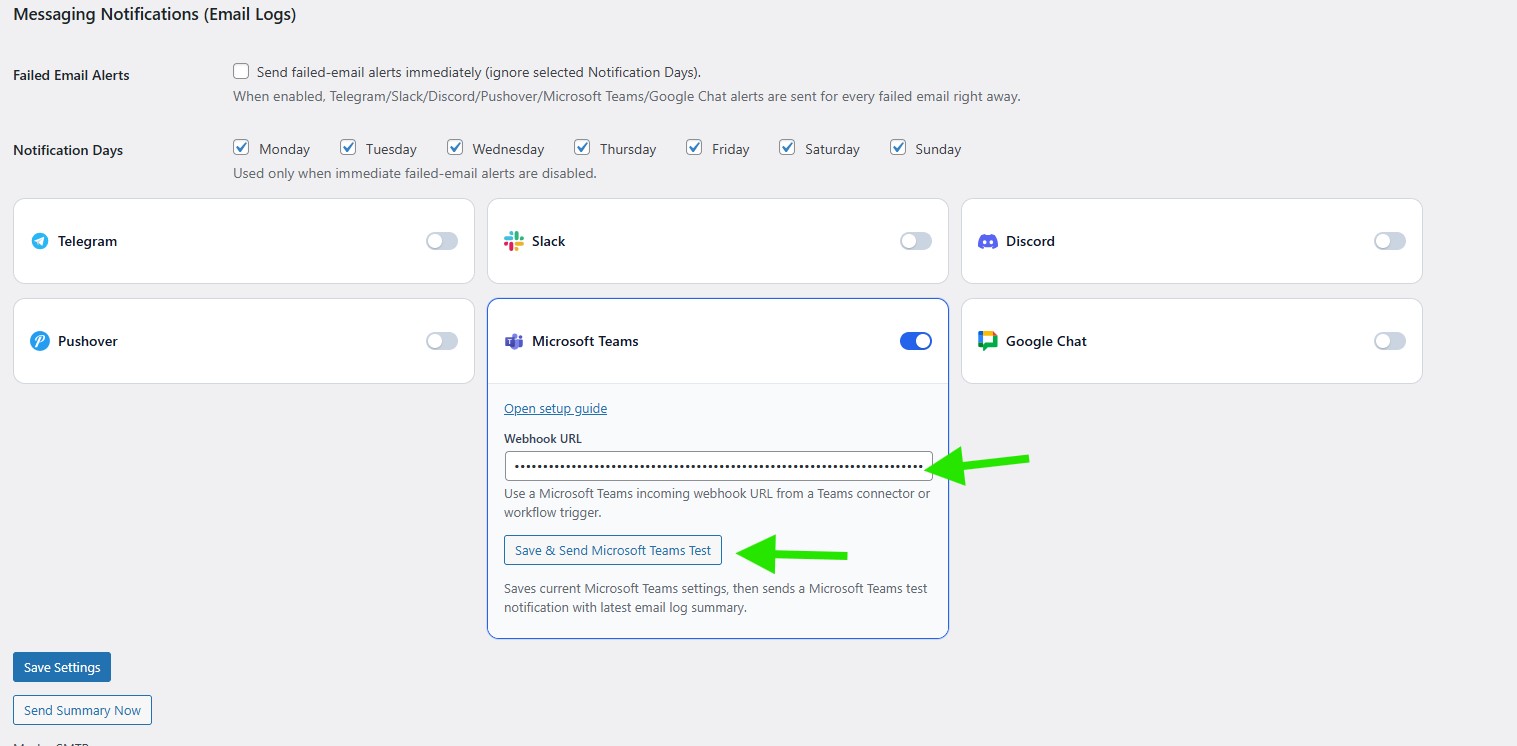
Notification Days: Select the days when you want to receive messaging notifications. These days apply to all enabled messaging channels, including Telegram, Slack, Discord, Pushover, Microsoft Teams, and Google Chat.
Webhook URL: Paste the Microsoft Teams incoming webhook URL you copied from your Teams workflow or connector setup.
After entering the webhook URL, click Save & Send Microsoft Teams Test to save the settings and send a test notification to your Microsoft Teams channel.
On the same page, you should see a success message confirming that the notification settings were saved and the Microsoft Teams test notification was sent successfully.