
Table of Contents
Add-on Overview
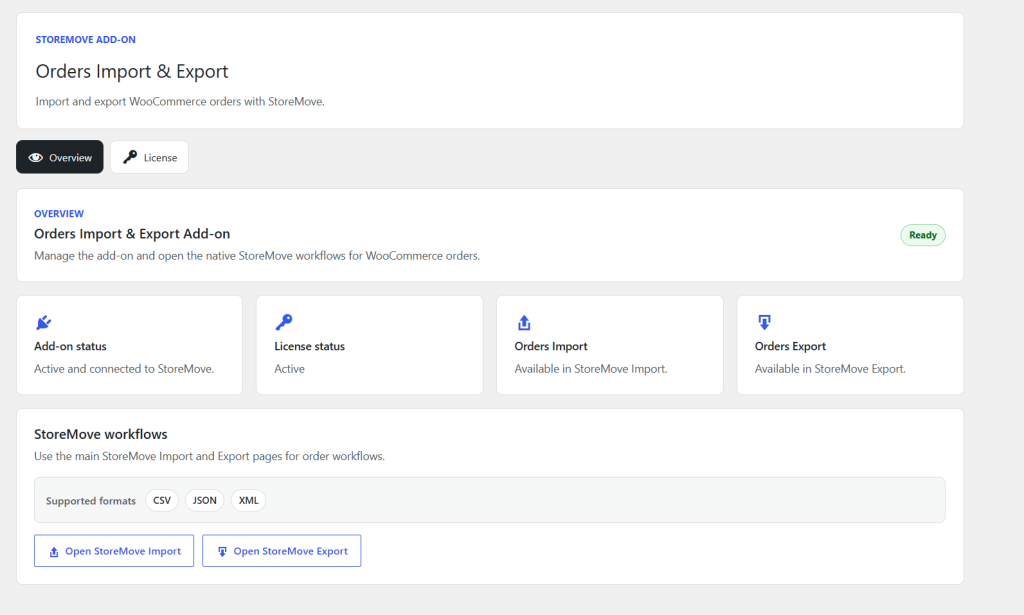
Orders Import & Export Add-on for StoreMove extends StoreMove with WooCommerce order import and export support. It does not duplicate the StoreMove workflow. Instead, it registers Orders as a StoreMove module and lets StoreMove handle upload, preview, mapping, export generation, history records, logs, formats, and admin screen behavior.
Primary purpose
Use this add-on when a store needs WooCommerce order data to participate in the same StoreMove import and export workflows already used for Products and Coupons.
Installation
- Upload the
storemove-orders-import-exportfolder towp-content/plugins/. - Confirm StoreMove is installed and active.
- Confirm WooCommerce is installed and active.
- Activate Orders Import & Export Add-on for StoreMove from the WordPress Plugins screen.
- Open StoreMove > Orders Import & Export.
- Open the License tab and activate the license.
License Management
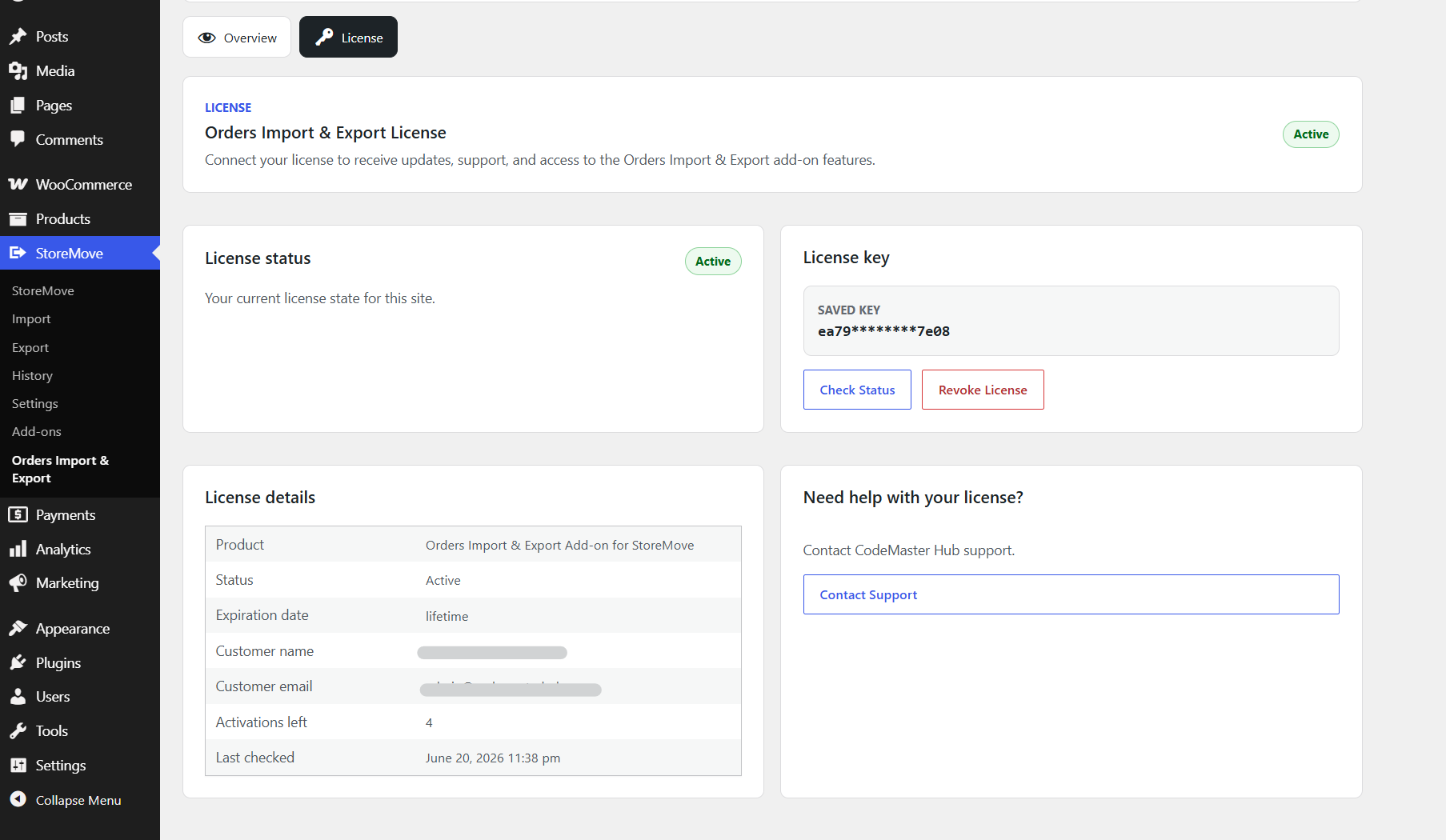
The License tab manages the add-on license. License activation, status checks, and deactivation are handled by the add-on licensing service and should be used from the add-on admin page.
Activate a License
- Go to StoreMove > Orders Import & Export.
- Open the License tab.
- Enter the license key.
- Click the activation button.
- Return to the Overview tab and confirm the license status is active.
License Details
The License tab shows the current license key state, status label, expiration or renewal details when available, and local license actions. The Product ID is intentionally not shown in the license details table.
License Actions
- Activate: Sends the entered license key to the licensing endpoint and stores the returned status locally.
- Check status: Refreshes the license status from the licensing endpoint.
- Deactivate or revoke: Deactivates the license for the current site.
- Remove local data: Removes stored local license data from this WordPress site.
Add-on Admin Page
The add-on admin page is a management page only. It does not contain separate Import Orders or Export Orders workflow tabs. Real order import and export work happens inside the main StoreMove Import and Export pages.
Tabs
| Tab | Purpose |
|---|---|
| Overview | Shows add-on status, license status, Orders Import availability, Orders Export availability, supported formats, and buttons to open the main StoreMove workflows. |
| License | Handles license activation, status checks, local license data, and license deactivation. |
StoreMove Integration
The add-on registers Orders through StoreMove extension points so Orders behaves like an available StoreMove module. Once active, StoreMove can list Orders on Import and Export screens, use the add-on importer/exporter classes, show fields for mapping and exports, and record jobs in History.
Registered Order Module
- Data type:
orders - Label: Orders
- Object type: order
- Source: add-on
- Importer:
SMOIE_Order_Importer - Exporter:
SMOIE_Order_Exporter
Import Orders
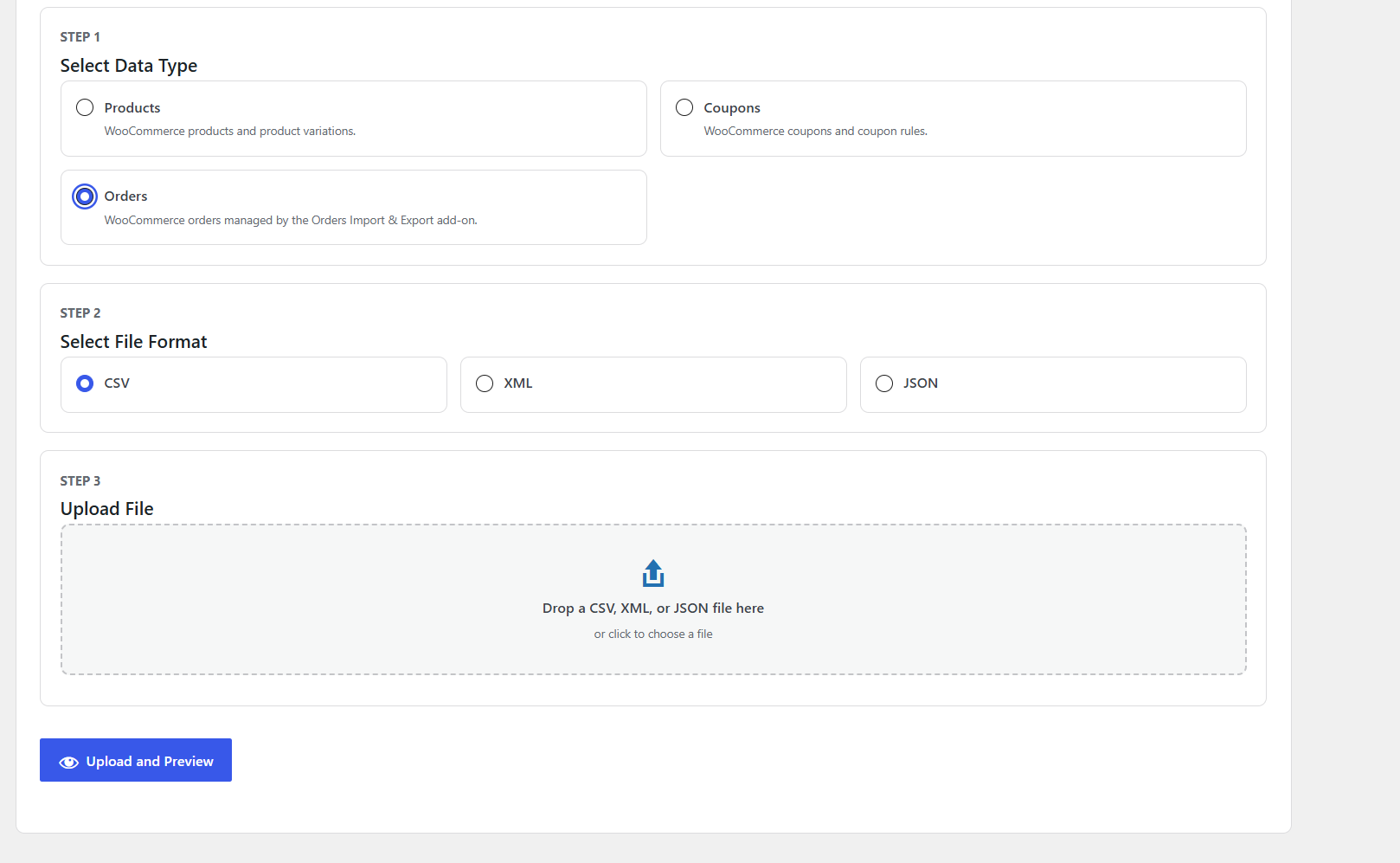
Order imports run through the main StoreMove Import workflow. StoreMove handles upload, parsing, preview, field mapping, import options, batching, progress display, and history logging. The add-on handles the WooCommerce order create/update work through WooCommerce CRUD APIs.
Basic Import Steps
- Go to StoreMove > Import.
- Select Orders as the data type.
- Select CSV, JSON, or XML.
- Upload the order file.
- Review the preview and mapping screen.
- Map source columns to supported order fields.
- Choose import options such as create/update mode and empty-field behavior.
- Run the import.
Import Modes
| Mode | Behavior |
|---|---|
| Create and update | Creates new orders when no matching order exists and updates existing orders when the imported ID matches an existing order. |
| Create only | Creates new orders and skips rows that match existing orders. |
| Update only | Updates existing orders and skips rows without a matching order. |
| Skip existing | Creates only non-existing orders and skips existing order IDs. |
Import Notes
- Existing orders are matched by the imported
idfield. - Blank mapped values are ignored unless StoreMove’s overwrite-empty option is enabled for an existing order.
- Order status values may be provided with or without the
wc-prefix, for exampleprocessingorwc-processing. - Invalid order statuses are ignored instead of forcing an invalid WooCommerce order state.
- Order saves use WooCommerce CRUD methods, not direct database table writes.
Export Orders
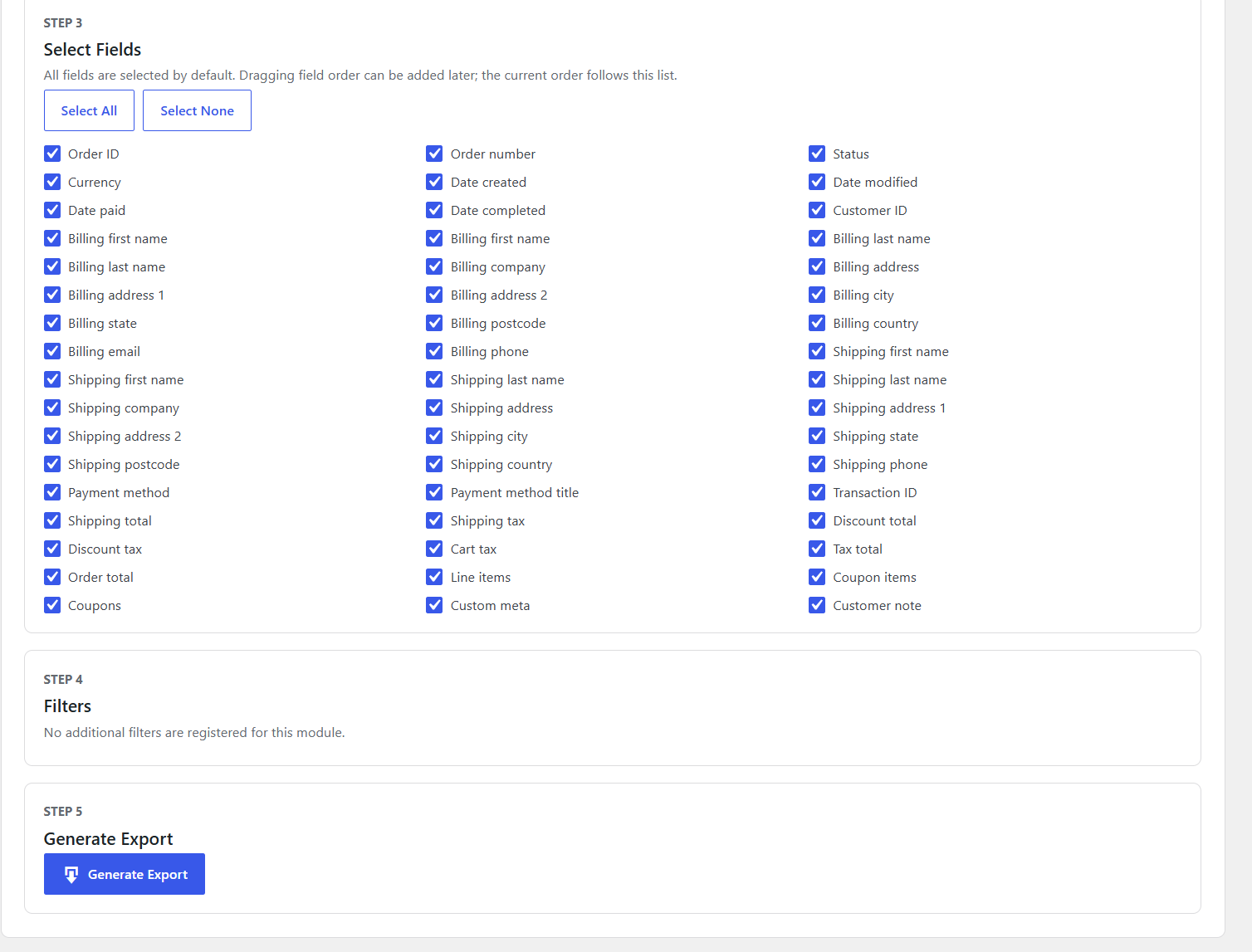
Order exports run through the main StoreMove Export workflow. StoreMove handles data type selection, format selection, field selection, file generation, protected file storage, and History records. The add-on supplies the WooCommerce order rows.
Basic Export Steps
- Go to StoreMove > Export.
- Select Orders as the data type.
- Select CSV, JSON, or XML.
- Select the order fields to include.
- Review Step 4. If the export was opened from selected orders, the selected-order notice appears here.
- Click Generate Export.
- Open History to download the generated file.
Export Selected Orders
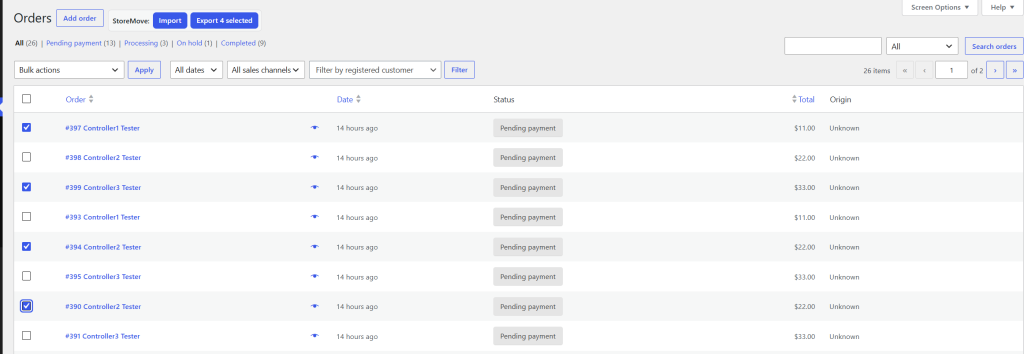
Selected order export works from the WooCommerce Orders admin list. It follows the same user flow as StoreMove’s selected Products and selected Coupons export behavior.
How It Works
- Select one or more orders in the WooCommerce Orders list.
- Click Export X selected in the StoreMove toolbar.
- StoreMove opens the Export page with Orders selected.
- Step 4 shows a notice such as 2 selected orders will be exported. with a Clear selection link.
- Click Generate Export.
Expected Result
The export file contains only the selected orders. The selected IDs are submitted through filters[order_ids], and the exporter limits the WooCommerce order query with post__in so HPOS and legacy order storage both respect the selection.
Supported Fields
The same field list is used for order import mapping and order export field selection.
| Field Key | Field Label | Import Notes | Export Notes |
|---|---|---|---|
id | Order ID | Used to match an existing order for updates. | Exports the WooCommerce order ID. |
order_number | Order number | Used with the source order ID to create a duplicate-safe import reference. The WooCommerce display number itself is not forced. | Exports the displayed order number. |
status | Status | Accepts valid WooCommerce order statuses with or without wc-. | Exports the order status without the wc- prefix. |
currency | Currency | Sets order currency. | Exports the order currency code. |
date_created | Date created | Parses date values through WooCommerce date handling. | Exports Y-m-d H:i:s when available. |
date_modified | Date modified | Sets modified date when supported by the order object. | Exports Y-m-d H:i:s when available. |
date_paid | Date paid | Sets paid date when supported by the order object. | Exports Y-m-d H:i:s when available. |
date_completed | Date completed | Sets completed date when supported by the order object. | Exports Y-m-d H:i:s when available. |
customer_id | Customer ID | Sets the customer ID for new or updated orders. | Exports the customer ID. |
billing_email | Billing email | Sets billing email. | Exports billing email. |
billing_first | Billing first name | Sets billing first name. | Exports billing first name. |
billing_last | Billing last name | Sets billing last name. | Exports billing last name. |
billing_address | Billing address | Imports pipe-separated address parts into address 1, address 2, city, state, postcode, and country when individual fields are not mapped. | Exports address parts separated by |. |
billing_first_name, billing_last_name, billing_company, billing_address_1, billing_address_2, billing_city, billing_state, billing_postcode, billing_country, billing_phone | Billing details | Sets full WooCommerce billing address fields. | Exports each supported billing field separately. |
shipping_first | Shipping first name | Sets shipping first name. | Exports shipping first name. |
shipping_last | Shipping last name | Sets shipping last name. | Exports shipping last name. |
shipping_address | Shipping address | Imports pipe-separated address parts into address 1, address 2, city, state, postcode, and country when individual fields are not mapped. | Exports address parts separated by |. |
shipping_first_name, shipping_last_name, shipping_company, shipping_address_1, shipping_address_2, shipping_city, shipping_state, shipping_postcode, shipping_country, shipping_phone | Shipping details | Sets full WooCommerce shipping address fields. | Exports each supported shipping field separately. |
payment_method | Payment method | Sets payment method ID. | Exports payment method ID. |
payment_method_title | Payment method title | Sets payment method title. | Exports payment method title. |
transaction_id | Transaction ID | Sets transaction ID. | Exports transaction ID. |
shipping_total | Shipping total | Sets shipping total. | Exports shipping total. |
shipping_tax | Shipping tax | Sets shipping tax. | Exports shipping tax. |
discount_total | Discount total | Sets discount total. | Exports discount total. |
discount_tax | Discount tax | Sets discount tax. | Exports discount tax. |
cart_tax | Cart tax | Sets cart tax. | Exports cart tax. |
tax_total | Tax total | Used as a cart tax fallback when cart_tax is not mapped. | Exports total order tax. |
order_total | Order total | Sets order total. | Exports order total. |
line_items | Line items | Imports JSON line items as real WooCommerce product order items. Existing products are linked when possible; missing products are preserved as readable line items. | Exports line item data as JSON, including product IDs, variation IDs, SKU, quantity, totals, taxes, and safe item meta. |
coupon_items | Coupon items | Imports JSON coupon lines as WooCommerce coupon order items without requiring the coupon to still exist. | Exports coupon item data as JSON, including code, discount, discount tax, and safe item meta. |
coupons | Coupons | Imports coupon codes as coupon order items when coupon_items is not mapped. | Exports coupon codes separated by |. |
custom_meta | Custom meta | Imports safe custom order metadata through WooCommerce order meta APIs. Protected WooCommerce/internal keys are skipped. | Exports safe non-protected custom order metadata as JSON. |
customer_note | Customer note | Sets customer note. | Exports customer note. |
File Formats
Orders use the same StoreMove format system as Products and Coupons. The add-on provides order rows and fields; StoreMove handles parsing and generation for supported formats.
| Format | Use Case | Notes |
|---|---|---|
| CSV | Spreadsheet editing and most common store migration tasks. | CSV delimiter follows StoreMove settings. |
| JSON | Developer-friendly structured data exchange. | Useful when preserving nested structures such as line item JSON. |
| XML | Structured data exchange with XML-based systems. | Generated and parsed through StoreMove's format handlers. |
History and Logs
Order imports and exports are recorded in StoreMove History using the object type order and source add-on. Export files are stored by StoreMove and can be downloaded from History.
History Records
- Direction: import or export
- Data type: orders
- Object type: order
- Source: add-on
- Format: CSV, JSON, or XML
- Status and counters from the StoreMove job
Logs
Import row messages are written through the StoreMove logger when a logger and log file are available. Export generation is logged by StoreMove’s export controller.
Data Handling and HPOS
The add-on is designed to work with WooCommerce order storage through public WooCommerce APIs.
- Order imports create and update orders using WooCommerce CRUD APIs.
- Order exports read orders using
wc_get_orders(). - Selected exports use
post__in, which WooCommerce HPOS remaps to the order ID field. - The add-on does not write directly to WooCommerce order database tables.
- The WooCommerce Orders list toolbar supports both legacy and HPOS order admin screens.
Troubleshooting
Orders does not appear in StoreMove Import or Export
- Confirm StoreMove is active.
- Confirm WooCommerce is active.
- Confirm this add-on is active.
- Confirm the add-on license is valid and active.
- Refresh the StoreMove Import or Export page after activating the license.
The WooCommerce Orders list does not show StoreMove buttons
- Confirm the current user can manage StoreMove.
- Confirm the license is active.
- Confirm you are on the Orders list screen, not an individual order edit screen.
- Confirm the page is not hiding the page title area through another admin plugin.