
Table of Contents
Plugin Overview
StoreMove provides WooCommerce product and coupon import/export workflows from the WordPress admin area. It supports field mapping, preview before import, protected export files, history records, per-operation logs, and CSV, XML, and JSON formats.
How to use it
Open the StoreMove menu in WordPress admin, choose Import, Export, History, Settings, or Add-ons, and follow the screen workflow.
Expected result
Store administrators can move product and coupon data in and out of WooCommerce while keeping an audit trail in History.
Dashboard
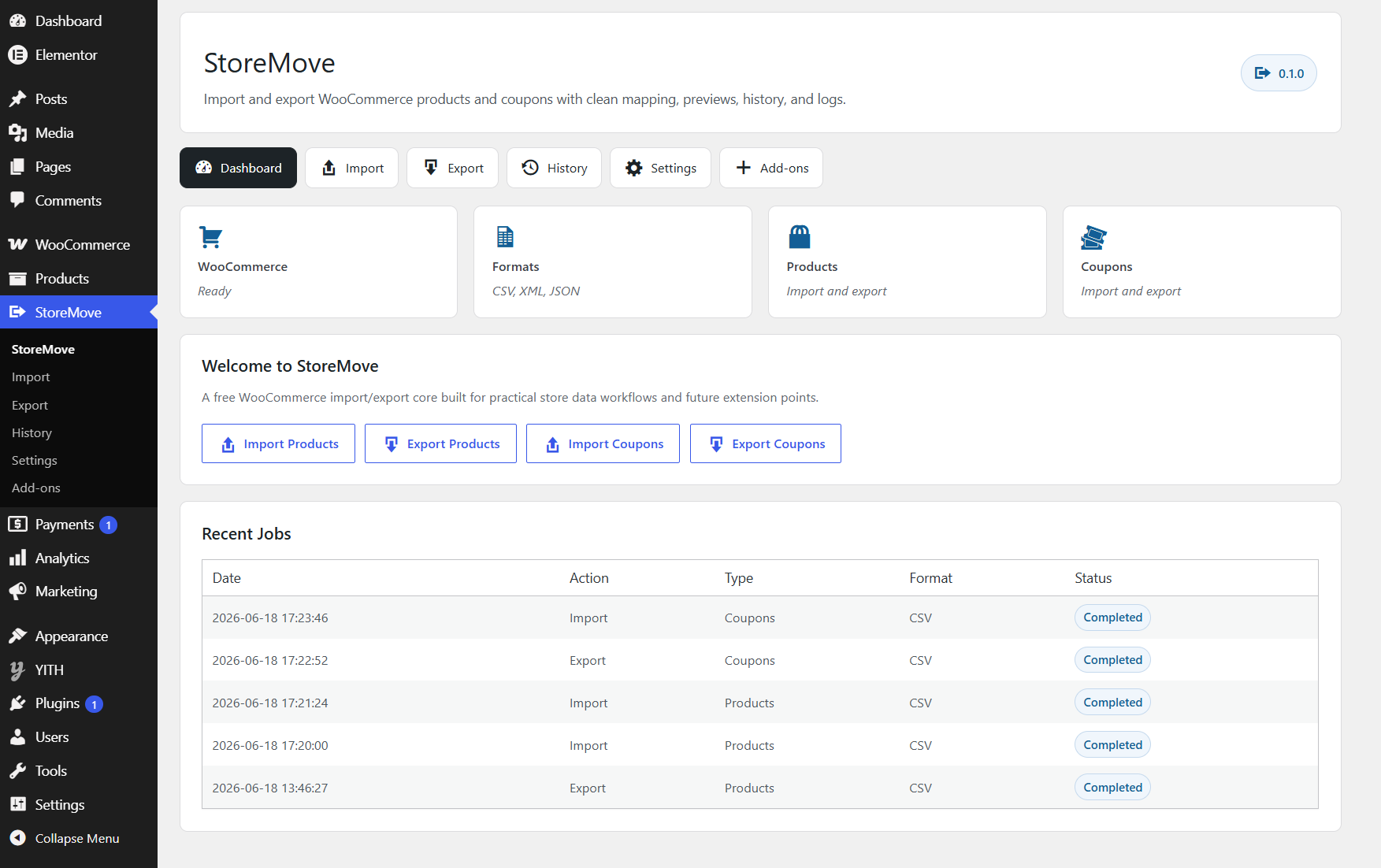
The Dashboard is the entry point for StoreMove. It shows WooCommerce readiness, supported formats, product and coupon support, quick action buttons, and recent jobs.
How to use it
Use the quick access buttons to import products, export products, import coupons, or export coupons. Review the Recent Jobs table to see the latest import and export activity.
Expected result
You can quickly start common workflows and confirm recent jobs without opening the full History page.
Import Page
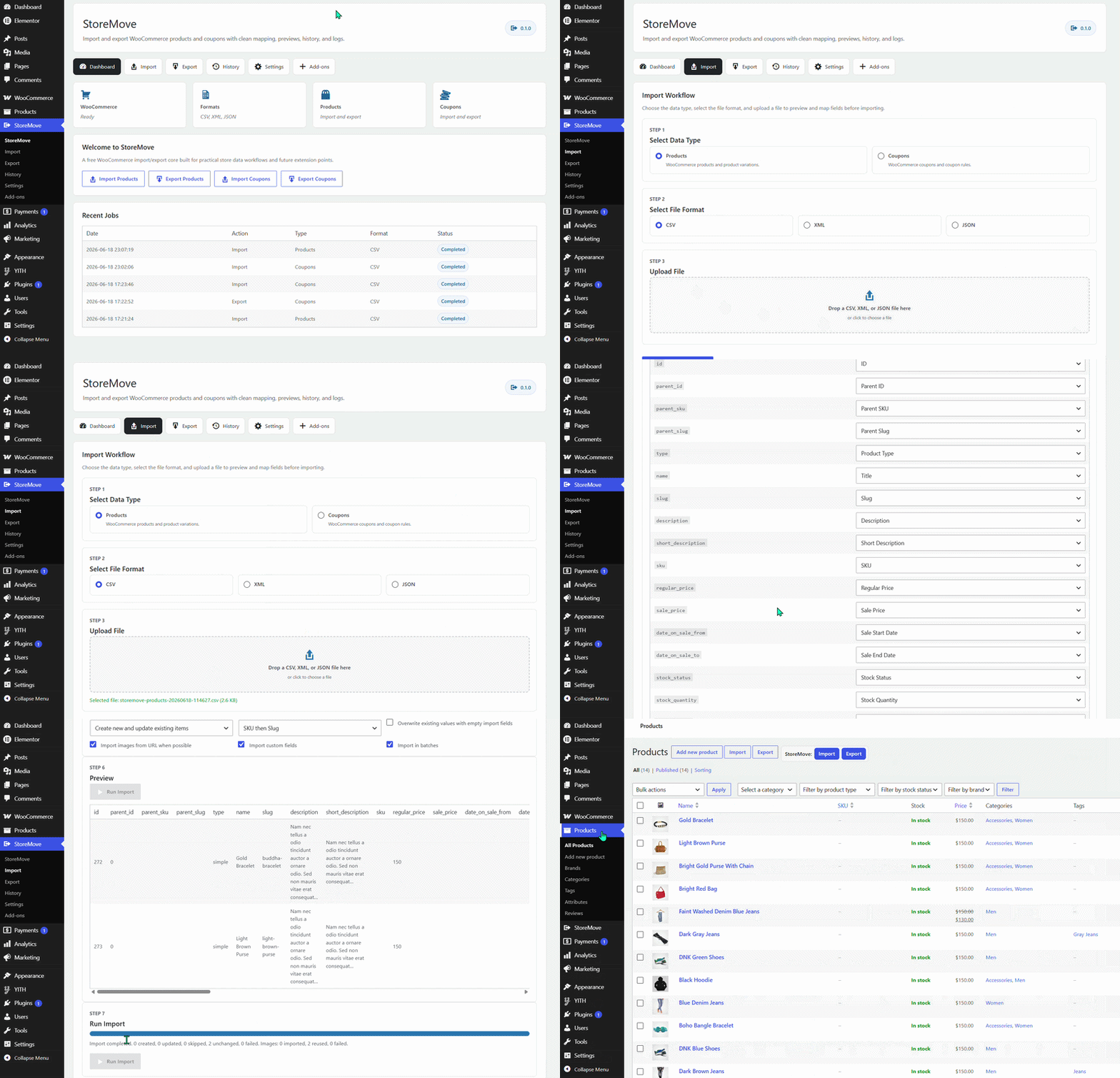
The Import page handles product and coupon imports. It guides the user through selecting a data type, choosing a file format, uploading a file, previewing records, mapping fields, selecting import options, and running the import.
How to use it
- Select Products or Coupons.
- Select CSV, XML, or JSON.
- Upload the import file.
- Review the preview and field mapping.
- Choose import mode, match behavior, and options.
- Run the import and watch progress.
Expected result
The uploaded file is validated, stored safely, parsed for preview, and processed into WooCommerce records according to the selected options.
Export Page
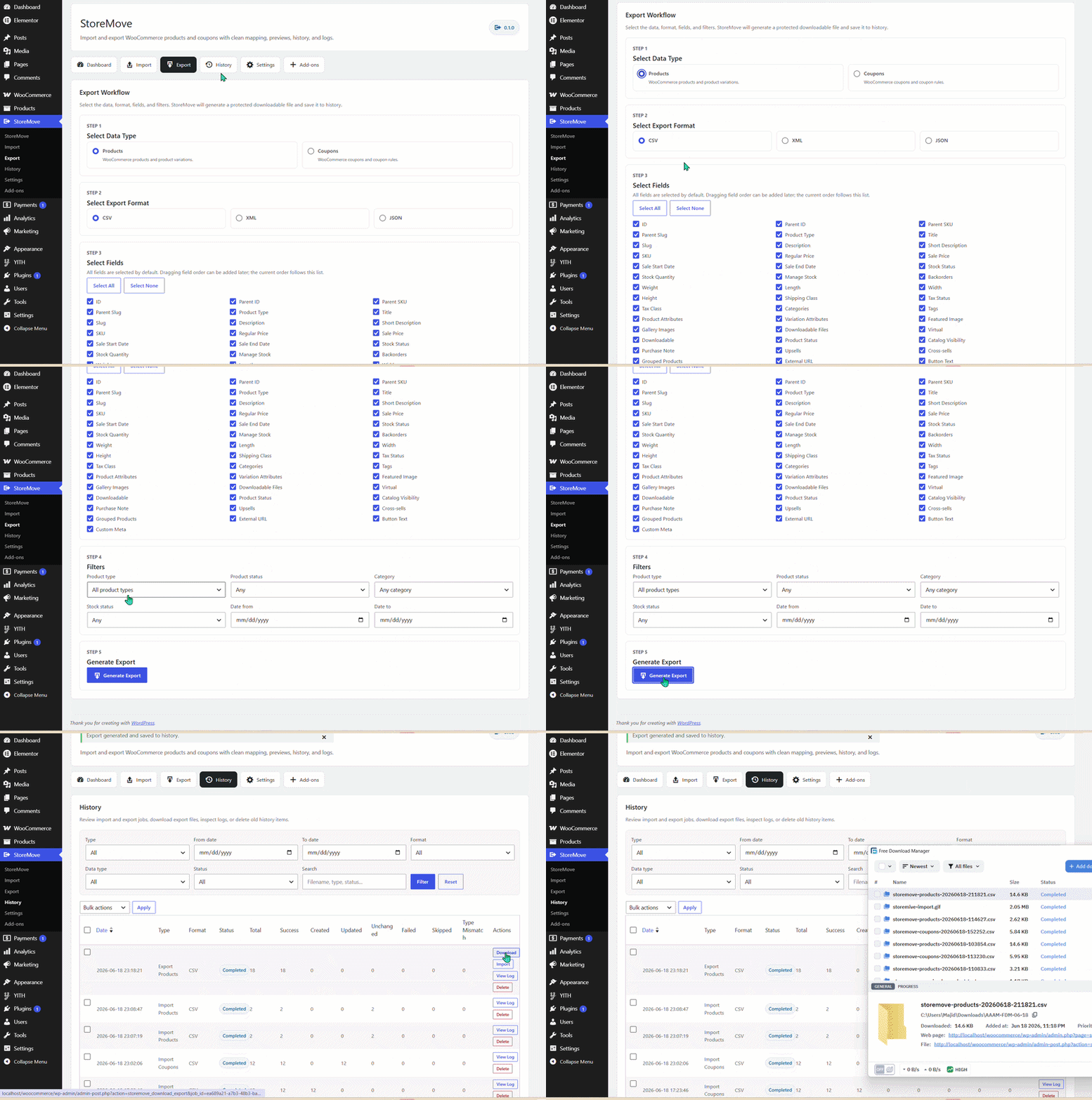
The Export page creates product or coupon export files. It supports selecting data type, format, fields, filters, and generating a protected downloadable file saved to History.
How to use it
- Select Products or Coupons.
- Select CSV, XML, or JSON.
- Select fields to include. All fields are selected by default.
- Apply filters such as product type, status, category, stock status, date range, discount type, or expiry range.
- Click Generate Export.
Expected result
StoreMove generates an export file, stores it under protected StoreMove export storage, and creates a History record with download and log actions.
History Page
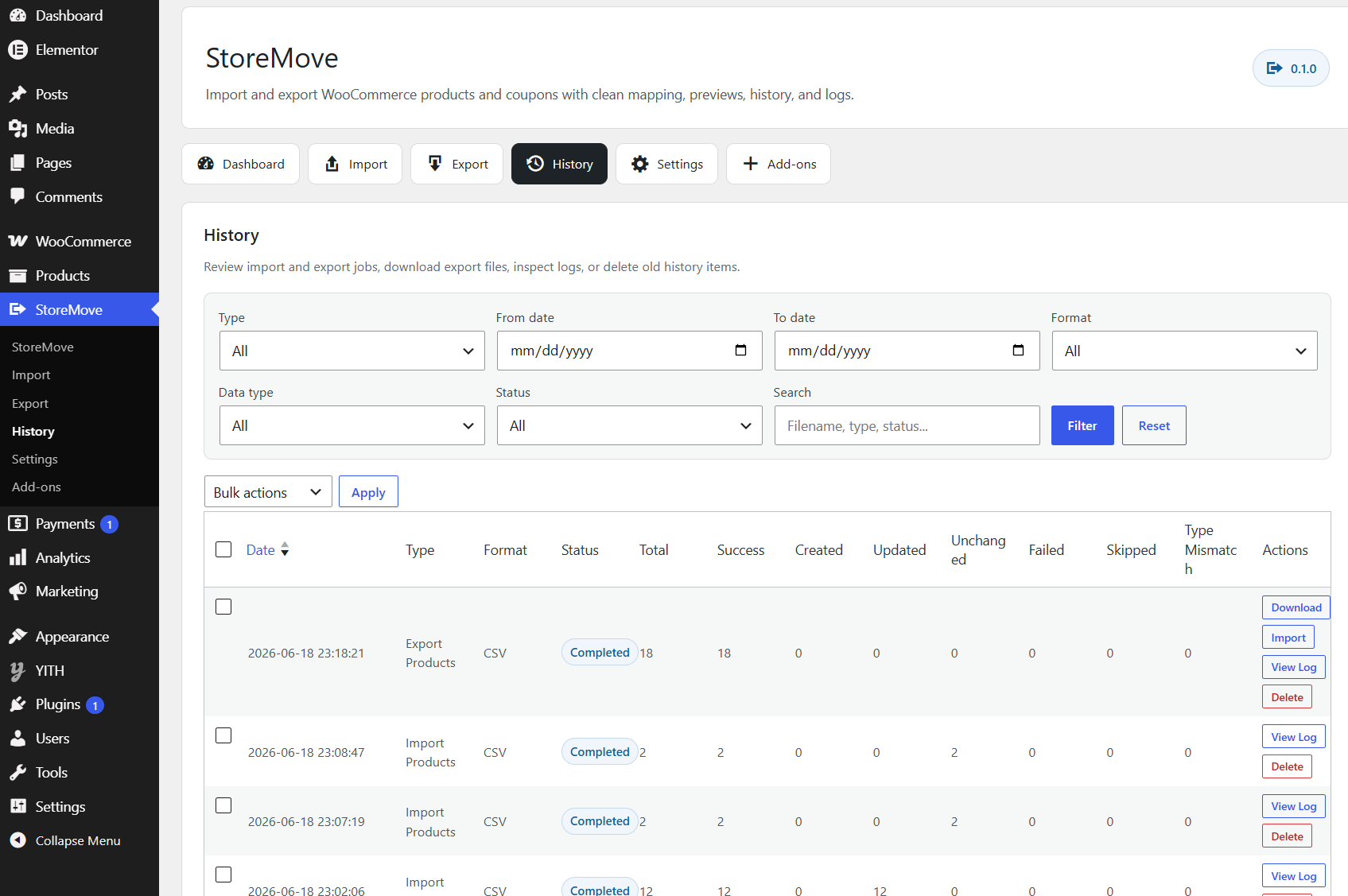
The History page lists import and export jobs. It includes filters, job counters, file actions, log viewing, and delete actions.
How to use it
Filter by type, date range, format, data type, status, or search term. Use actions to download export files, import an existing export file, view a log, or delete a history record.
Expected result
Each operation is traceable with job status and counters such as Total, Success, Created, Updated, Unchanged, Failed, Skipped, and Type Mismatch.
Settings Page
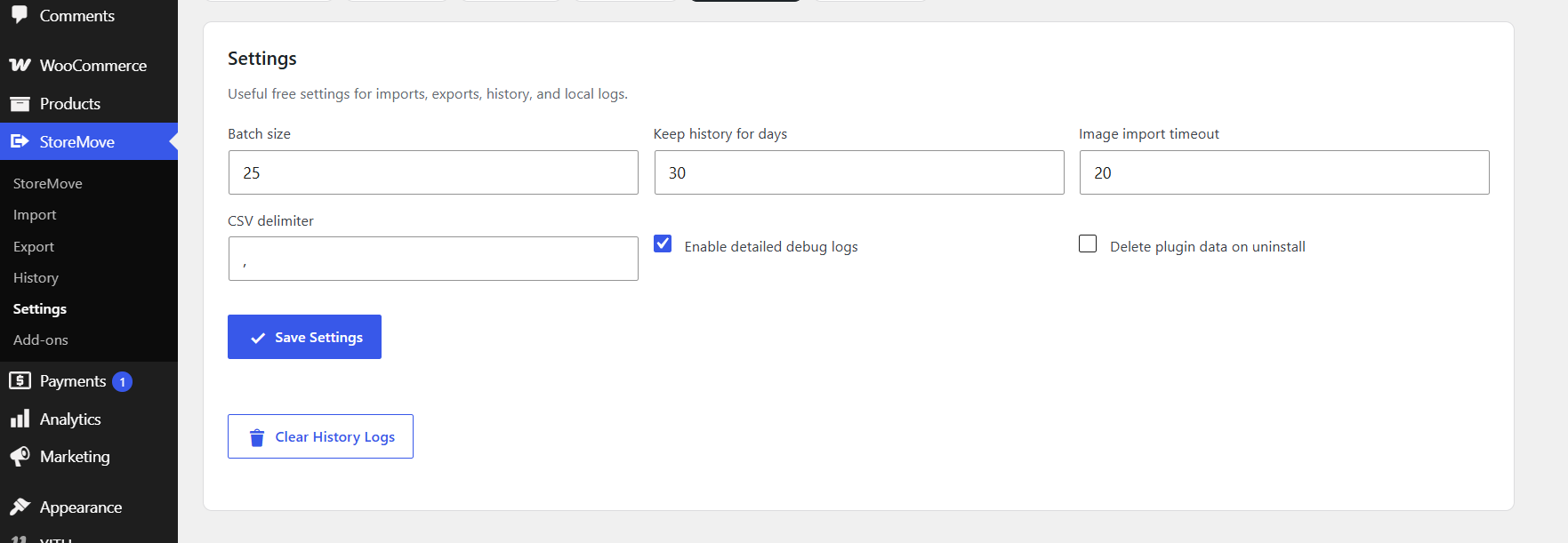
The Settings page controls operational defaults for imports, exports, history, image imports, CSV parsing, logs, and uninstall behavior.
How to use it
- Set Batch size for import processing.
- Set Keep history for days. The default is 30 days.
- Set Image import timeout.
- Set CSV delimiter.
- Enable or disable detailed debug logs.
- Choose whether plugin data should be deleted on uninstall.
- Use Clear History Logs to remove log files from existing History records.
Expected result
StoreMove uses the saved settings for later import/export workflows and log cleanup.
Product Import and Export
Product workflows support common WooCommerce product fields, product types, categories, tags, attributes, images, stock, regular price, sale price, product status, linked products, grouped products, external product fields, and custom meta.
Supported product fields include ID, parent ID, parent SKU, type, title, slug, descriptions, SKU, prices, sale dates, stock fields, dimensions, tax fields, categories, tags, attributes, variation attributes, featured image, gallery images, status, upsells, cross-sells, grouped products, external URL, button text, and custom meta.
How to use it
For imports, map file headers to product fields and select product import options. For exports, select Products, choose fields and filters, then generate the file.
Expected result
Products are created, updated, skipped, marked unchanged, or failed according to the import mode and match strategy. Exports contain selected product fields and matching filtered products.
Coupon Import and Export
Coupon workflows support common WooCommerce coupon fields such as code, description, discount type, amount, free shipping, expiry date, spend limits, usage limits, email restrictions, product restrictions, category restrictions, status, and custom meta.
How to use it
For imports, map file headers to coupon fields. Existing coupons are matched by coupon code. For exports, select Coupons, choose fields and filters, then generate the file.
Expected result
Coupons are created or updated based on coupon code and selected import mode. If a matching coupon has a different discount type, the selected mismatch option controls whether to skip, update the type, or create a new suffixed coupon code.
CSV, XML, and JSON Formats
StoreMove supports CSV, XML, and JSON for both products and coupons. CSV uses a header row. XML and JSON use structured records and are parsed into the same mapping workflow used by CSV.
| Format | Best for | Notes |
|---|---|---|
| CSV | Spreadsheet editing and simple tabular data. | Uses the configured CSV delimiter and a header row for field mapping. |
| XML | Structured exports and integrations that prefer XML. | XML parsing uses non-network XML loading for safer processing. |
| JSON | Structured data exchange and developer-friendly workflows. | JSON exports are pretty printed for readability. |
How to use it
Select the same format as the file you are importing, or choose the desired output format before generating an export.
Expected result
Files are parsed or generated consistently across supported data types.
Selected Product and Coupon Export
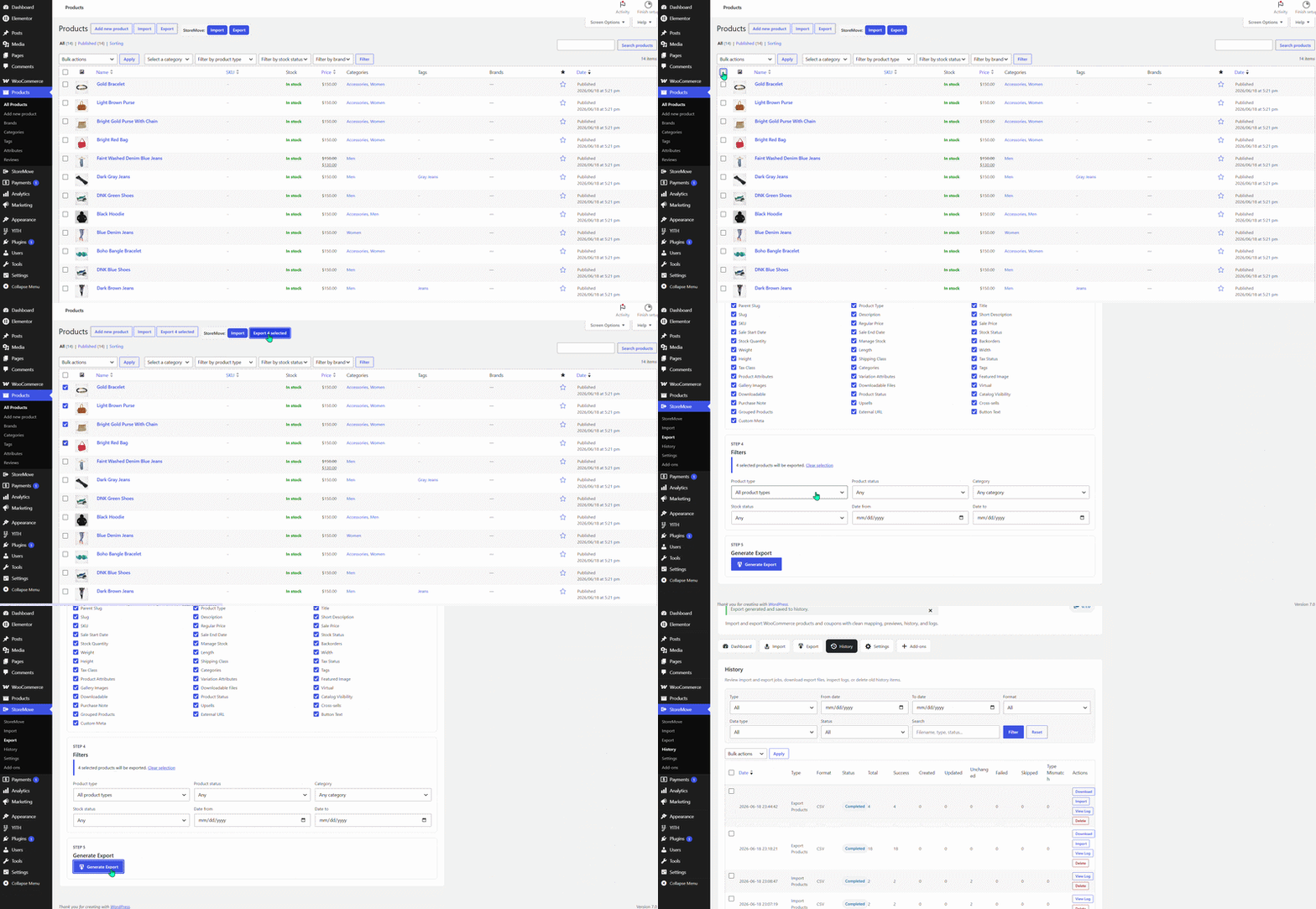
StoreMove can export only selected products or coupons from the WordPress admin list screens. The selected IDs are passed into the export screen and retained as hidden export filters.
How to use it
- Open the WooCommerce Products or Coupons list screen.
- Select one or more rows.
- Use the StoreMove list toolbar export action.
- Confirm the selected export notice on the Export page.
- Choose format, fields, and Generate Export.
Expected result
Only the selected products or coupons are exported. If no valid selected IDs are found, the export contains 0 matching records and shows a notice.
Common Troubleshooting
| Issue | What to check | Expected fix |
|---|---|---|
| WooCommerce inactive notice | Confirm WooCommerce is installed and active. | Activate WooCommerce, then reload StoreMove. |
| Import file rejected | Confirm the selected format matches the file extension: CSV, XML, or JSON. | Upload a valid file with the matching format option. |
| Import preview has skipped fields | Review field mapping. Unmapped fields can be skipped or imported as custom meta. | Map each source column to the correct target field before running the import. |
| Existing product not updated | Review import mode and product match strategy. | Use Create new and update existing items, and choose a match strategy that fits the file data. |
| Variation shows Any attribute | Check that variation attribute values match the parent product attribute options. | Use readable values consistent with the parent options, such as color: Blue. |
| Images not imported | Confirm image import is enabled, URLs are reachable, and timeout is sufficient. | Increase image import timeout or correct image URLs. |
| History file missing | Check whether the History record or stored export file was deleted or pruned by retention cleanup. | Generate a new export if the stored file is no longer available. |
Basic Testing Checklist
Use this checklist after plugin changes, before release testing, or when validating an import/export workflow on a staging site.
- Confirm WooCommerce is active and StoreMove Dashboard shows Ready.
- Import a small product CSV and confirm Created, Updated, Skipped, Unchanged, and Failed counters behave as expected.
- Import the same product file twice and confirm duplicates are not created by default.
- Test Create new only, Update existing only, and Create new and update existing items.
- Test product matching by SKU, ID, Slug, SKU then ID then Slug, and SKU then Slug.
- Test that empty import fields do not overwrite existing values unless Overwrite existing values with empty import fields is enabled.
- Import a variable product with parent and variation rows, then confirm variations show selected attributes in WooCommerce.
- Export variable products and confirm parent and variation rows are present.
- Export selected products from the Products list screen.
- Import coupons and confirm existing coupons are matched by coupon code.
- Test coupon discount type mismatch behavior.
- Export selected coupons from the Coupons list screen.
- Generate CSV, XML, and JSON exports for products and coupons.
- Import files from local upload and from History where available.
- Open History View Log and confirm basic logs exist.
- Enable detailed debug logs and confirm technical details are added to logs.
- Use Clear History Logs and confirm log links are removed from existing records.
- Delete a History record and confirm related stored file and log are removed.