Table of Contents
Create a Discord Account
Before you begin, sign in to your Discord account at discord.com/login. If you do not already have a Discord account, create one at discord.com/register, then continue with the next steps in this guide.
Create or Select a Discord Server
Before you can set up Discord notifications for DeliveryKit SMTP, you need a Discord server where the notifications will be sent.
Create a New Server
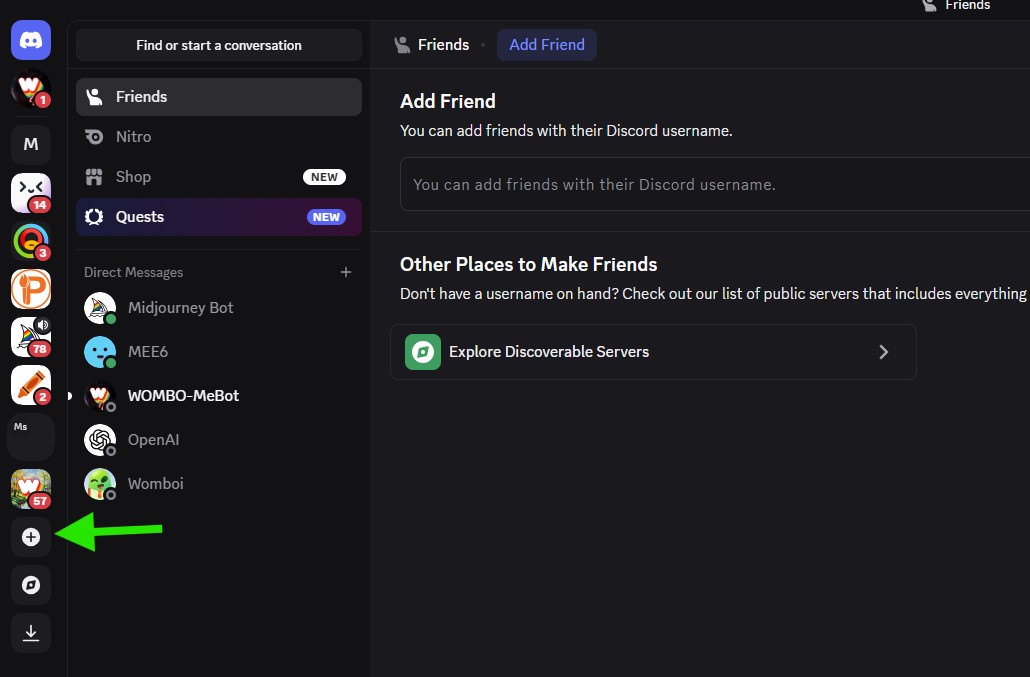
In the left sidebar of Discord, click the plus (+) icon to add a new server. Then follow the on-screen steps to create it.
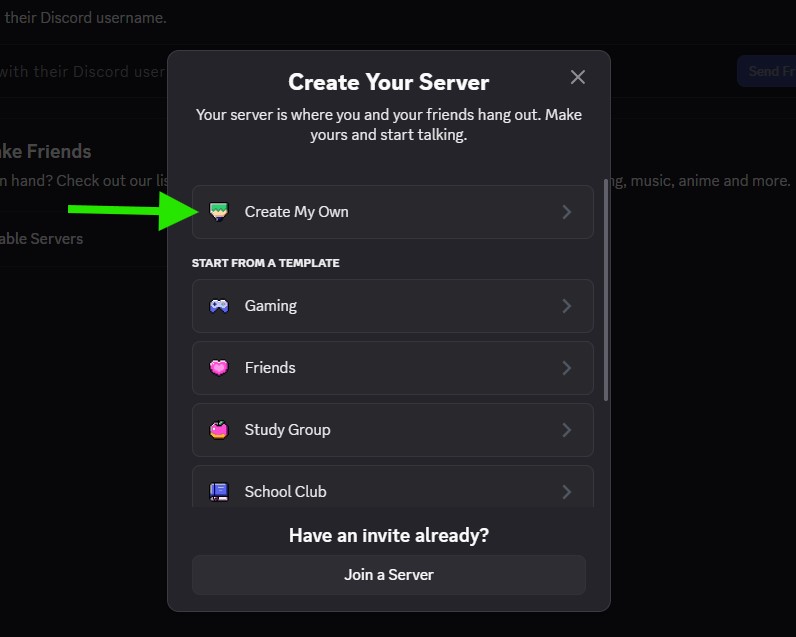
In the Create Your Server window, click Create My Own to start creating a new Discord server for your DeliveryKit SMTP notifications.
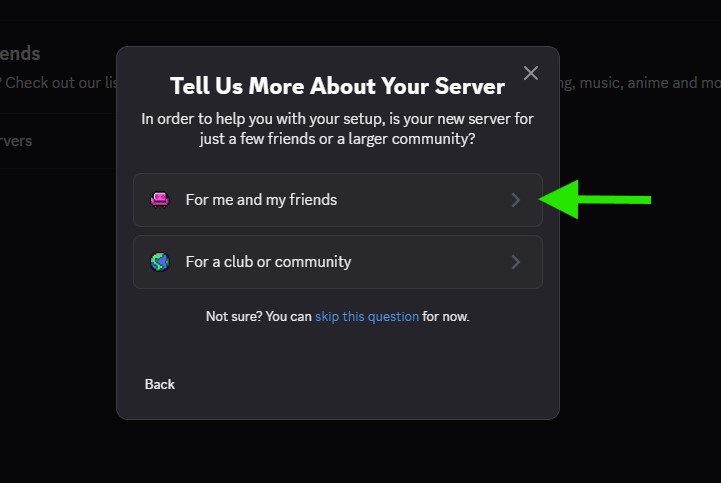
On the Tell Us More About Your Server screen, click For me and my friends. This is the recommended option for creating a simple server to use with DeliveryKit SMTP notifications.
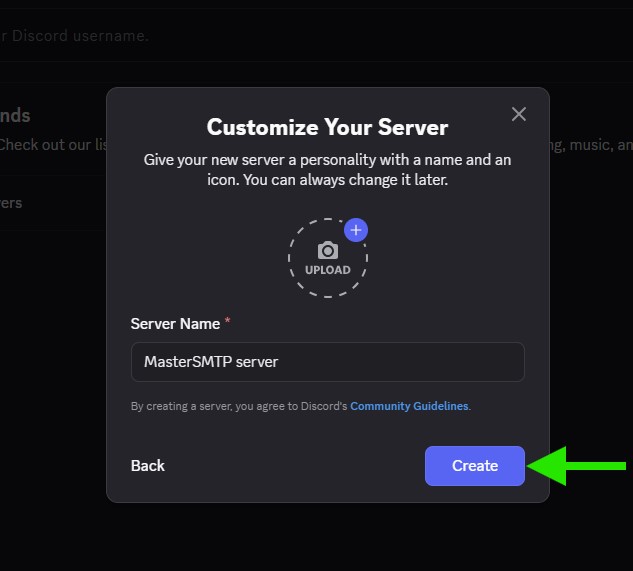
Enter a name for your server, such as DeliveryKitSMTP server, then click Create to finish creating the Discord server.
Create a Discord Channel
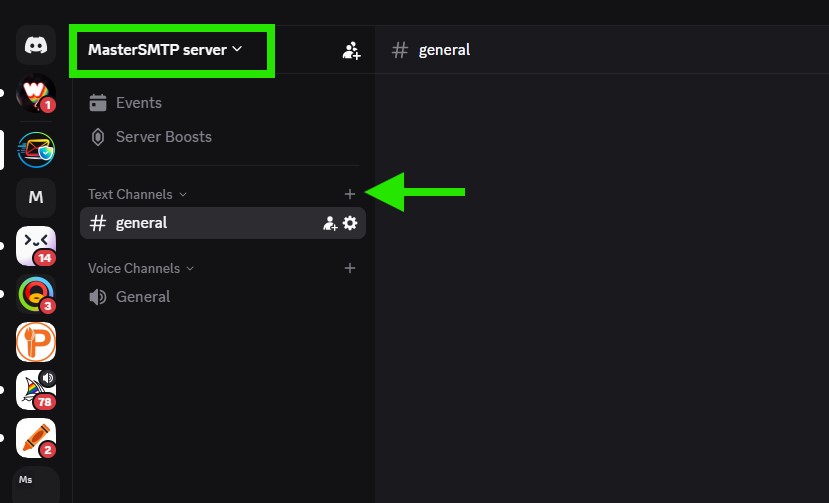
Open the Discord server you want to use for DeliveryKit SMTP notifications. In the left sidebar, under Text Channels, click the plus (+) icon to create a new text channel.
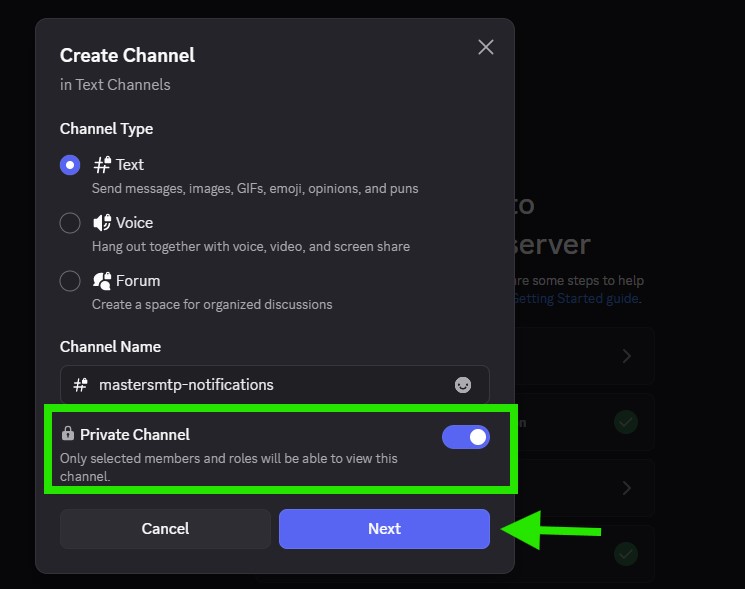
Select Text as the channel type, enter a channel name such as deliverykitsmtp-notifications, and enable Private Channel.
Using a private channel is recommended so DeliveryKit SMTP notifications remain visible only to selected members and are not accessible to everyone in the server. After that, click Next.
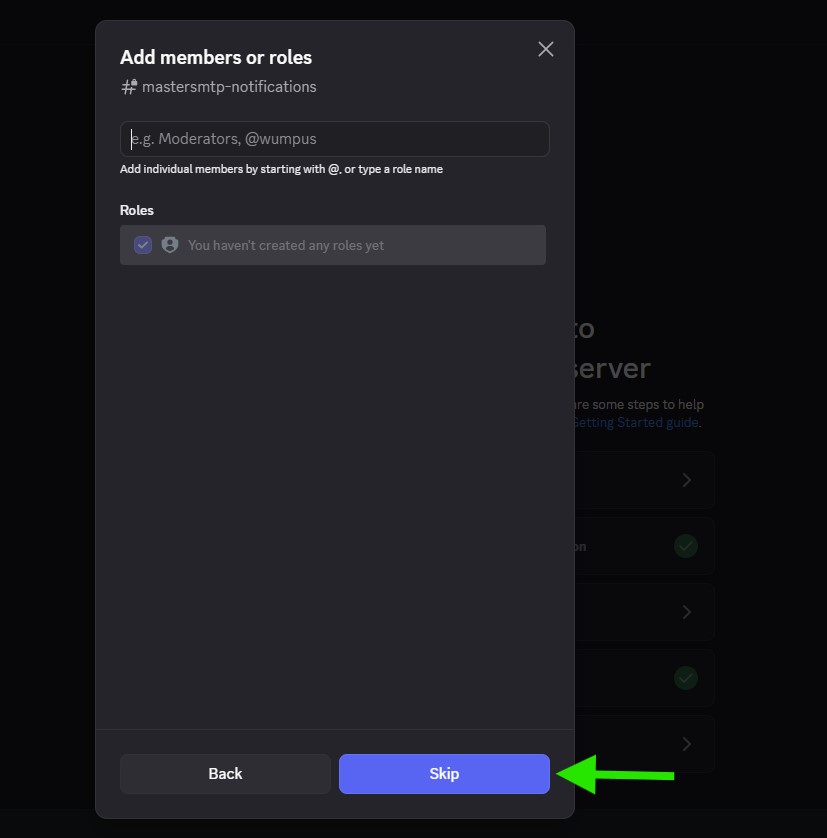
Add any members or roles that should have access to receive DeliveryKit SMTP notifications in this channel. If you want to keep the private channel for your own access only, click Skip to continue.
Create a Discord Webhook
In your Discord server, find the channel you created for DeliveryKit SMTP notifications. Then click the gear icon next to the channel name to open the channel settings and continue with the webhook setup.
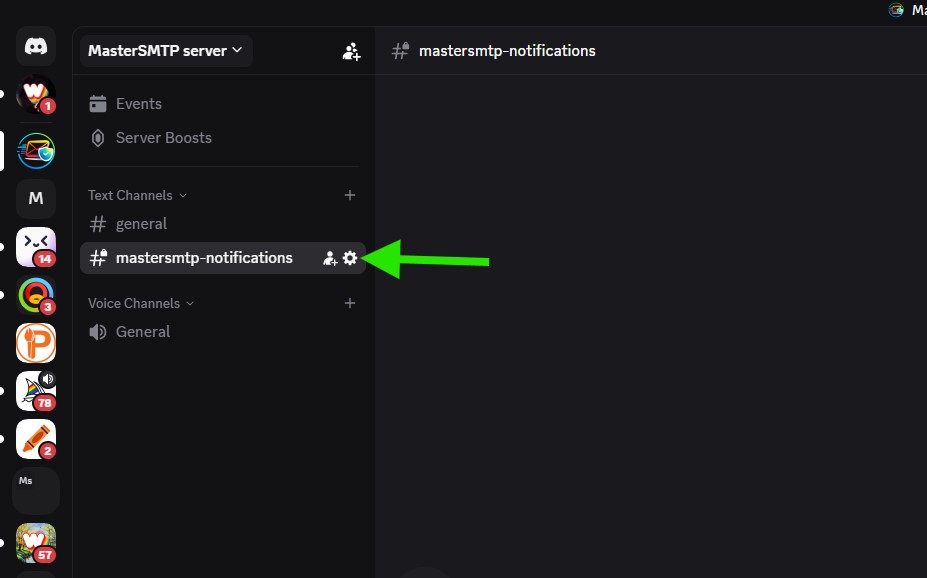
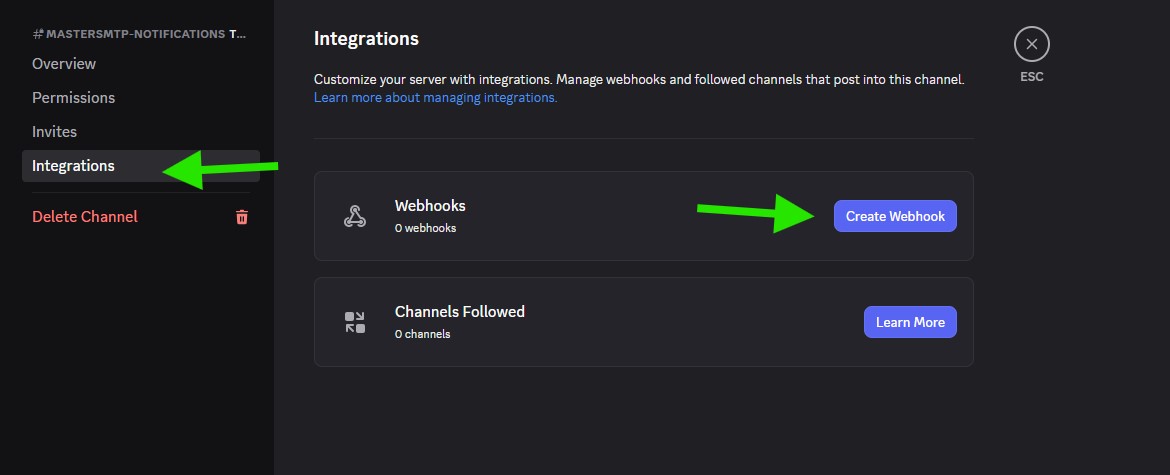
In the channel settings, click Integrations in the left sidebar. Then, under Webhooks, click Create Webhook to generate a new webhook for this channel.
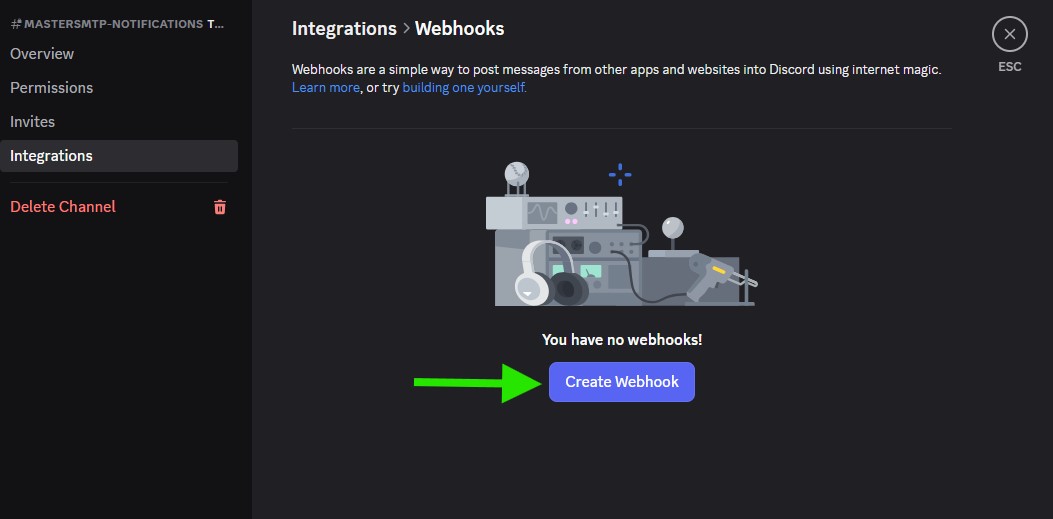
On the Integrations > Webhooks page, click Create Webhook to create a new webhook for the selected Discord channel.
Click the arrow icon to expand the webhook settings, then enter a name such as DeliveryKitSMTP. After that, click Save Changes.
Once the webhook is saved, click Copy Webhook URL and keep it ready. You will need this webhook URL when configuring Discord notifications in the DeliveryKit SMTP plugin.
Enable Discord Notifications in DeliveryKit SMTP
In your WordPress dashboard, go to DeliveryKit SMTP > Notifications. Then find the Discord option under Messaging Notifications (Email Logs) and enable it to display the Discord notification settings.
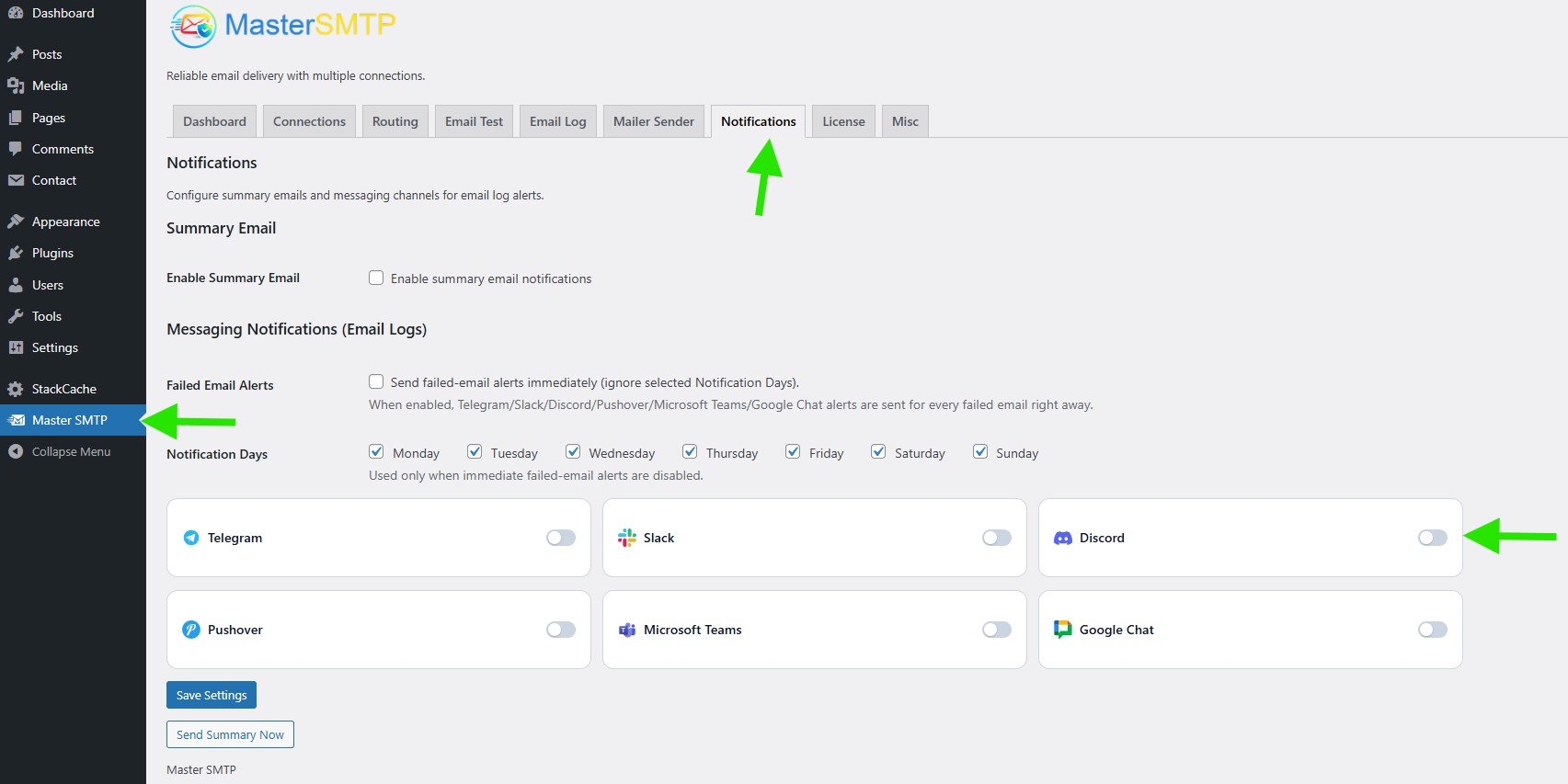
Configure the Discord Notification Settings
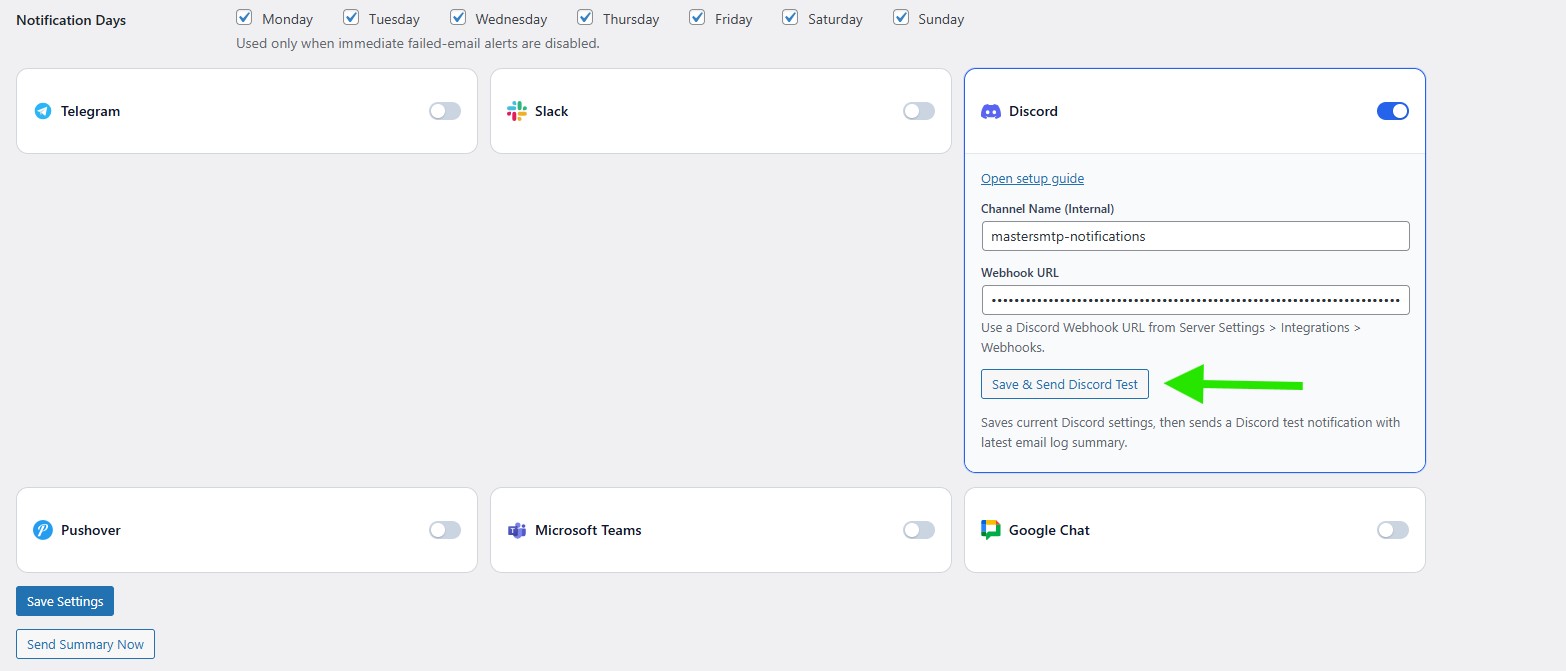
Notification Days: Select the days when you want to receive messaging notifications. These days apply to all enabled messaging channels, including Telegram, Slack, Discord, Pushover, Microsoft Teams, and Google Chat.
Channel Name (Internal): Enter your Discord channel name without the # symbol. For example: deliverykitsmtp-notifications.
Webhook URL: Paste the Discord webhook URL you copied from your Discord channel webhook settings.
After entering the details, click Save & Send Discord Test to save the settings and send a test notification to your Discord channel.
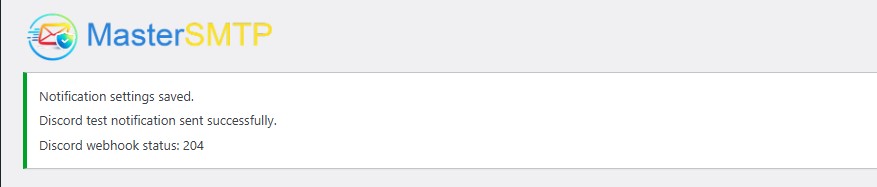
On the same page, you should see a success message confirming that the notification settings were saved and the Discord test notification was sent successfully. You may also see the Discord webhook status code, such as 204, which indicates the webhook request was accepted successfully.
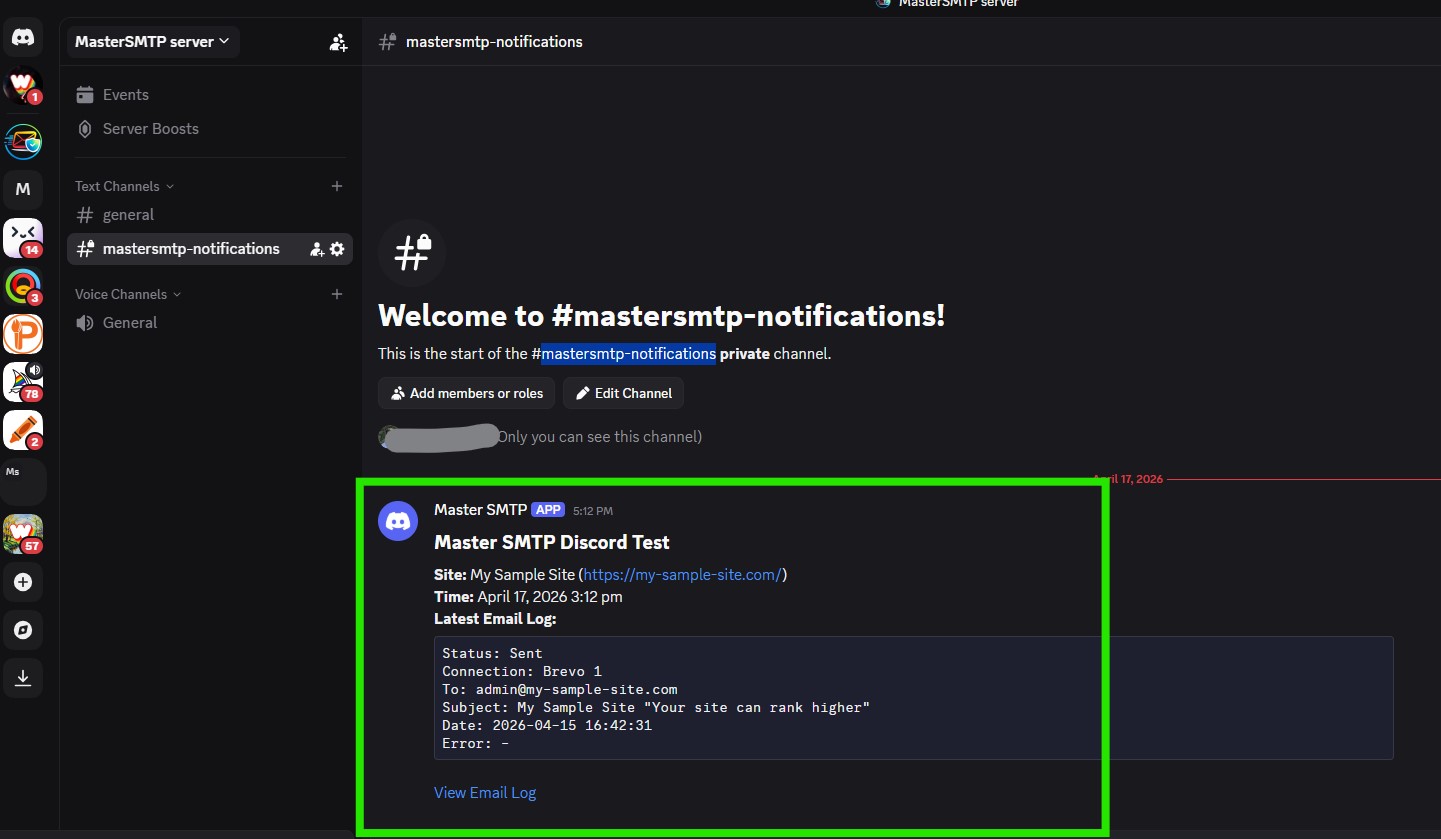
After sending the test, open your Discord notification channel. You should see a new DeliveryKit SMTP Discord Test message showing your site name, test time, and the latest email log details. This confirms that Discord notifications are working correctly.