Table of Contents
Create a Slack Account
If you do not already have a Slack account, go to Slack’s Get Started page and create one first.
- Open the Slack Get Started page.
- Enter your email address, or continue with Google or Apple.
- Click Continue.
- Check your inbox and copy the confirmation code sent by Slack.
- Enter the code to verify your email address.
- Click Create a Workspace and follow the setup prompts.
- After your workspace is ready, continue with the next steps in this guide.
Create a Slack Channel
Add a New Channel
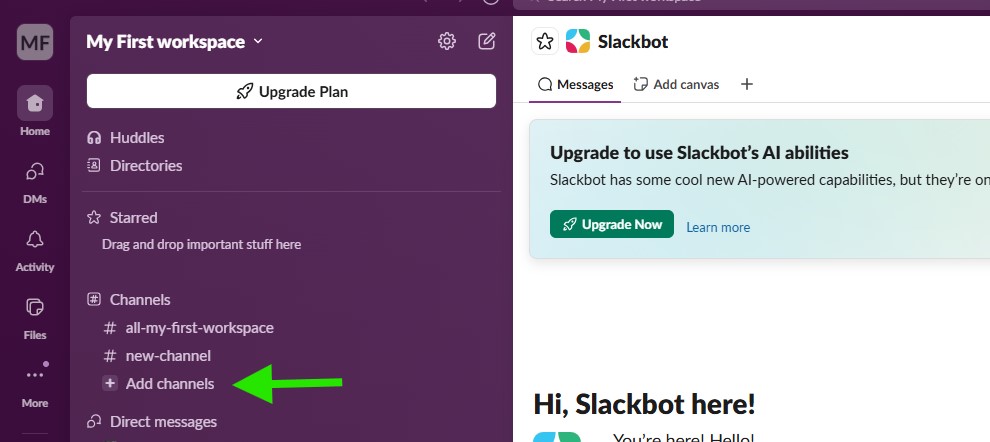
In your Slack workspace sidebar, under Channels, click Add channels to start creating a new channel for DeliveryKit SMTP notifications. Then Click Add New Channel.
Name the Channel
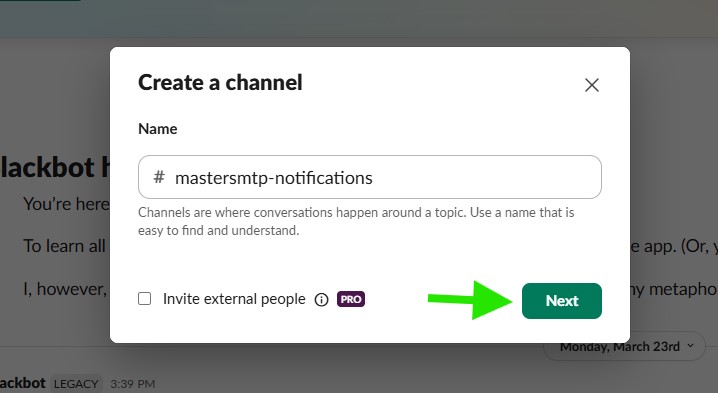
Enter a name for your Slack channel, for example deliverykitsmtp-notifications, then click Next.
Choose Channel Visibility
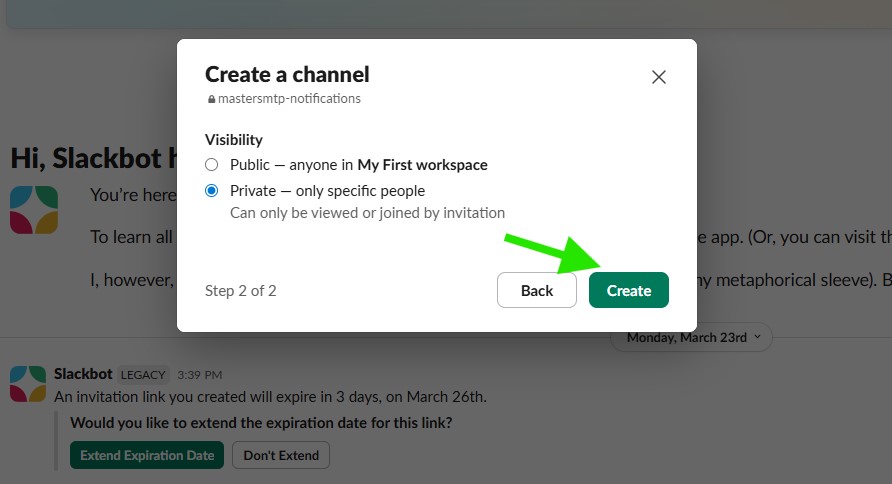
Select whether the channel should be Public or Private, then click Create to finish creating the channel.
A Private channel is highly recommended for DeliveryKit SMTP notifications, because it helps limit access to email alerts and logs to only the invited members of that channel.
Add Channel Members
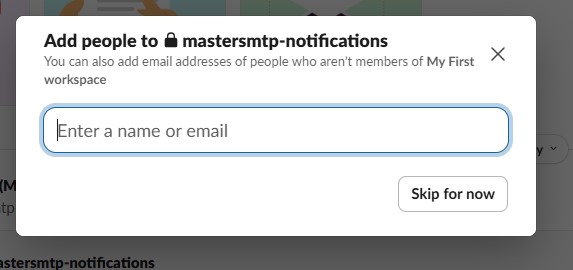
Add the people who should have access to this Slack channel by entering their name or email address.
If you do not want to add anyone right now, click Skip for now. No additional members will be added yet, but you will still have access to the channel yourself and can receive DeliveryKit SMTP notifications there.
If you created the channel as Private, only invited members will be able to view the notifications posted in it.
Getting started with incoming webhooks
We’re going to walk through a 3-step process (if you’ve already done some of these things it’ll be even easier) that will have you posting messages using incoming webhooks in just a few minutes:
1. Create a Slack App
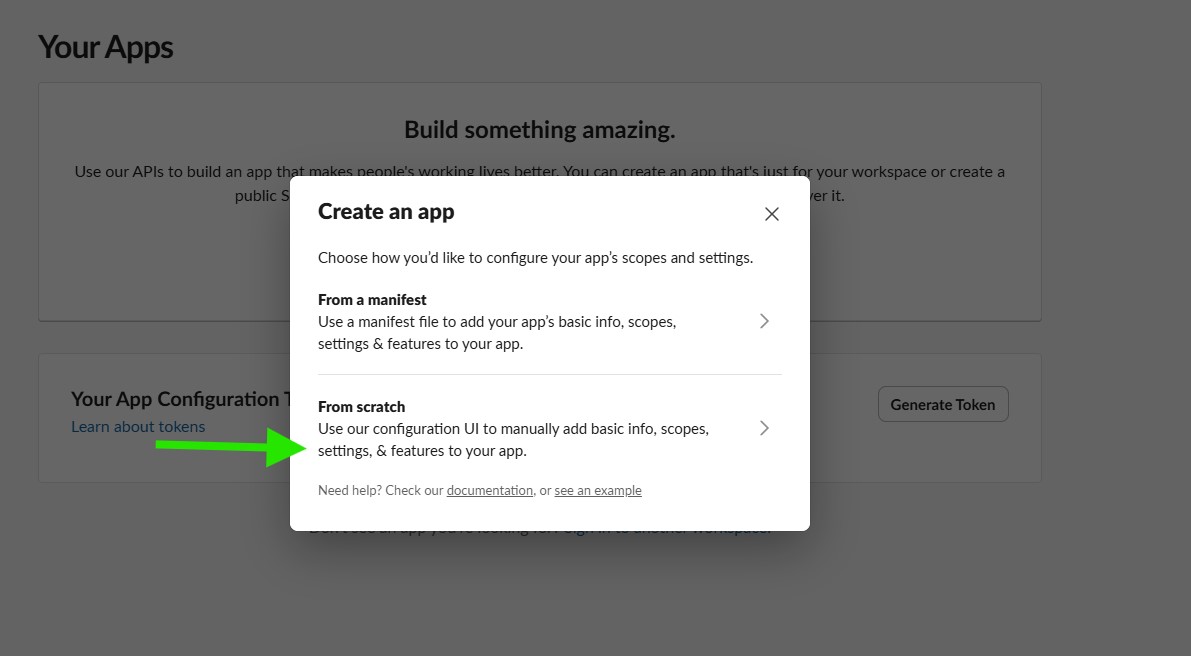
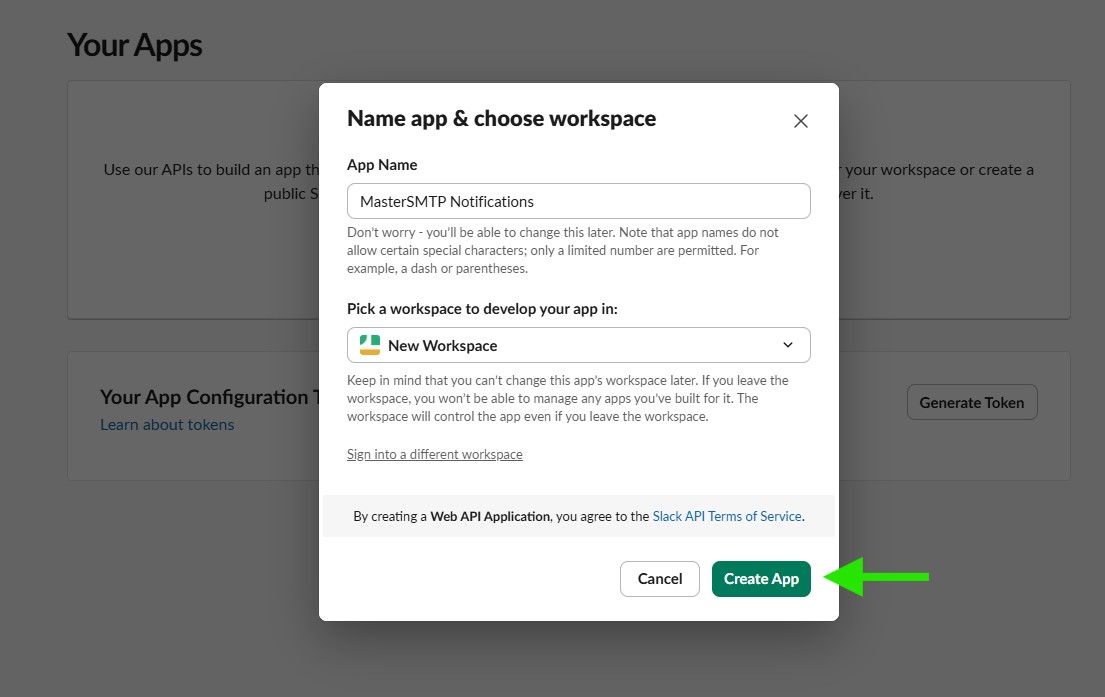
If you do not already have a Slack app, open the Slack app creation page, enter an app name, choose the workspace you want to connect it to, then click Create App. If you already created one before, you can use that existing app.
Note: Since you may send many test messages while setting this up, it is a good idea to use a separate test channel in your Slack workspace.
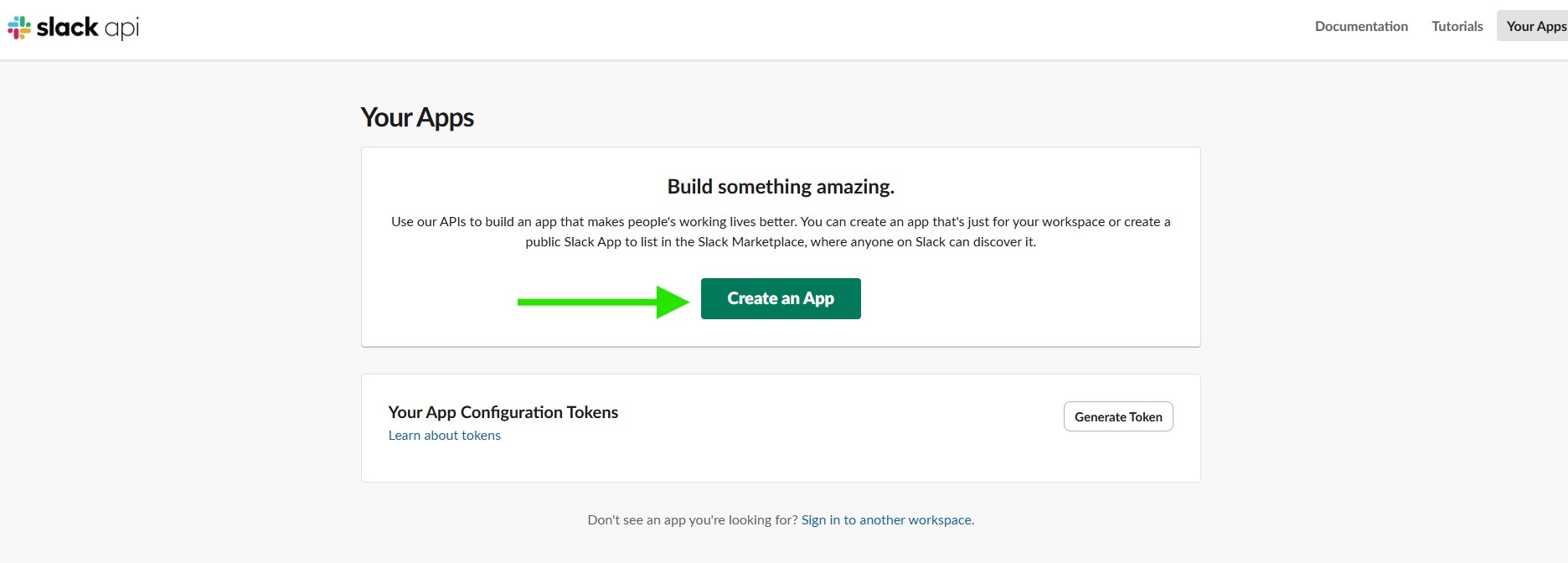
Enter a name for your Slack app, choose the workspace you want to connect it to, then click Create App.
Lorem ipsum dolor sit amet, consectetur adipiscing elit. Ut elit tellus, luctus nec ullamcorper mattis, pulvinar dapibus leo.
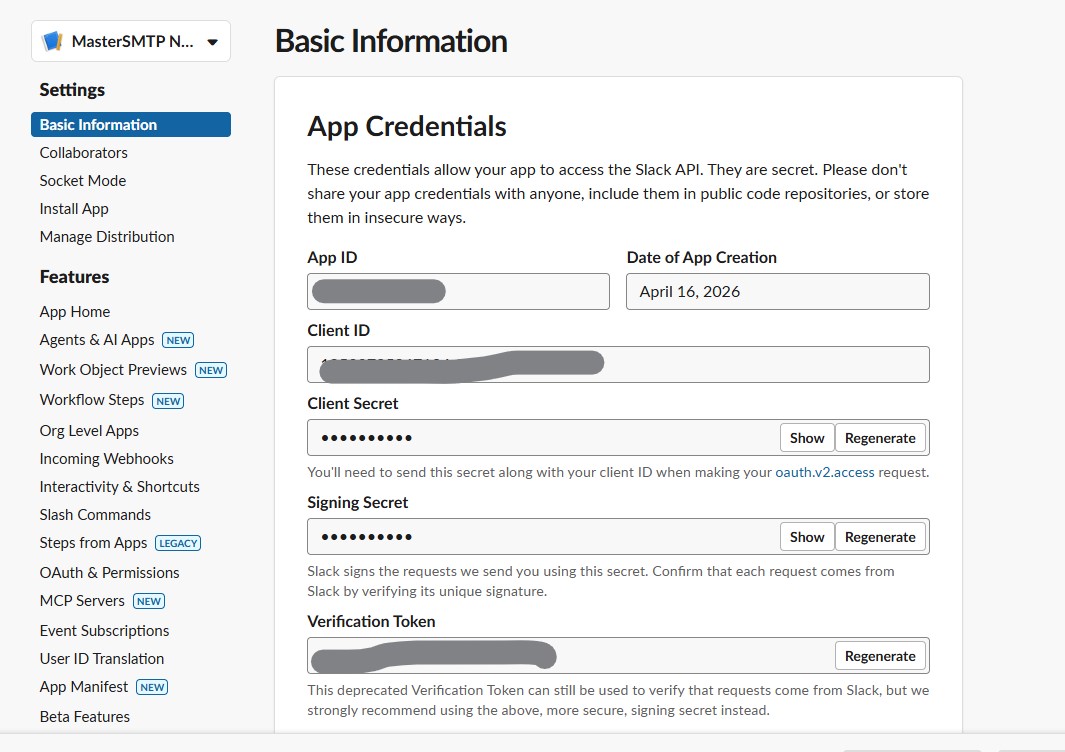
On the Basic Information page, copy and save the credentials you need for later, then click Save Changes.
2. Enable incoming webhooks
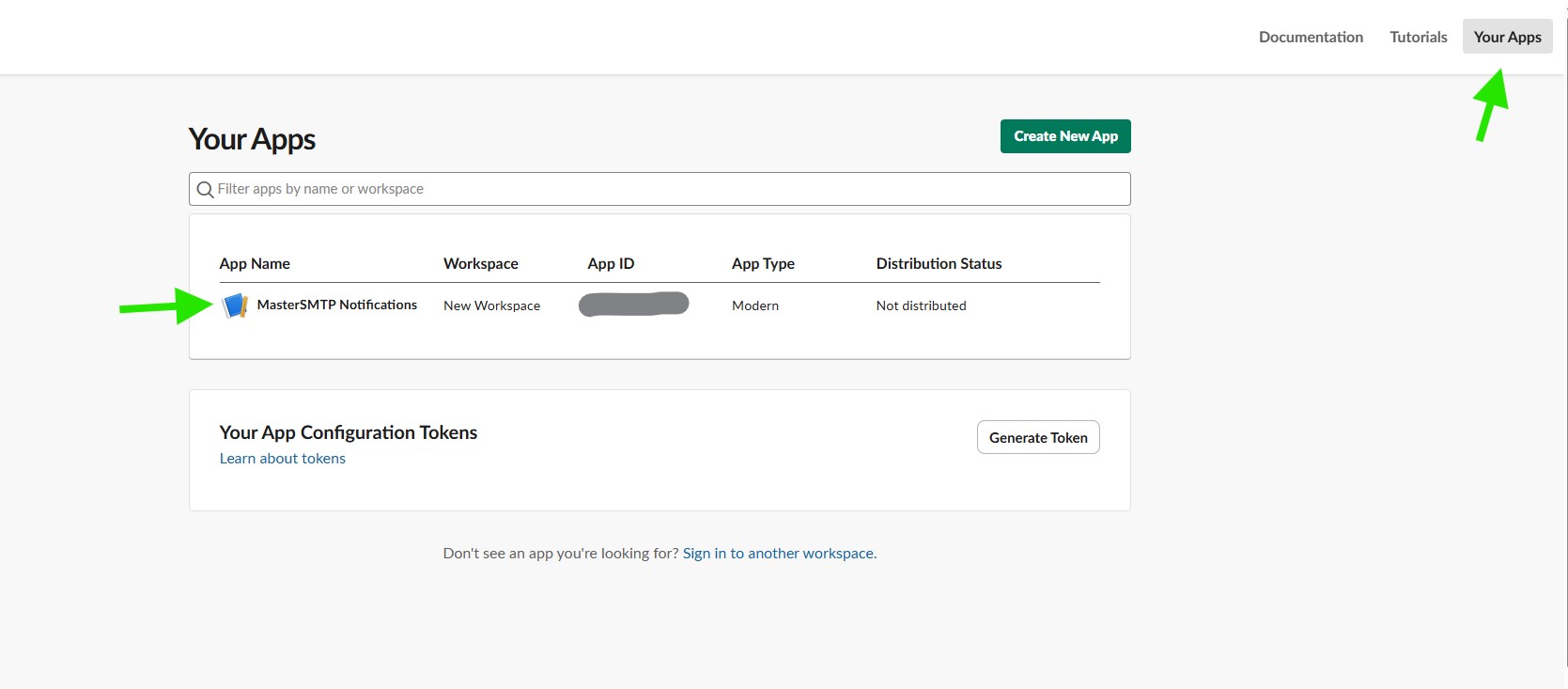
Go to the Slack Apps page, then in the app list click the Slack app you created for DeliveryKit SMTP to open it.
3. Create an incoming webhook
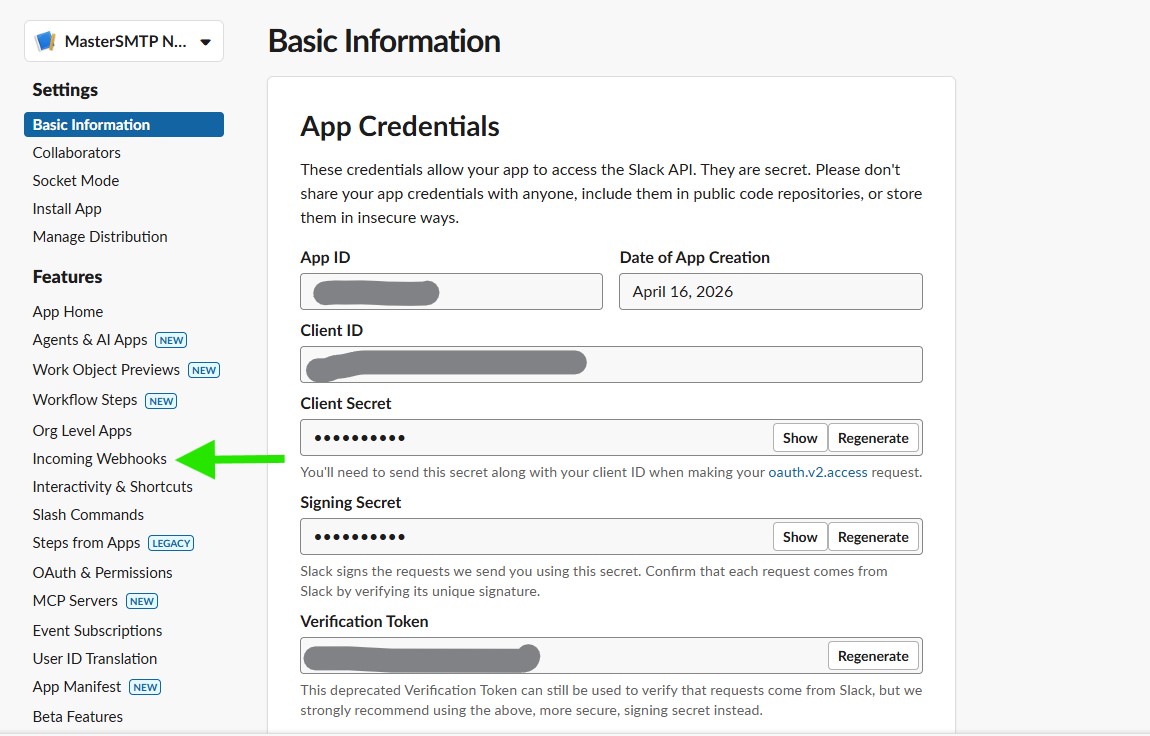
In the left sidebar of your Slack app settings, click Incoming Webhooks.
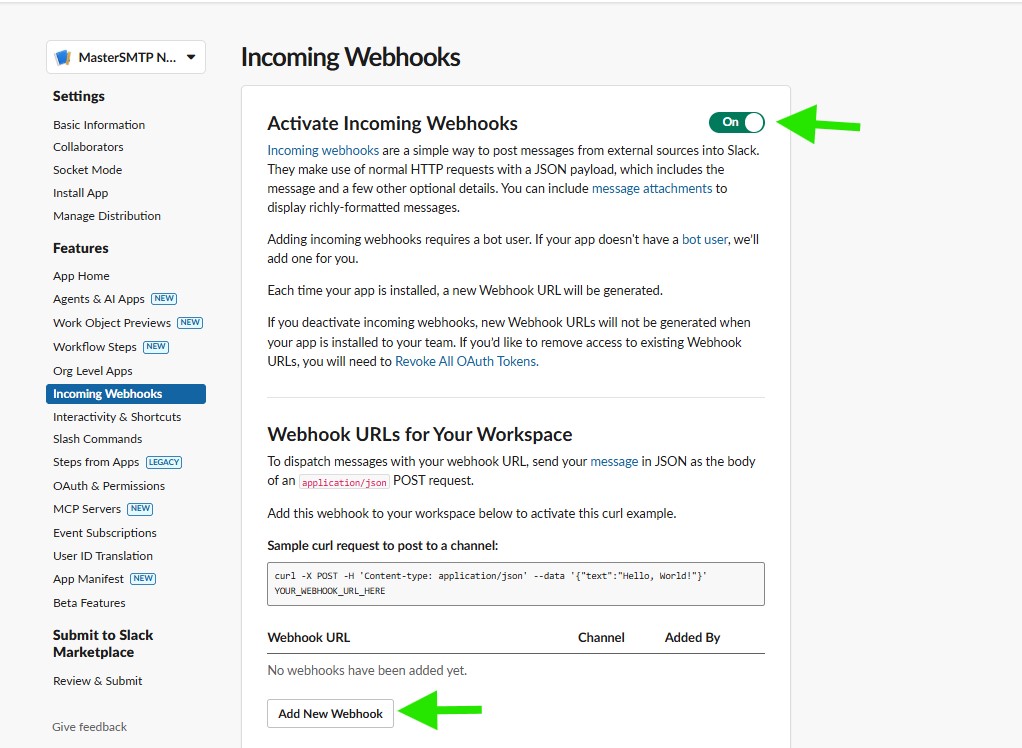
Turn Incoming Webhooks on, then click Add New Webhook to create a webhook for your Slack channel.
Select the Slack channel you created for DeliveryKit SMTP notifications, then click Allow to authorize the app and create the webhook.
You can select either a public or private channel. A private channel is recommended to help limit access to email alerts and logs. If you created a private channel and did not add any other members, you will still have access to it yourself and can receive the notifications there.
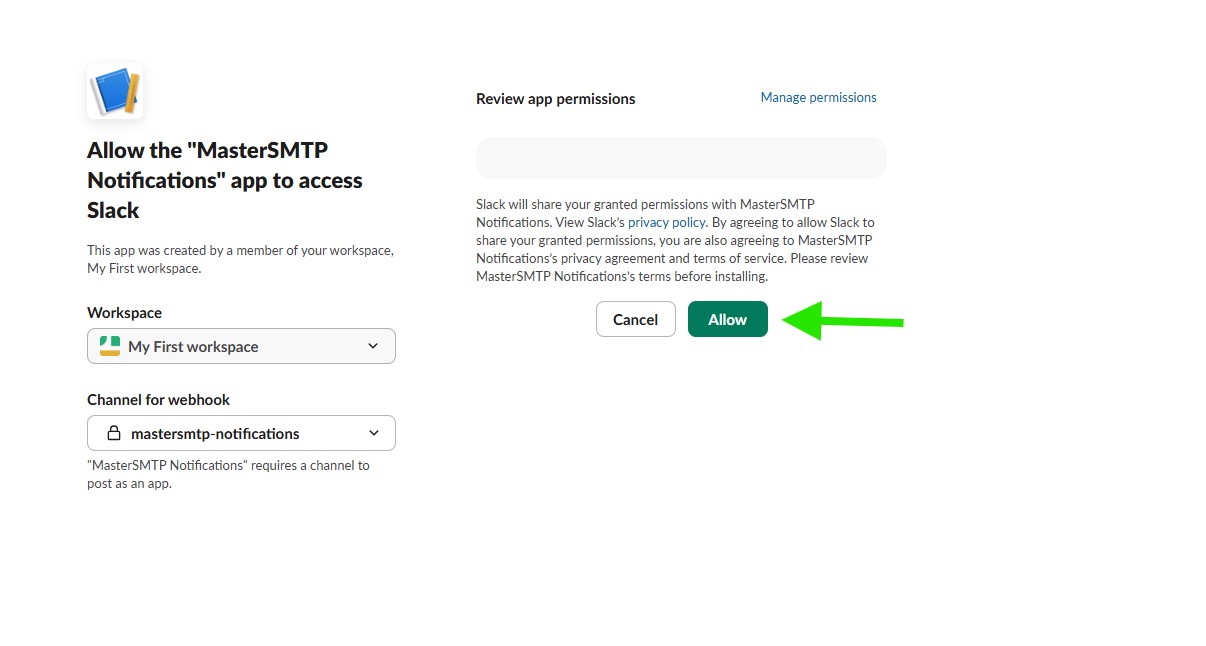
After the webhook is created, copy the generated Webhook URL. You will need this URL in DeliveryKit SMTP to connect Slack notifications to your selected channel.
Enable Slack Notifications in DeliveryKit SMTP
In your WordPress dashboard, go to DeliveryKit SMTP > Notifications, then turn on Slack in the Messaging Notifications section to show the Slack settings fields.
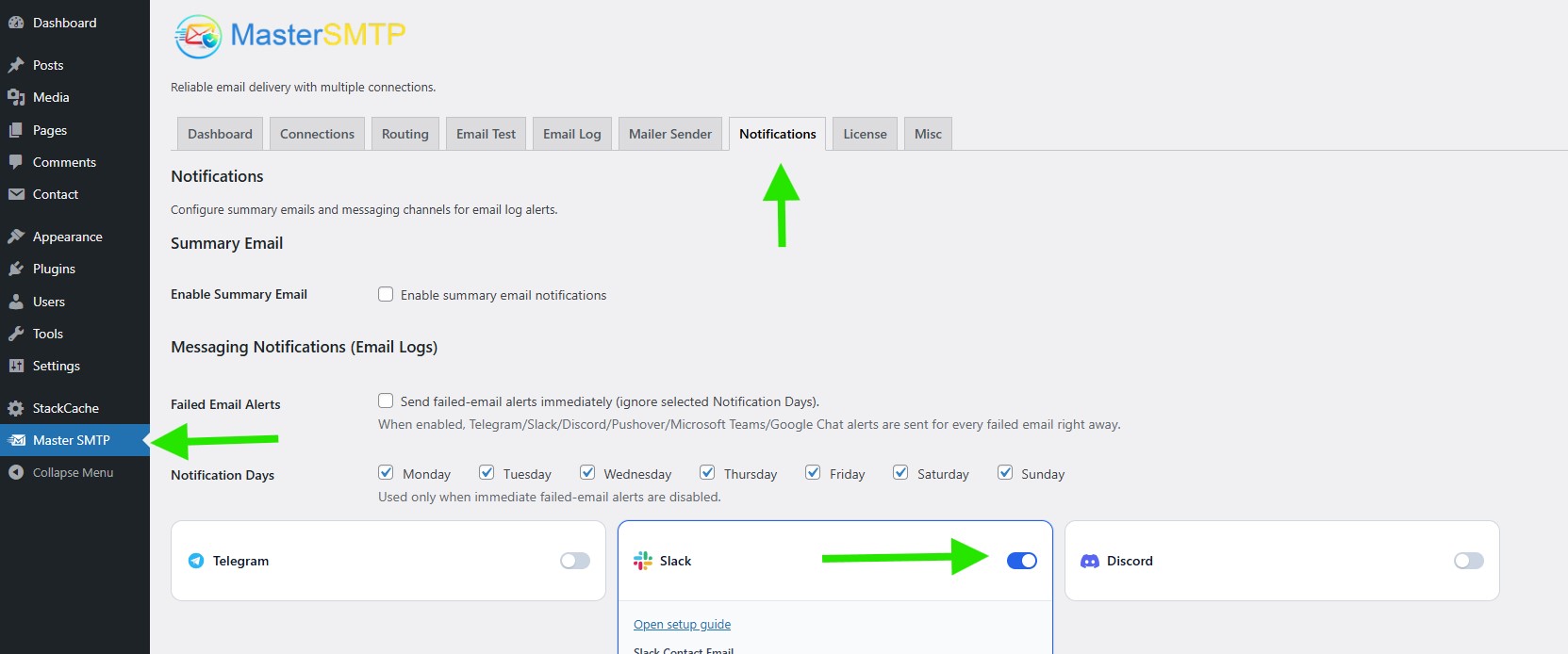
Enter the Slack Connection Details
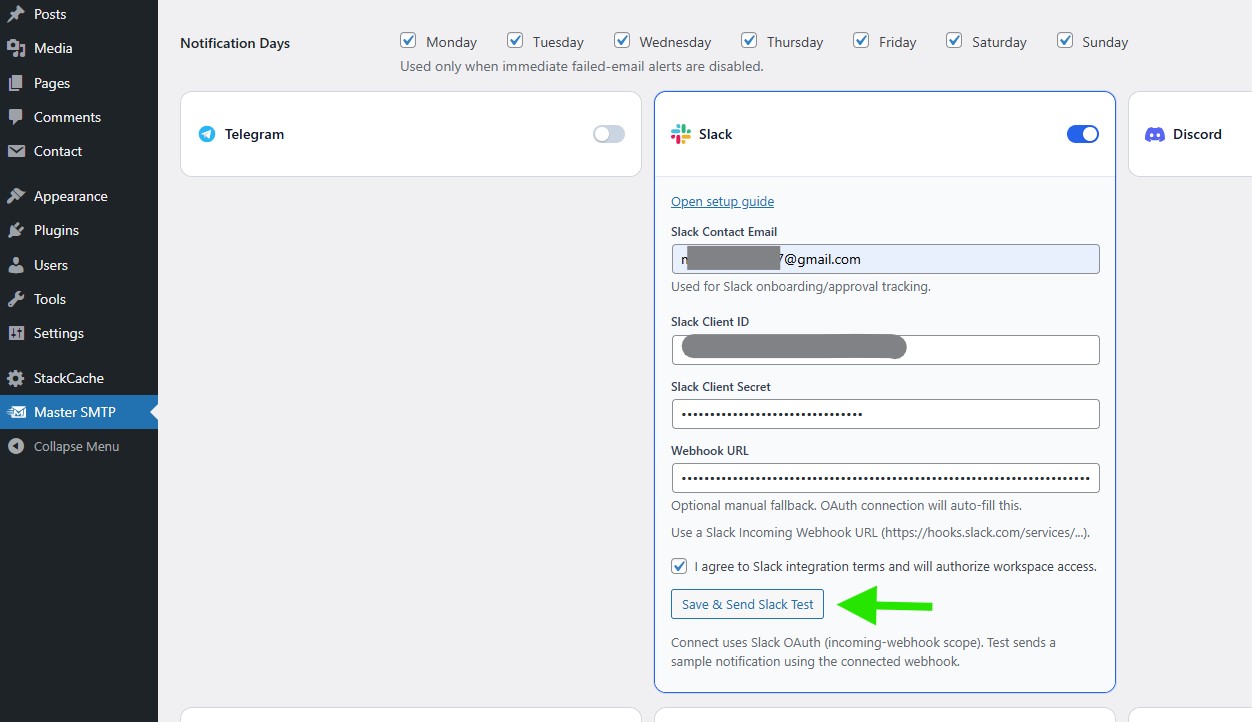
In the Slack settings box, fill in the required fields using the values from your Slack app and webhook setup.
Slack Contact Email: Enter the email address associated with your Slack setup. This is used for Slack onboarding and approval tracking.
Slack Client ID: Paste the Client ID from your Slack app credentials.
Slack Client Secret: Paste the Client Secret from your Slack app credentials.
Webhook URL: Paste the Slack Incoming Webhook URL you created for your selected channel. This can be used as a manual fallback.
After entering the details, check I agree to Slack integration terms and will authorize workspace access, then click Save & Send Slack Test to save the settings and send a test notification to Slack.
Confirm the Slack Test Notification
After clicking Save & Send Slack Test, you should see a success message confirming that the notification settings were saved and the Slack test notification was sent successfully. If you see a Slack webhook status: 200 message, your Slack webhook is working correctly.
Check the Test Message in Slack
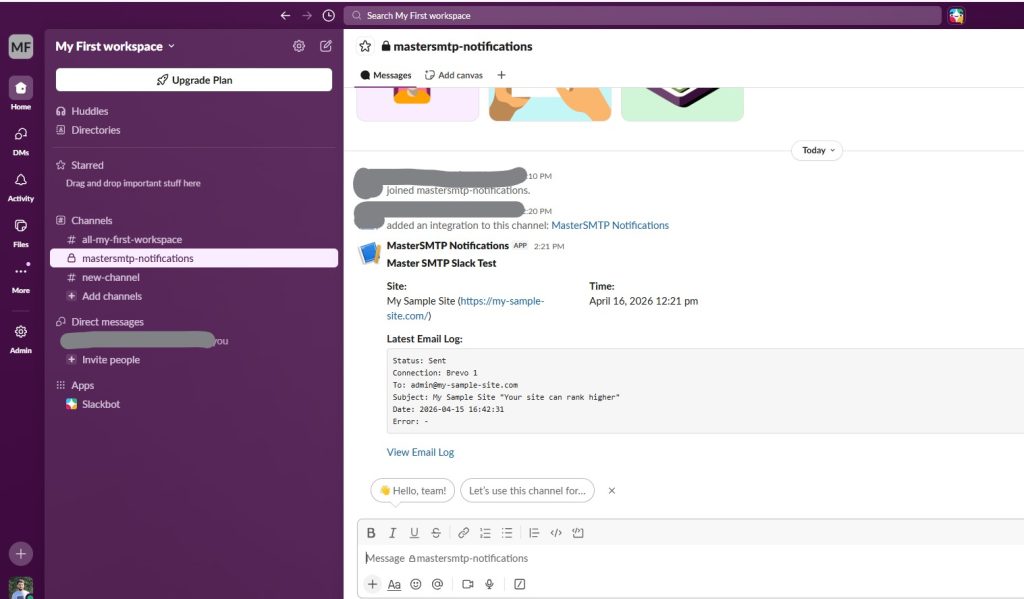
After clicking Save & Send Slack Test, open your selected Slack channel and confirm that the DeliveryKit SMTP Slack Test message appears there. If the message is posted in the channel, your Slack notifications are connected and working correctly.