Telegram notifications in DeliveryKit SMTP Pro let you receive email log alerts directly in your Telegram chat. This is useful for monitoring failed emails and staying informed without needing to check your WordPress dashboard manually. Once connected, DeliveryKit SMTP can send instant or scheduled notifications to your selected Telegram destination.
Note: Telegram notifications are a DeliveryKit SMTP Pro feature. If you want to use the Messaging Notifications feature, you need DeliveryKit SMTP Pro. You can buy it here: DeliveryKit SMTP Pro Pricing
Table of Contents
How Telegram Notifications Work
DeliveryKit SMTP Telegram notifications work through the official @DeliveryKitSMTPMessagesBot bot. To connect your Telegram account, you only need to verify the connection inside the bot. After verification, DeliveryKit SMTP will send your email log notifications to that bot in your own Telegram account, based on your selected Notification Days settings.
You do not need to create your own Telegram bot, group, or channel. Everything works directly through @DeliveryKitSMTPMessagesBot, which makes the setup fast and simple.
Enable Telegram Notifications
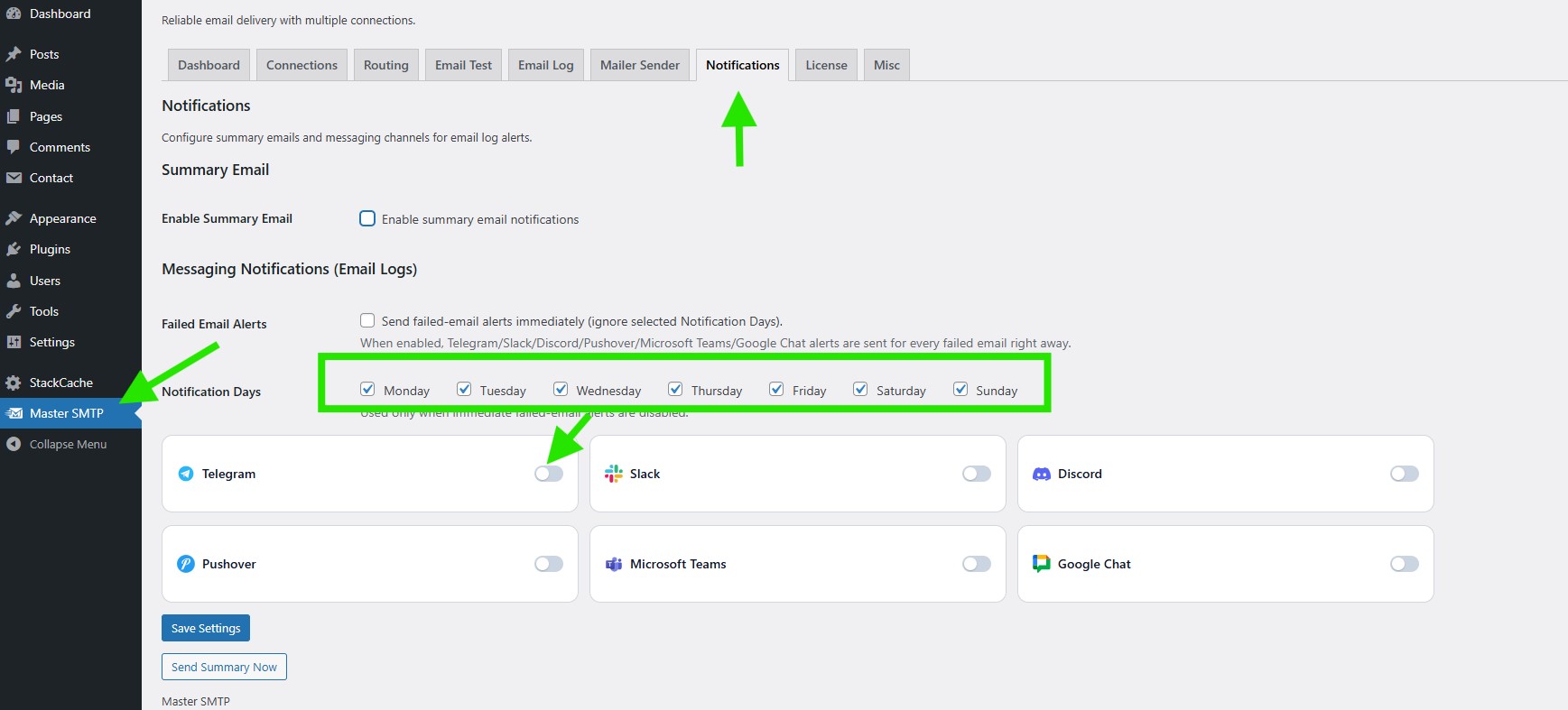
In your WordPress dashboard, go to DeliveryKit SMTP > Notifications. In the Messaging Notifications (Email Logs) section, first choose your Notification Days. Then turn on the Telegram toggle to enable Telegram notifications for email logs.
Notification Days
Select the days when Telegram notifications are allowed to be sent. DeliveryKit SMTP will use these selected days for sending email log alerts, unless immediate failed email alerts are enabled.
Telegram Toggle
Enable the Telegram toggle to start the Telegram connection setup. After turning it on, the Telegram settings fields will appear so you can continue the verification process with @DeliveryKitSMTPMessagesBot.
Generate Token
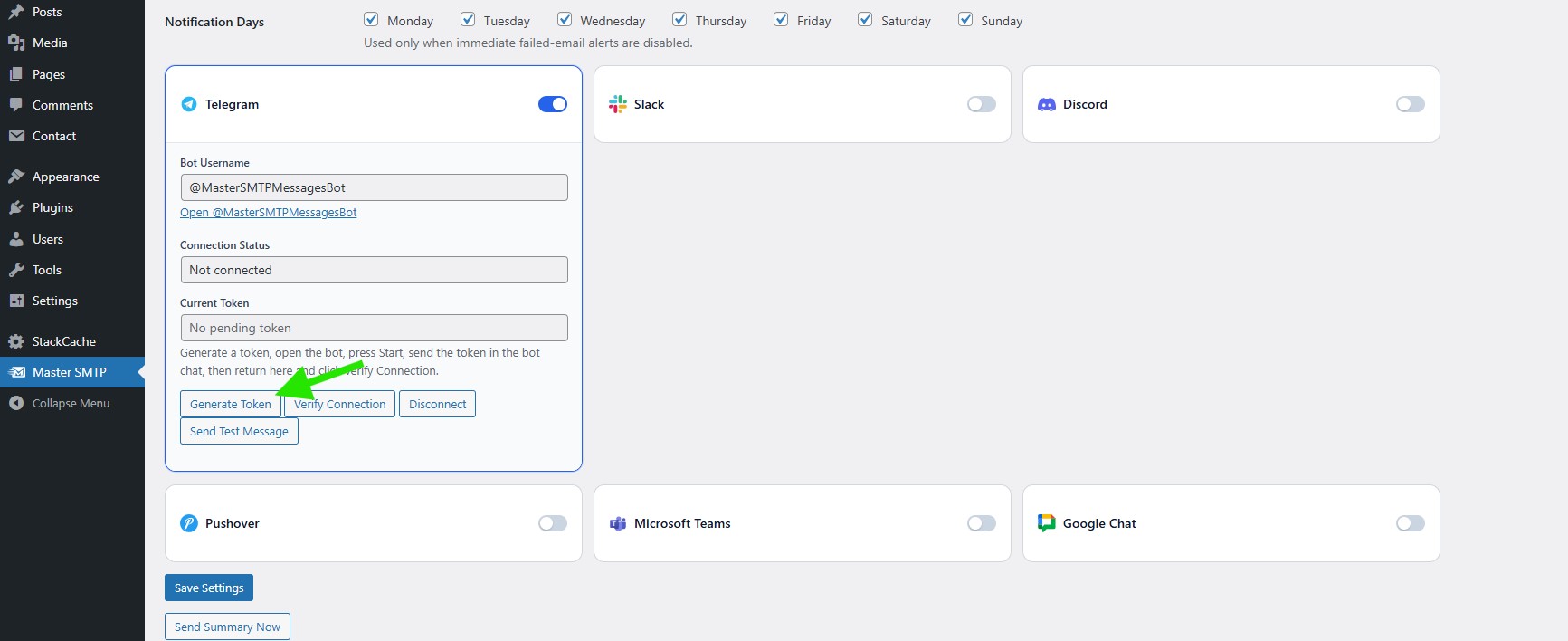
Click Generate Token to create a unique connection token for your Telegram setup. This token will be used in the next step to verify your Telegram account with @DeliveryKitSMTPMessagesBot.
Open the Telegram Bot
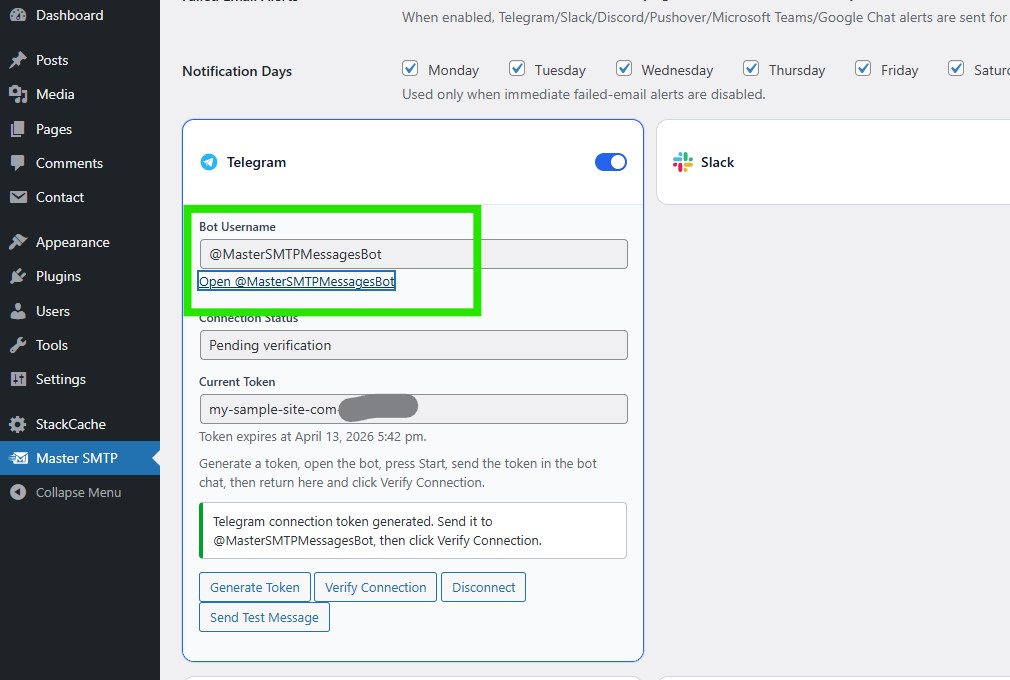
Copy the bot username and open Telegram to search for it. You can also click Open @DeliveryKitSMTPMessagesBot if Telegram is installed on the same device, which will open the bot directly for you.
Search for the Bot in Telegram
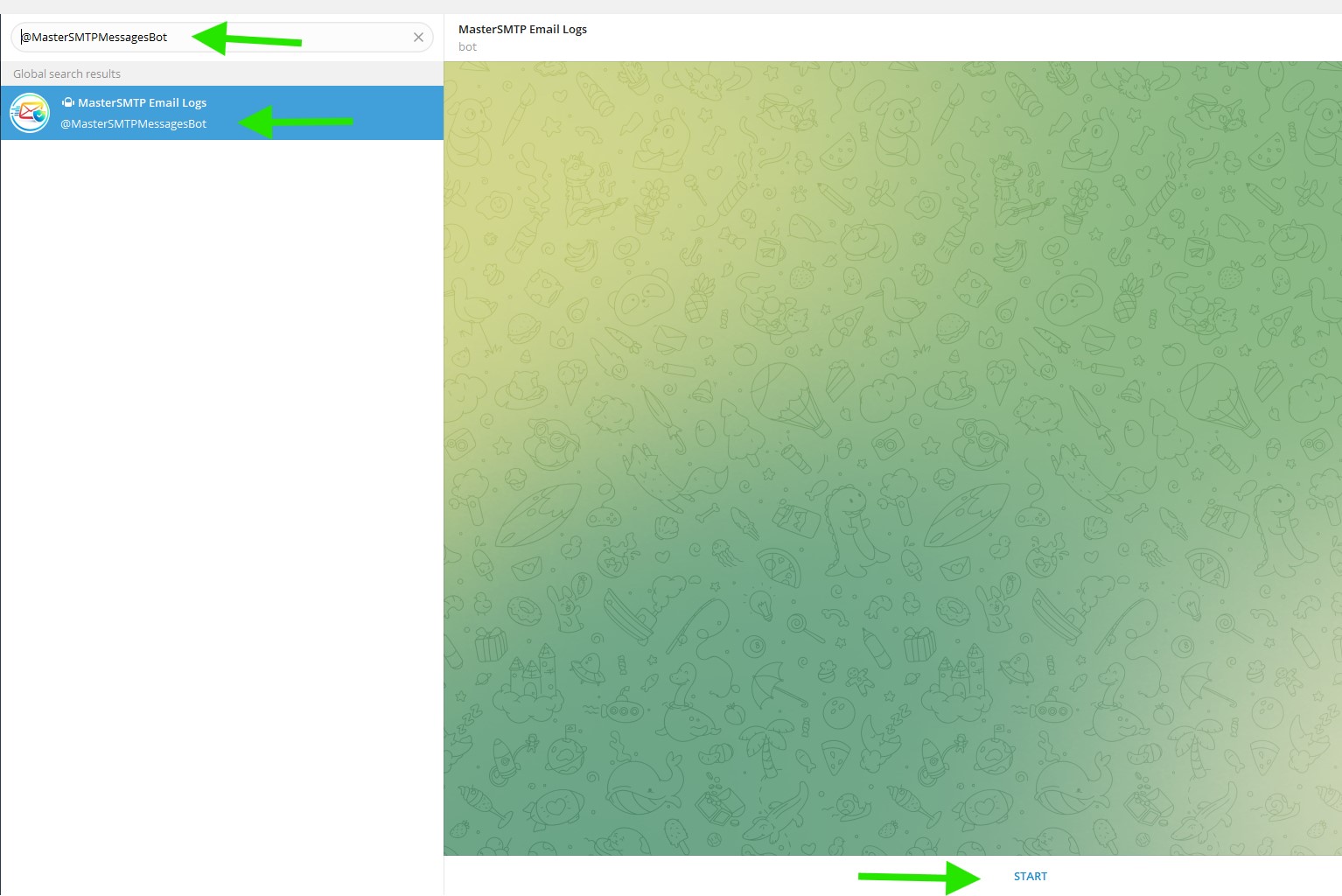
In Telegram, paste or type @DeliveryKitSMTPMessagesBot in the search box, then open the bot from the search results to continue the connection process.Start the Bot
After opening @DeliveryKitSMTPMessagesBot, click Start to begin the chat and allow the bot to receive your connection token in the next step.
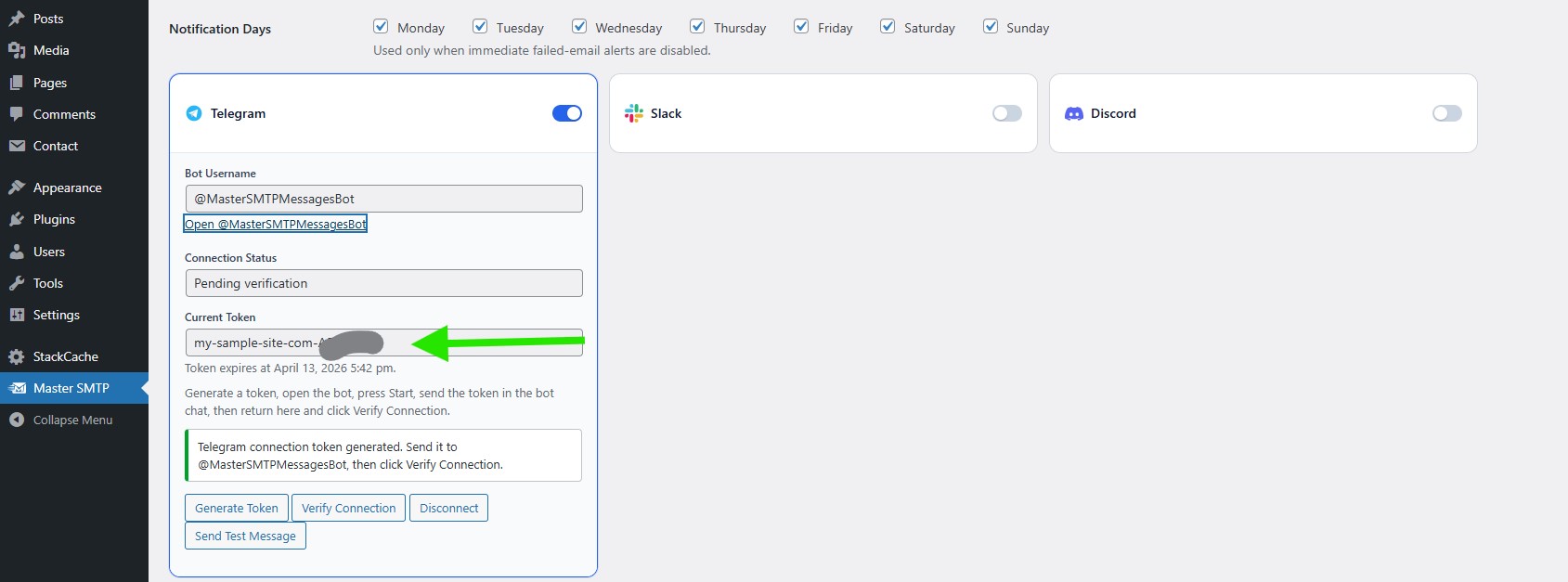
Copy the Current Token
After clicking Generate Token, a unique value will appear in the Current Token field. Copy this token, because you will need to send it to @DeliveryKitSMTPMessagesBot in the next step to connect your Telegram account.
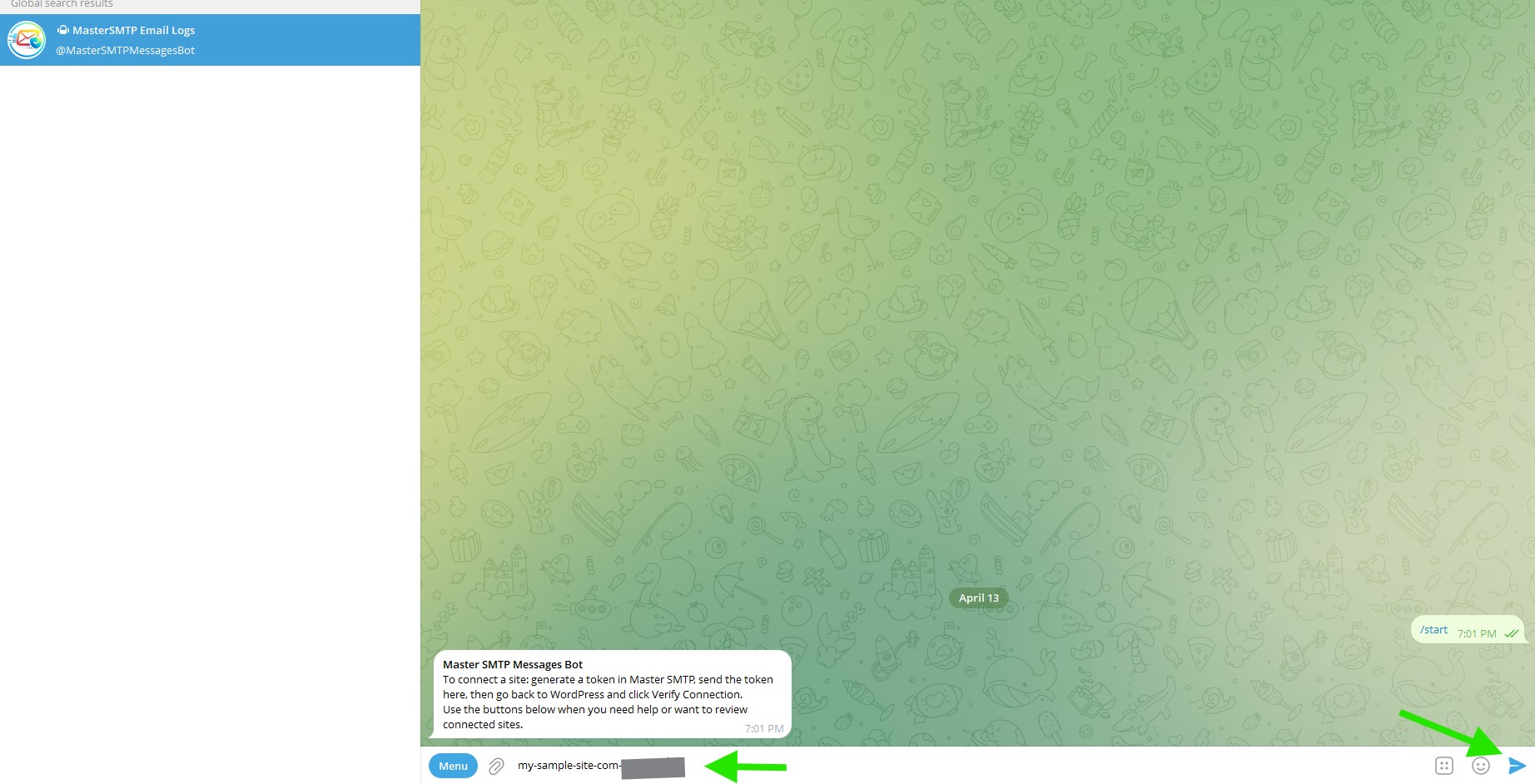
Send the Token to the Bot
In the chat with @DeliveryKitSMTPMessagesBot, paste the token you copied from DeliveryKit SMTP, then send it as a normal message. The bot will use this token to identify and verify your Telegram connection.
Confirm Token Accepted
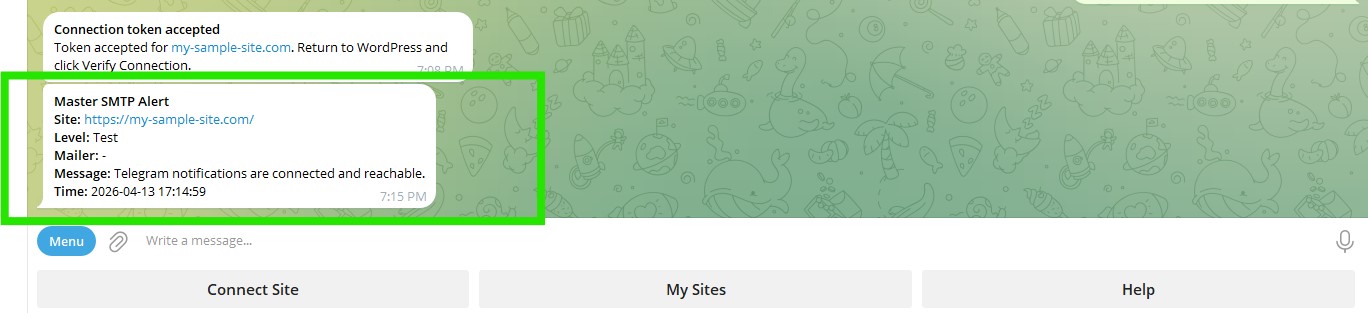
After sending the token, you should see this message in the bot:
Connection token accepted
Token accepted for my-site.com. Return to WordPress and click Verify Connection.
If you do not see this message, the token may have expired. In that case, go back to DeliveryKit SMTP, generate a new token, and send the new one to the bot.
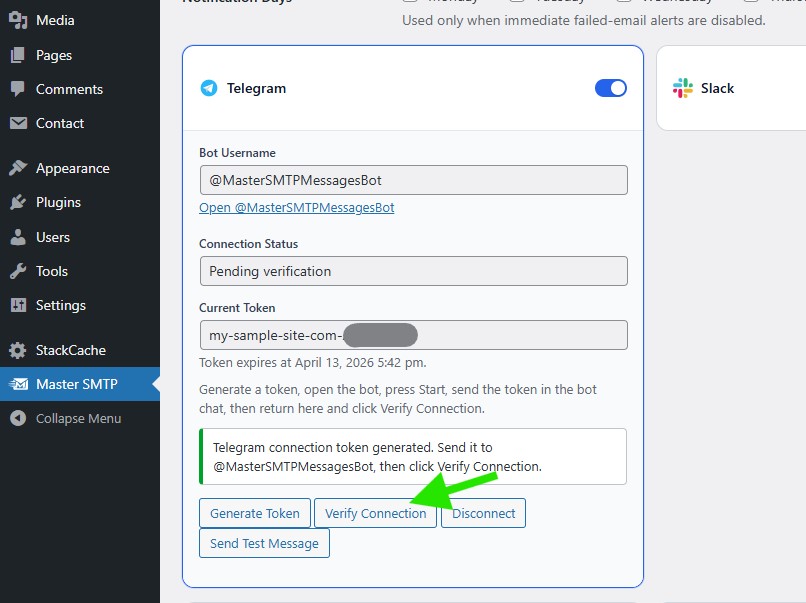
Verify Connection
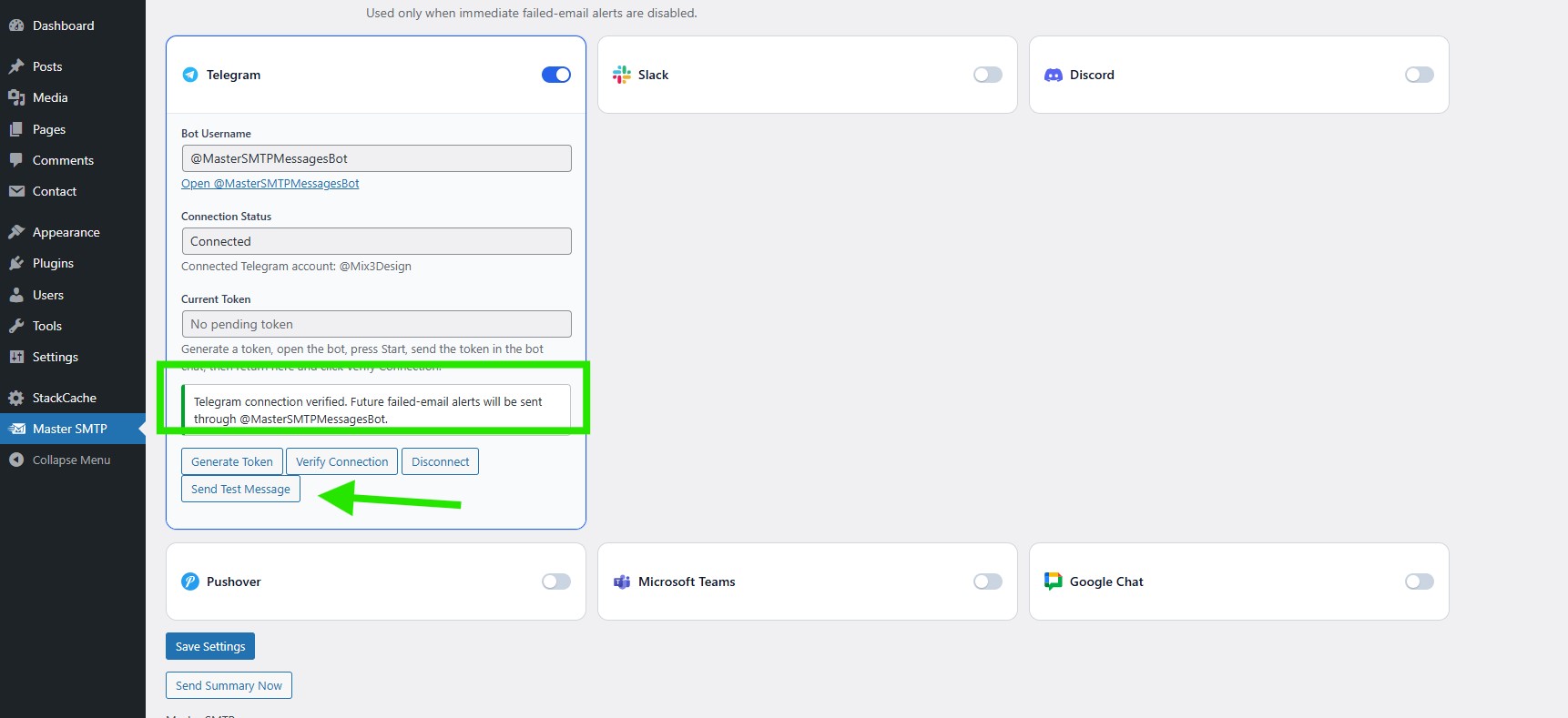
After the bot accepts your token, return to your WordPress dashboard and click Verify Connection. DeliveryKit SMTP will check the token and complete the Telegram connection.
Connection Verified
After clicking Verify Connection, the Connection Status should change to Connected. You should also see a success message confirming that future failed email alerts will be sent through @DeliveryKitSMTPMessagesBot.Save Settings
After your Telegram connection is completed, click Save Settings to keep the connection saved in DeliveryKit SMTP.
Send Test Message
Check the Test Message in Telegram
After clicking Send Test Message, you should receive a test alert in your Telegram chat from @DeliveryKitSMTPMessagesBot. If the message arrives, your Telegram notifications are connected correctly and ready to receive future DeliveryKit SMTP alerts.
Telegram Bot Menu and Buttons
Bot Menu Commands
/start: Start the bot and connect a new site.
/sites: Show the list of your connected sites.
/help: Show DeliveryKit SMTP help information.
/disconnect: Show help about disconnecting a connected site.
Bot Buttons
Connect Site: Start the process to connect a new site.
My Sites: Show the list of your connected sites.
Help: Open DeliveryKit SMTP help information.

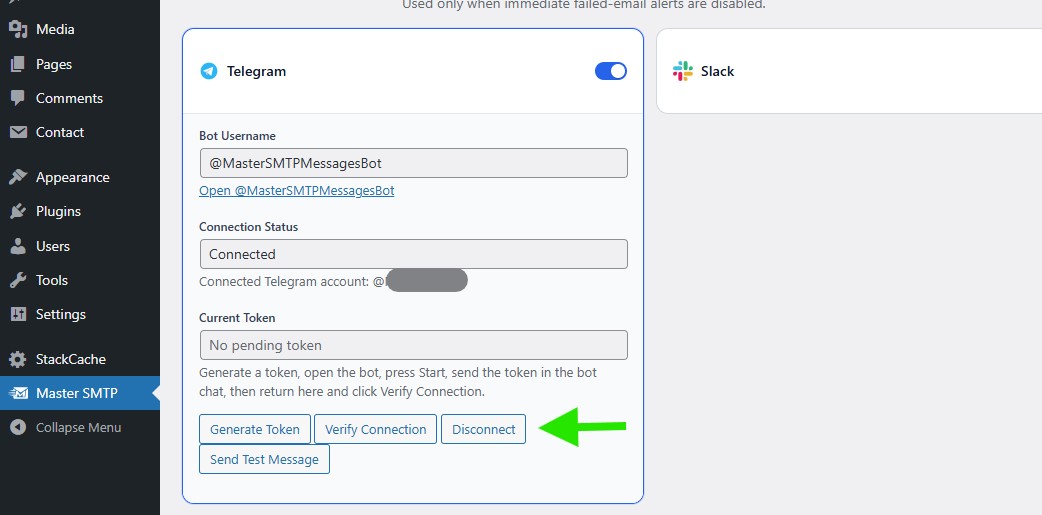
Disconnect Connection
If you want to remove the current Telegram connection, click Disconnect. This will disconnect the linked Telegram account from DeliveryKit SMTP, and Telegram notifications will stop until you connect again and save the settings.