
Table of Contents
What is SMTP2GO?
SMTP2GO is an email delivery service that helps you send transactional and other outgoing emails reliably using SMTP relay or API integration. It is designed to improve deliverability, supports sender domain authentication with SPF and DKIM, and includes tools like activity reporting, bounce tracking, and email logs to help monitor your sending performance. For WordPress and Master SMTP users, SMTP2GO is a practical option for sending website emails more securely and consistently than the default PHP mail function.
Creating a SMTP2GO Account
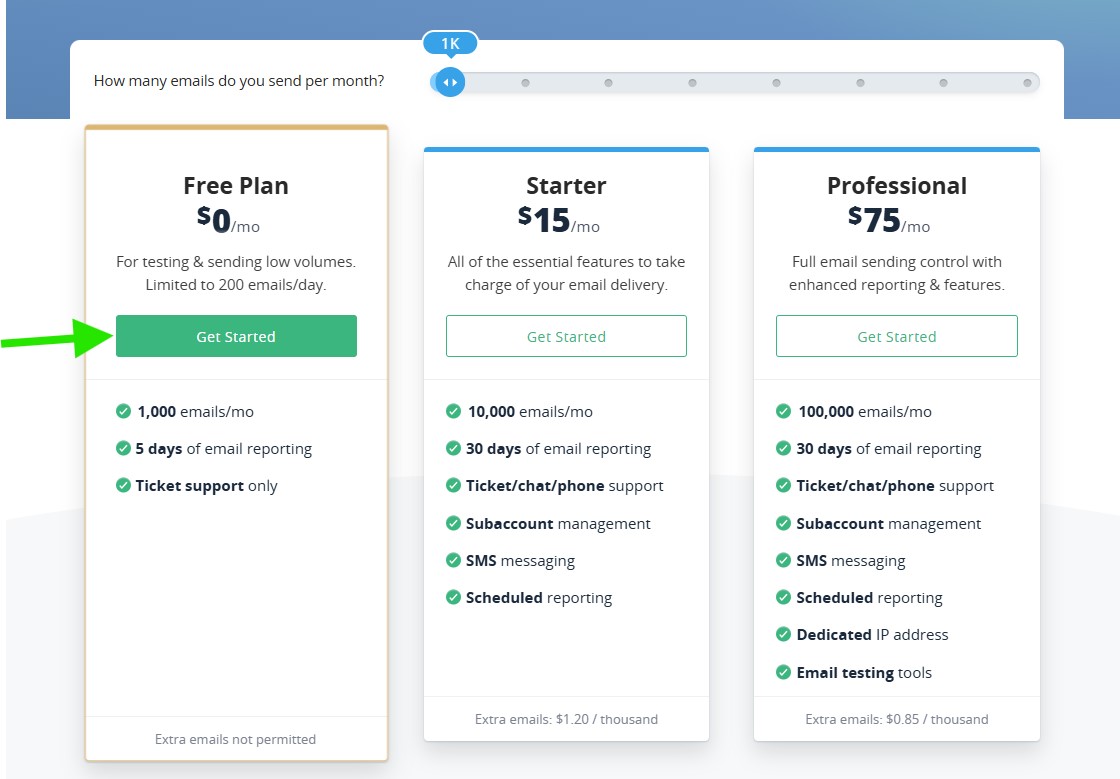
To create your SMTP2GO account, visit the pricing page and choose a plan that fits your needs. In this example, we use the Free plan, which is a good option for testing and small websites.
On the pricing page, click the Get Started button under the Free Plan.
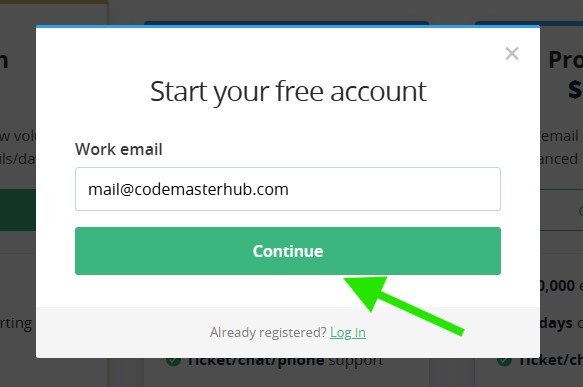
A signup popup will appear. Enter your work email address, then click Continue to proceed with the account creation process.
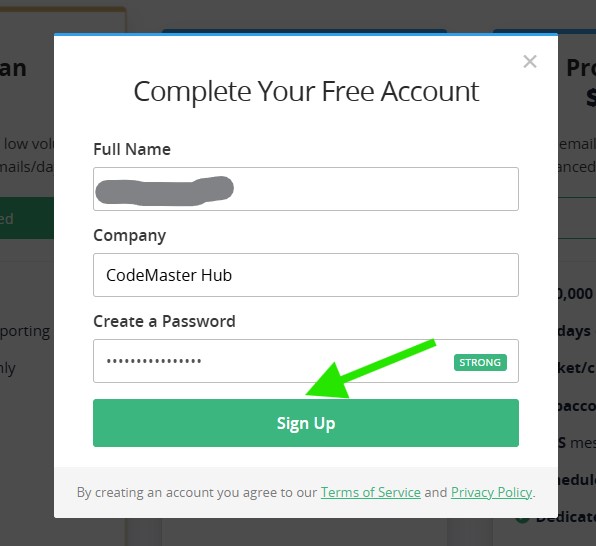
Next, enter your full name, company name, and create a password for your SMTP2GO account. When ready, click Sign Up to continue.
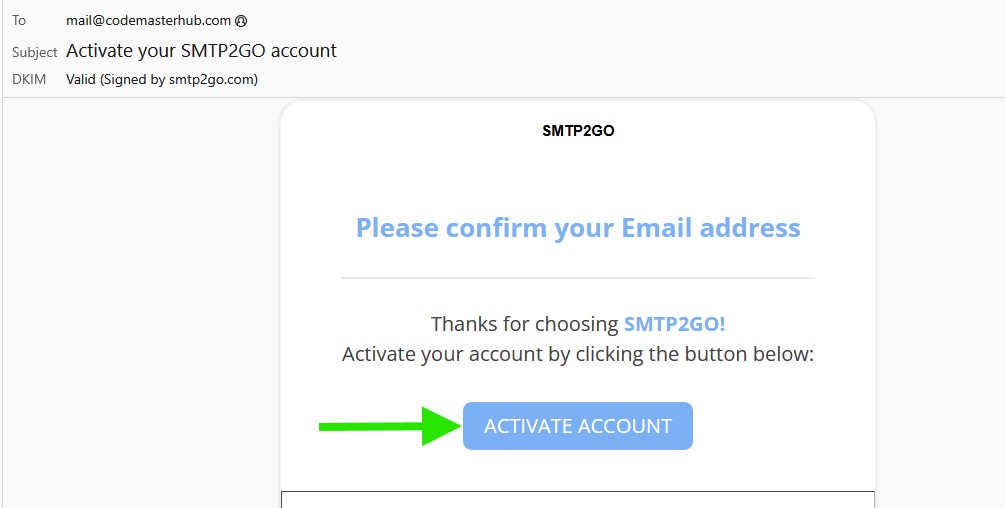
After signing up, check your inbox for the SMTP2GO account activation email. Open the email and click Activate Account to verify your email address and continue.
After verifying your email address, you will be redirected to your SMTP2GO dashboard. From there, click Add a verified sender to continue. You can also go directly to the Verified Senders page by visiting https://app.smtp2go.com/sending/verified_senders/.
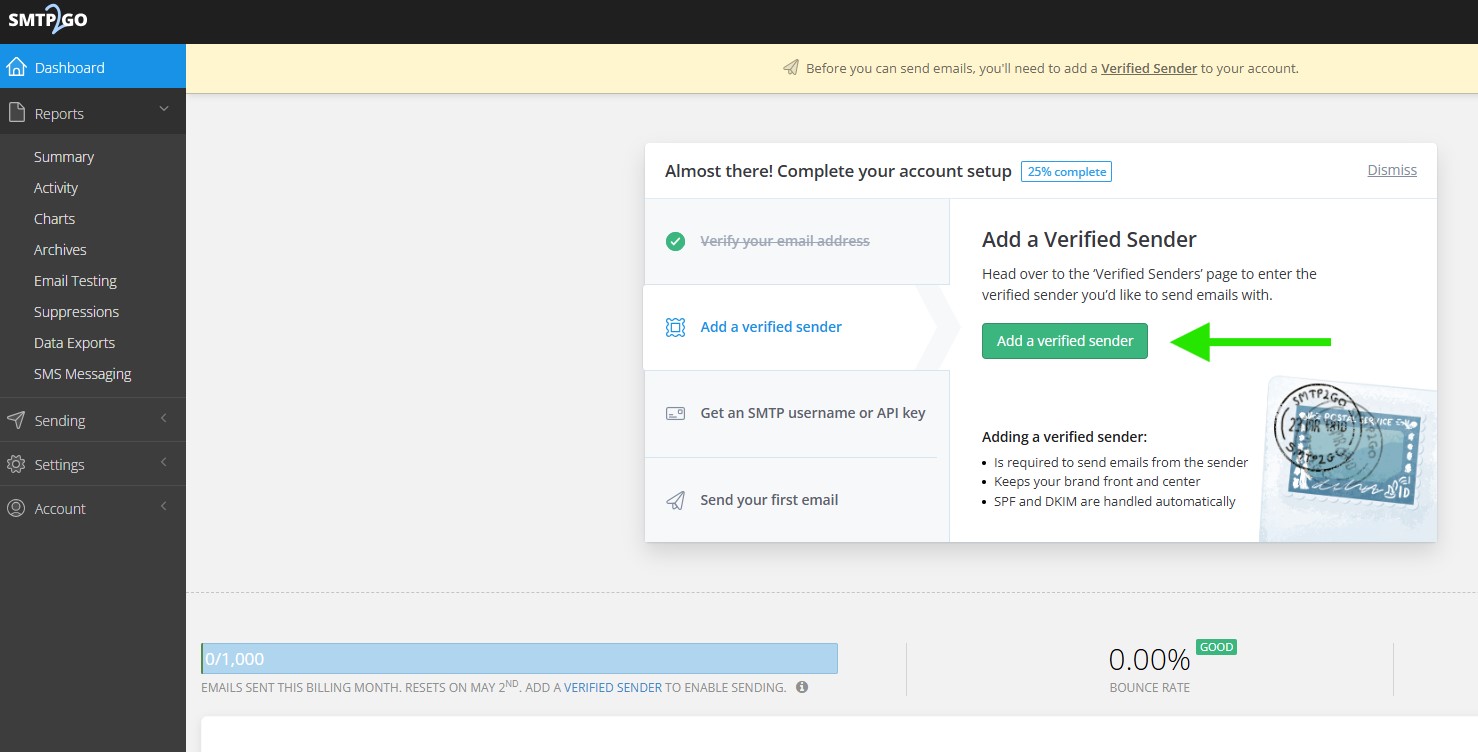
On the Verified Senders page, click Add a sender domain. Verifying your domain is the recommended option, because it improves deliverability and lets you send emails from addresses on that domain.
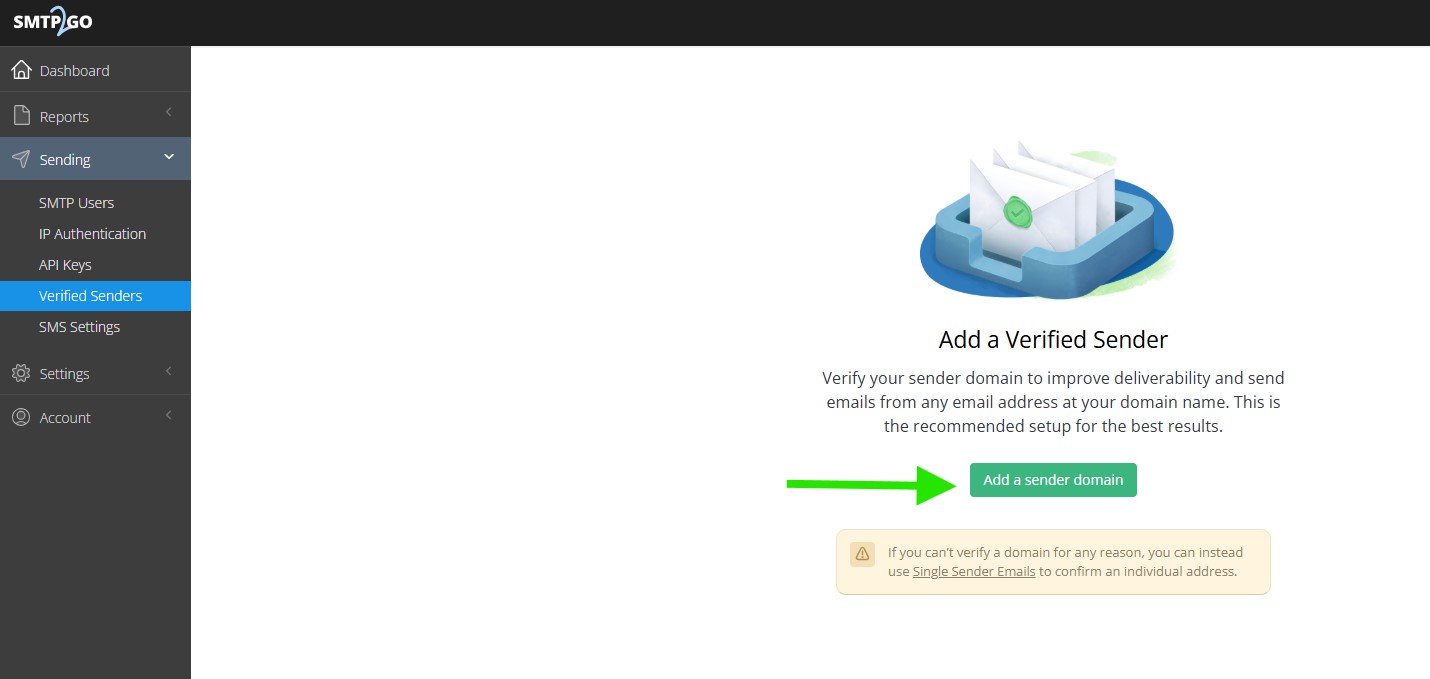
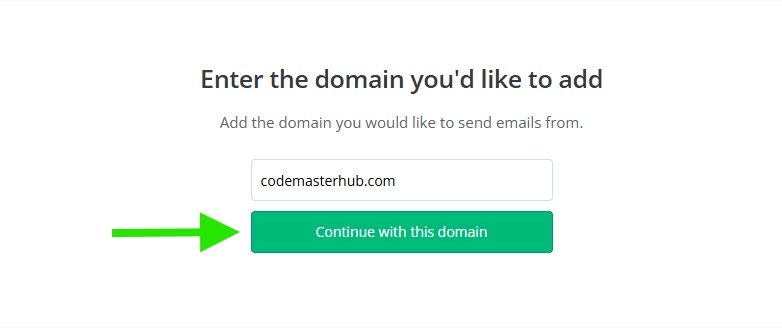
Enter the domain name you want to use for sending emails, then click Continue with this domain.
SMTP2GO will now ask you to verify your DNS. At this step, you can choose Set up automatically if your DNS provider is supported, or Set up manually to add the required DNS records yourself.
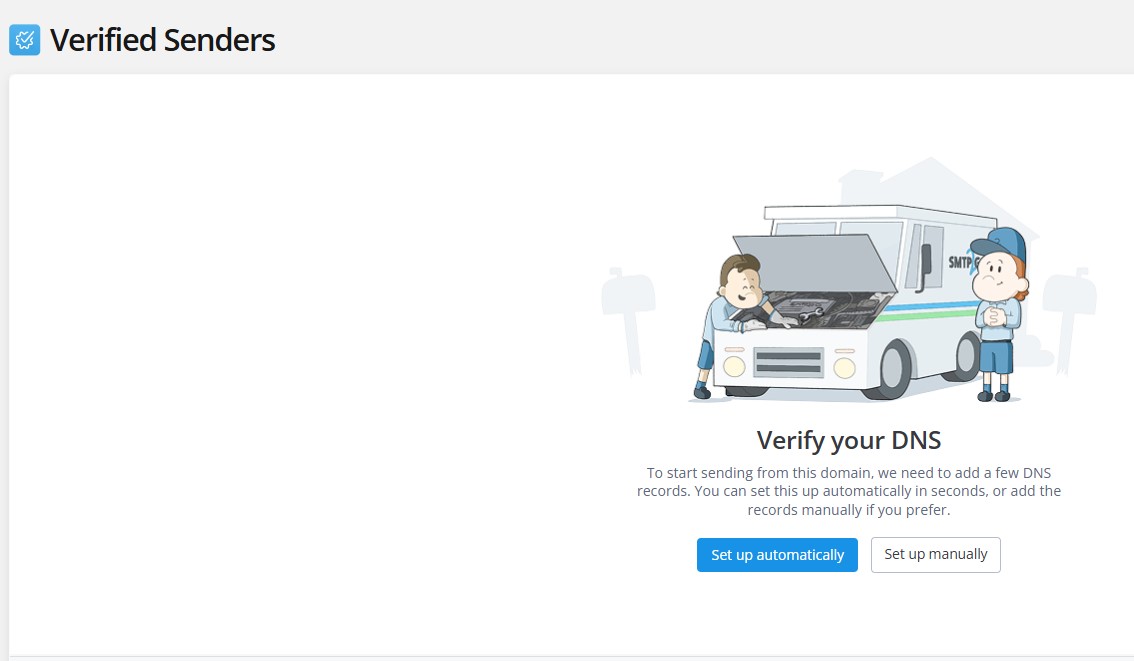
If you selected automatic setup, follow the prompts to let SMTP2GO add the DNS records for you. If you selected manual setup, add the required DNS records at your DNS provider, then return to SMTP2GO and click Verify.
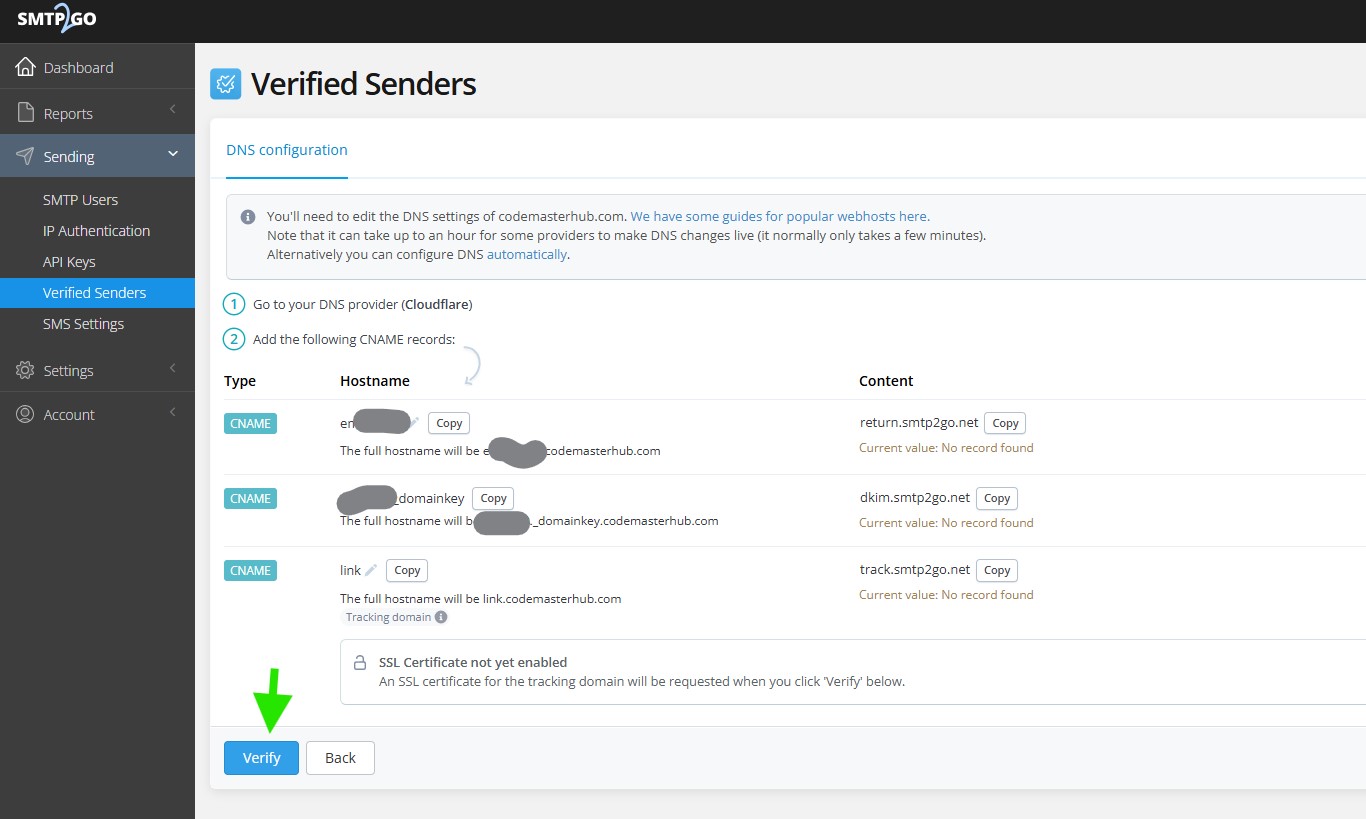
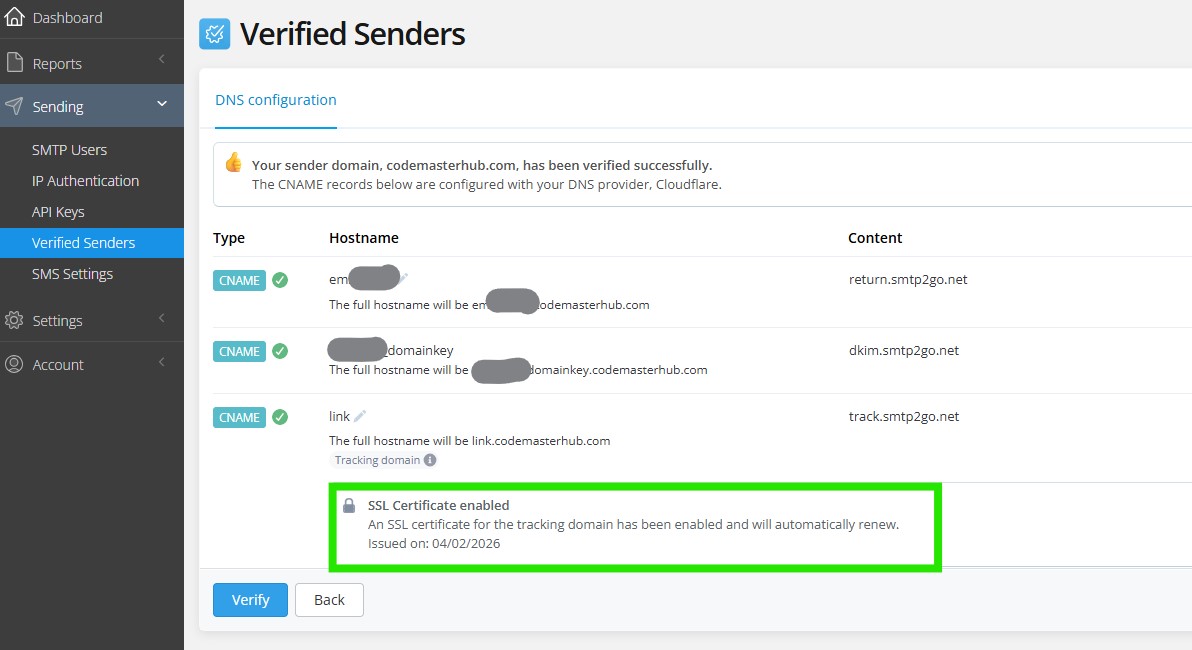
After adding the DNS records, click Verify. If you see that the SSL certificate for the link CNAME is still pending, wait a few minutes and click Verify again. In some cases, you may need to try again until the domain and SSL certificate are fully verified.
SMTP2GO API Key
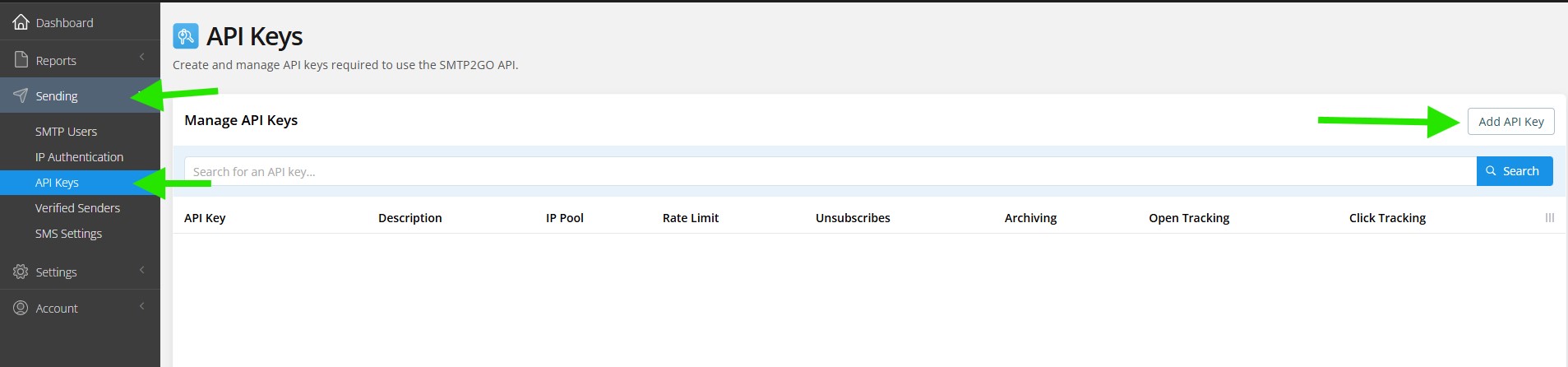
To create an API key in SMTP2GO, go to Sending in the left sidebar, then open API Keys. After that, click Add API Key.
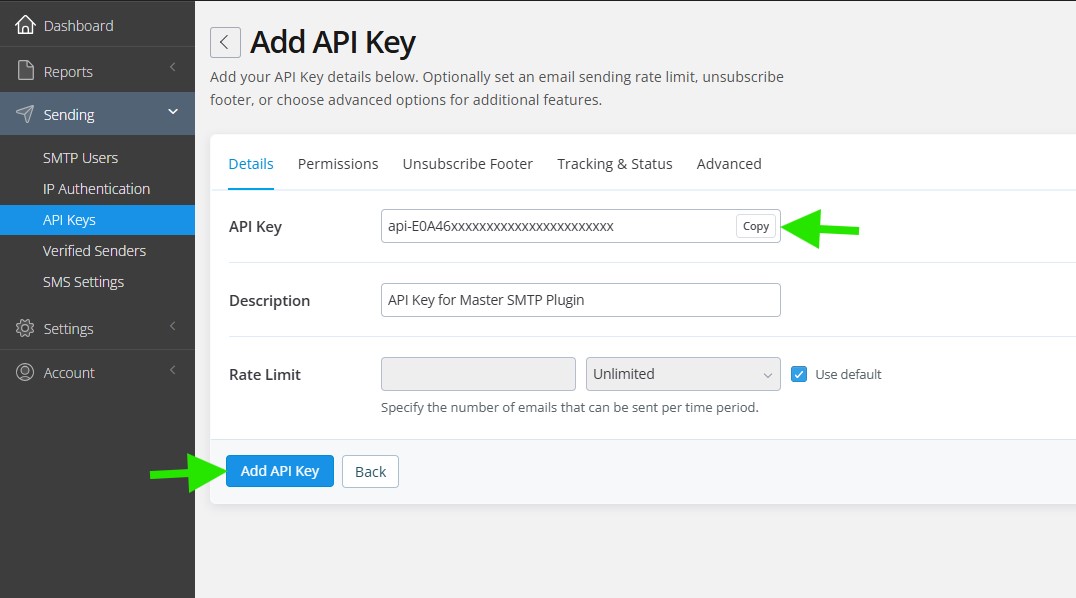
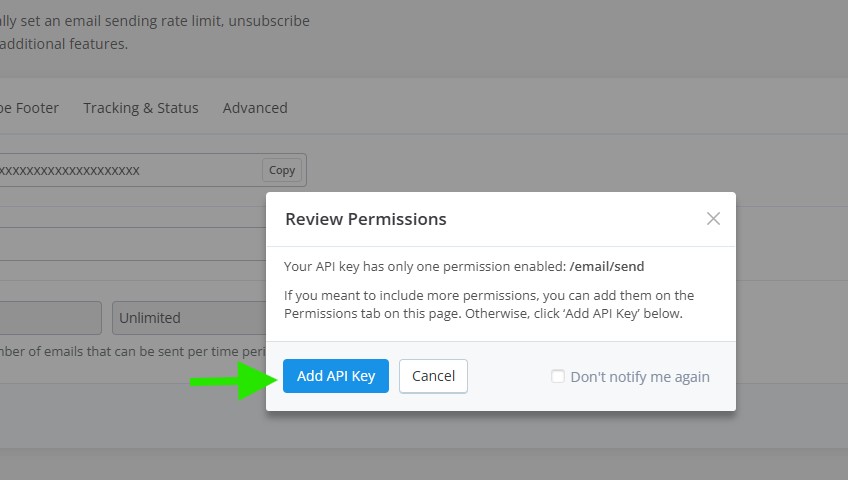
First, copy the generated API Key and save it in a safe place. You will need it later in the Master SMTP settings. After that, click Add API Key.
A review permissions popup may appear before the API key is created. By default, the /email/send permission is already selected, and that is enough for connecting SMTP2GO with Master SMTP. If you want to add more permissions, open the Permissions tab first and select them before continuing.
SMTP2GO Setup in Master SMTP Plugin
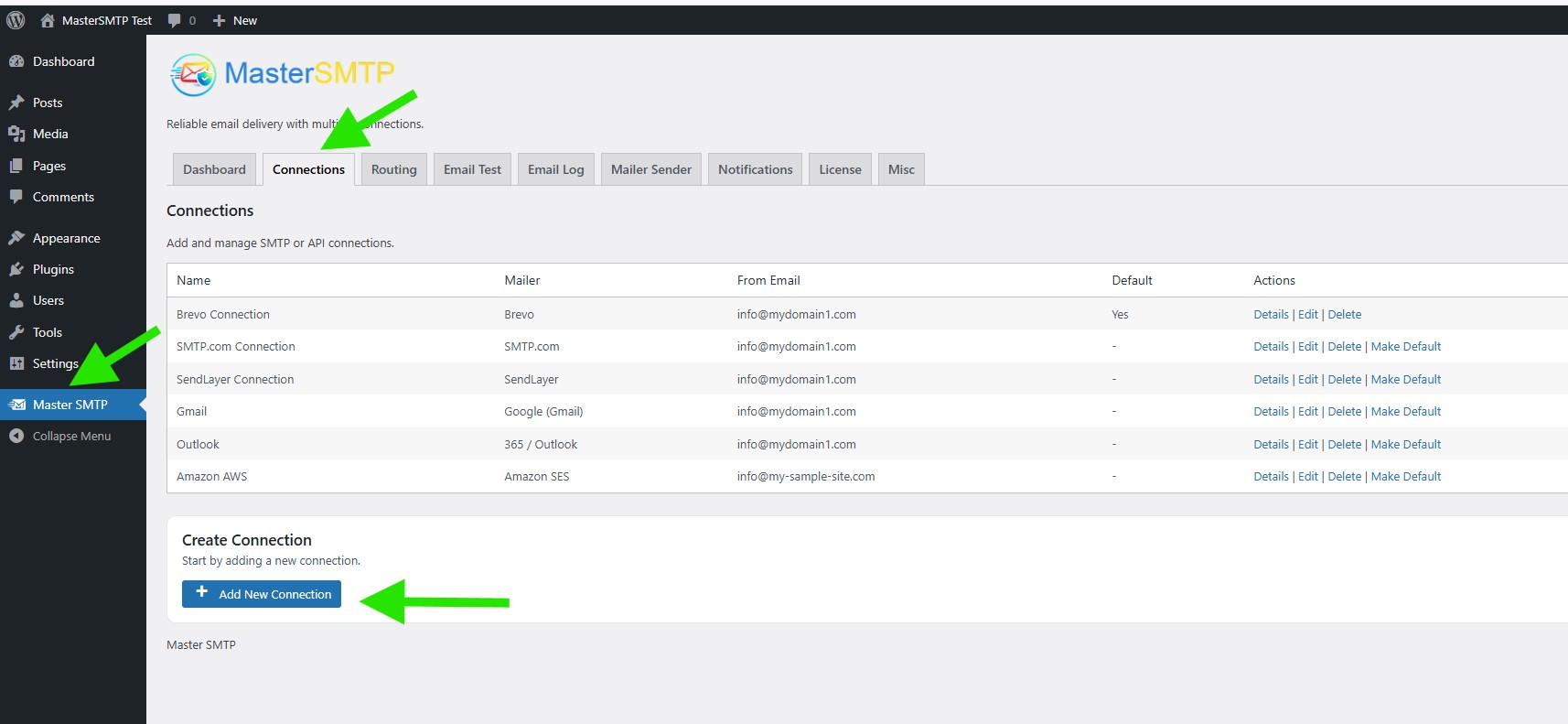
In your WordPress dashboard, go to Master SMTP > Connections, then click Create New Connection.
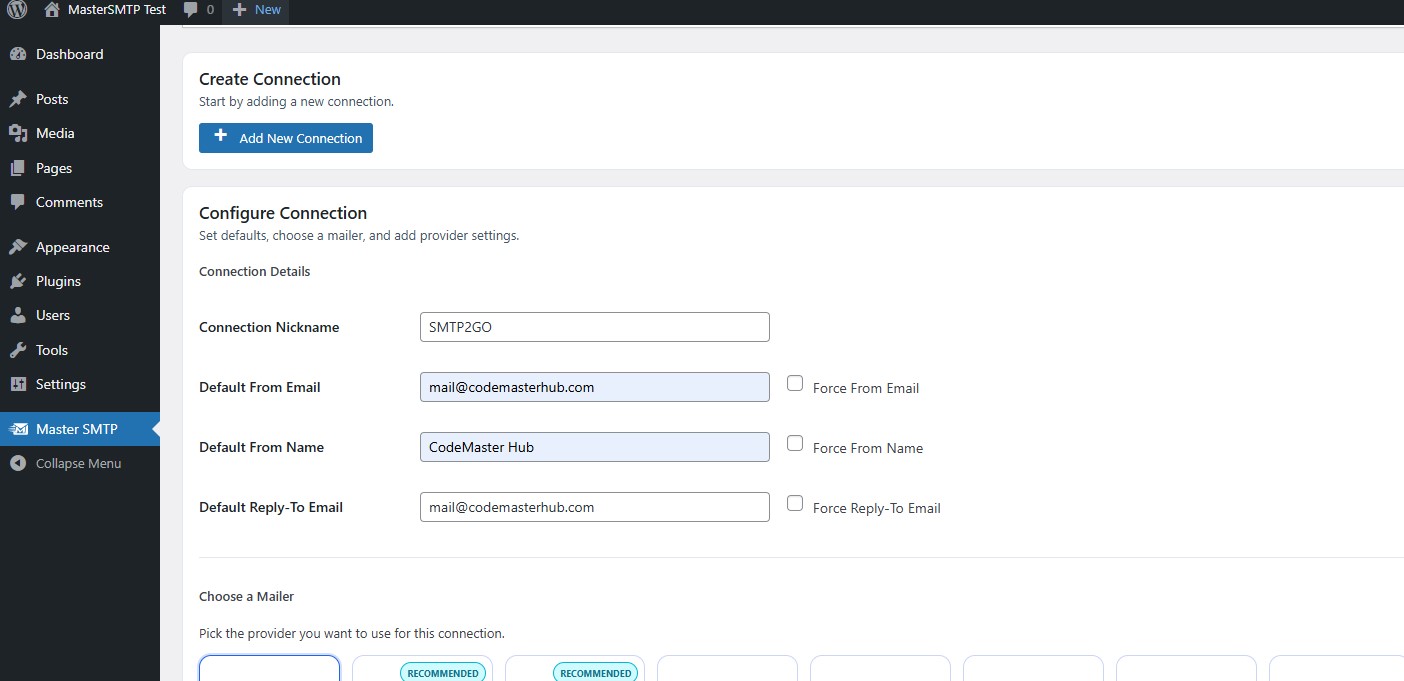
Configure Connection
In the Configure Connection section, fill out the Connection Details fields:
Connection Details: Enter a name for this connection. This is only for you, recipients will not see it.
Default From Email: The email address used when an outgoing email does not define a From Email.
Force From Email: If enabled, this From Email will be used for all emails, even if the email has a different From Email.
Default From Name: The name used when an outgoing email does not define a From Name.
Force From Name: If enabled, this From Name will be used for all emails, even if the email has a different From Name.
Default Reply-To Email: The Reply-To address used when an outgoing email does not define a Reply-To Email.
Force Reply-To Email: If enabled, this Reply-To Email will be used for all emails, even if the email has a different Reply-To Email.
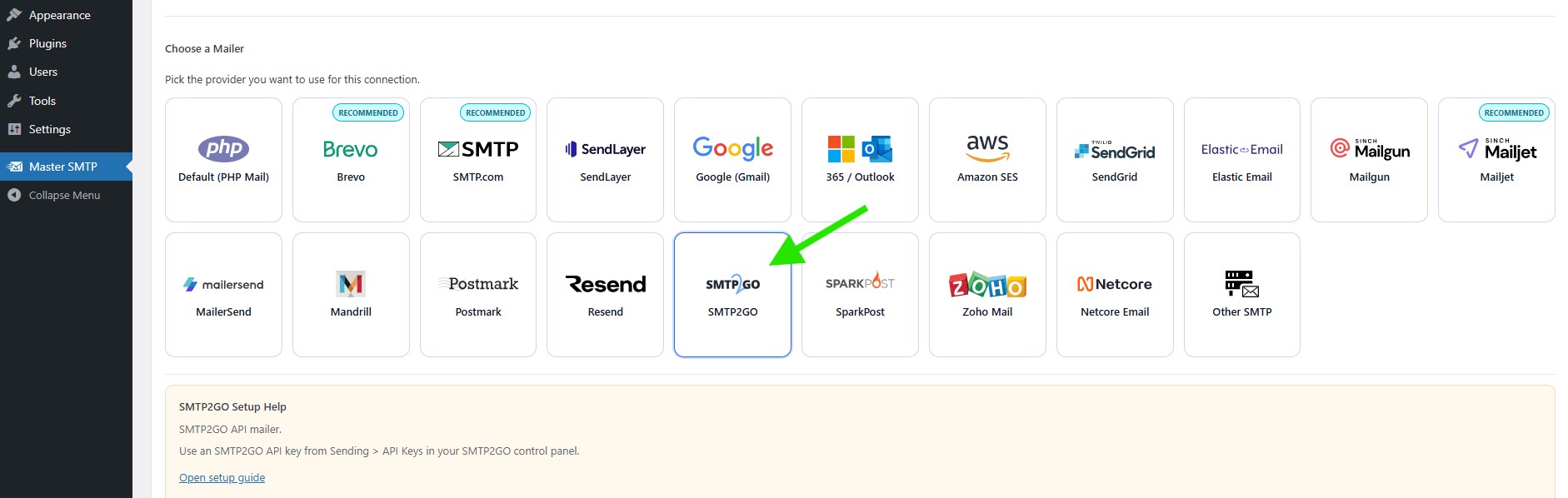
SMTP2GO Settings
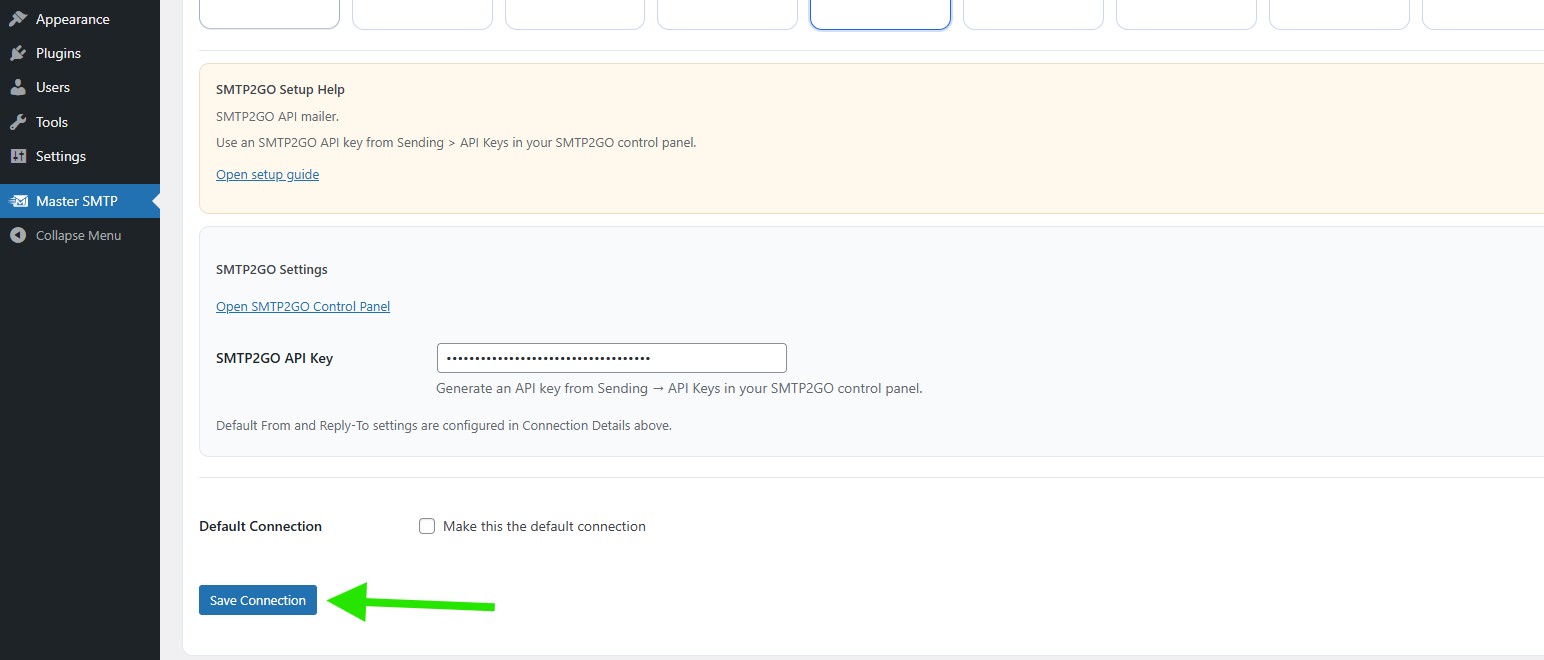
In the SMTP2GO Settings section, paste your SMTP2GO API Key into the API Key field.
If you want, you can also enable Default Connection to make SMTP2GO your default mailer. When you are done, click Save Connection.
The connection will be added to the Connections list, and you should see Connection saved. at the top of the window.
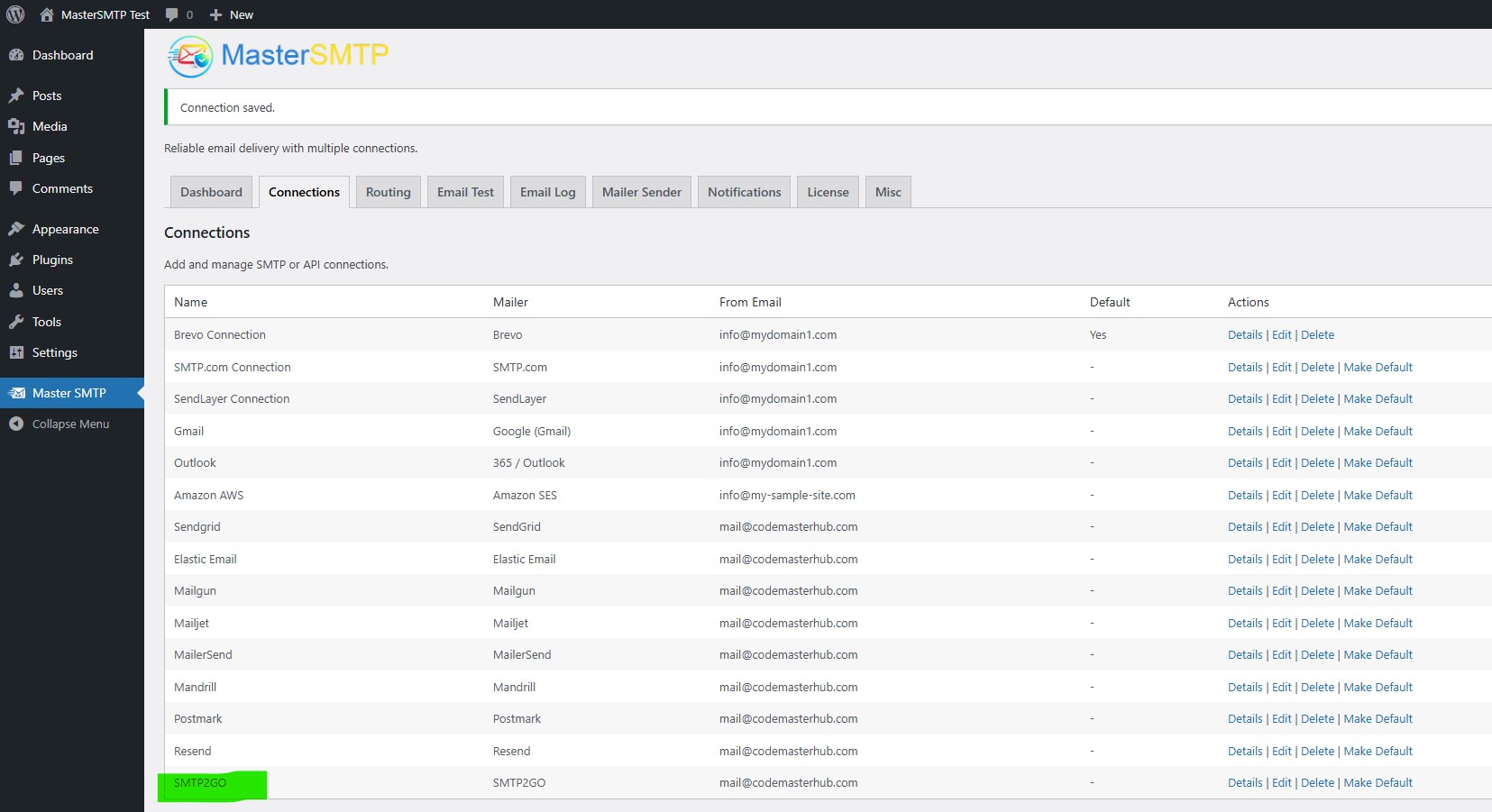
Note: The free version allows you to add only one connection. If you need multiple connections, Conditional Routing, and many other features, you should purchase the Master SMTP Pro.
Test SMTP2GO Connection
After saving your SMTP2GO connection, it is recommended to send a test email to make sure everything is working correctly. This helps confirm that your API Key, and connection settings have been entered properly and that your site can send emails successfully through SMTP2GO SMTP.
For step-by-step instructions, see the test connection guide here: