
Table of Contents
What is Mailjet?
Mailjet is an email delivery service that lets you send transactional and marketing emails through a reliable cloud platform. It provides SMTP and API options for sending emails, along with tools for managing senders, monitoring delivery, and improving email performance. In Master SMTP, Mailjet can be used as your mailer to help send WordPress emails more securely and consistently.
Setting Up a Mailjet Account
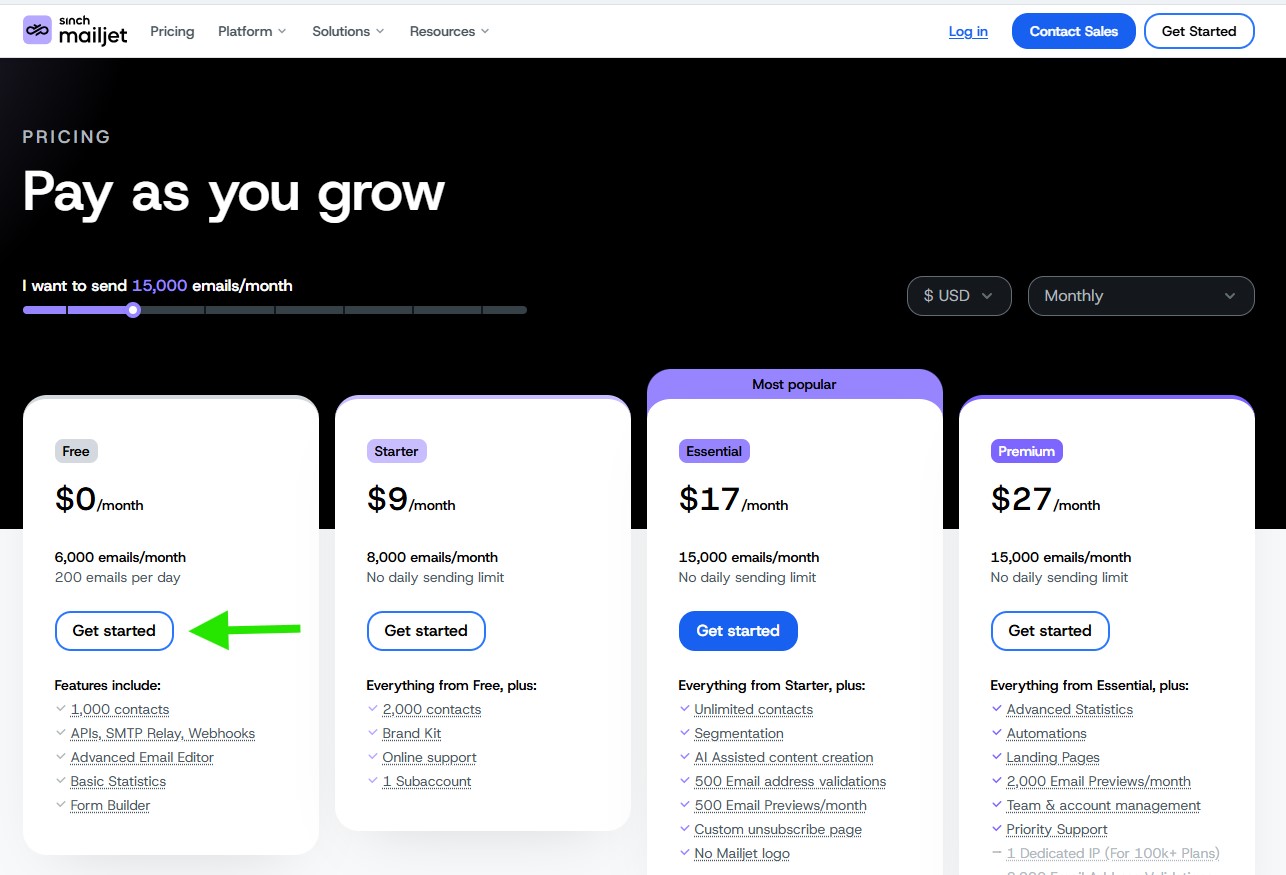
To get started with Mailjet, visit the Mailjet pricing page and click the Get started button on the Free plan. At the time of writing, Mailjet offers a free plan that includes up to 6,000 emails per month, with a limit of 200 emails per day, which is a good option for testing or small websites.
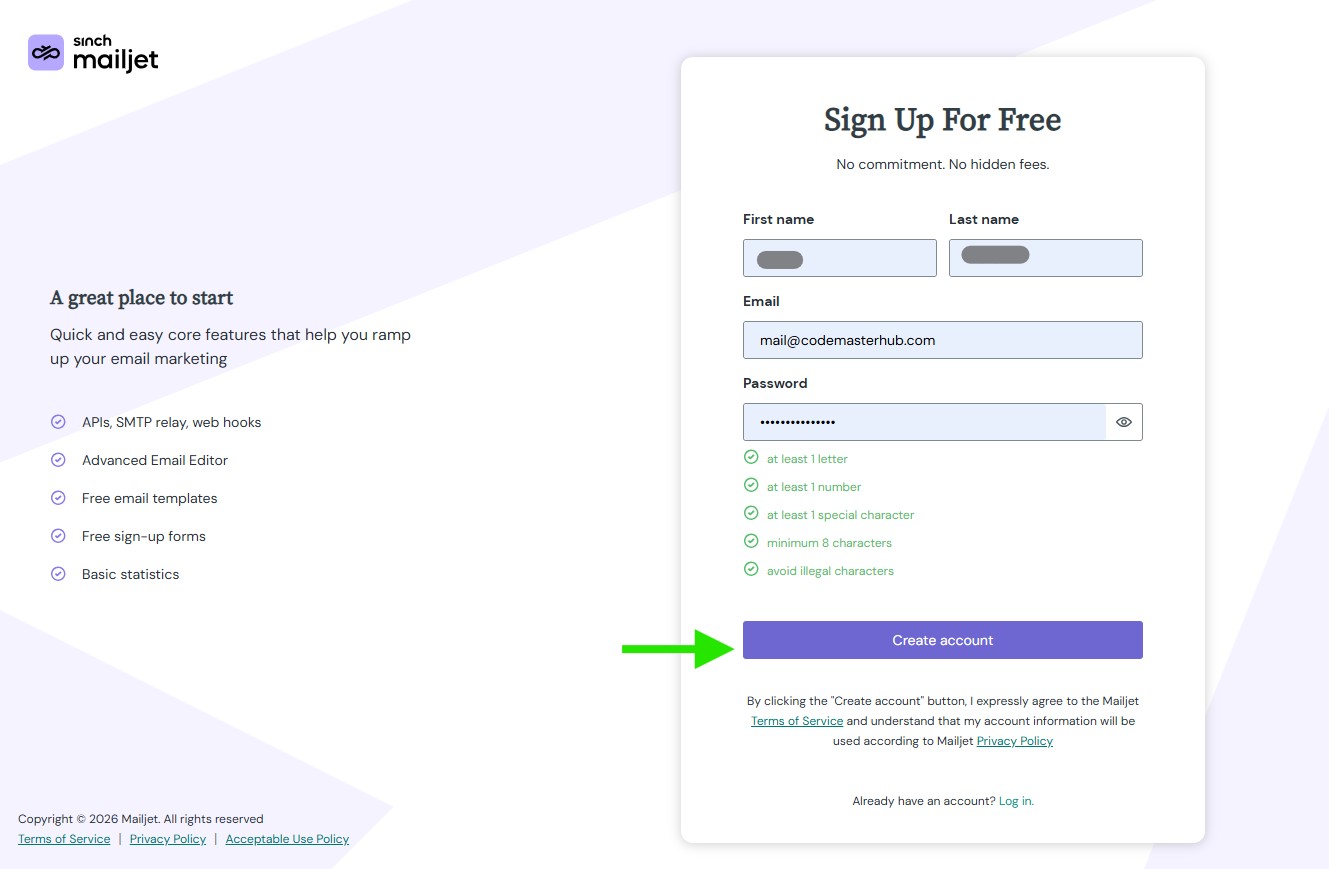
Fill in the sign up form with your details, then click Create account to continue.
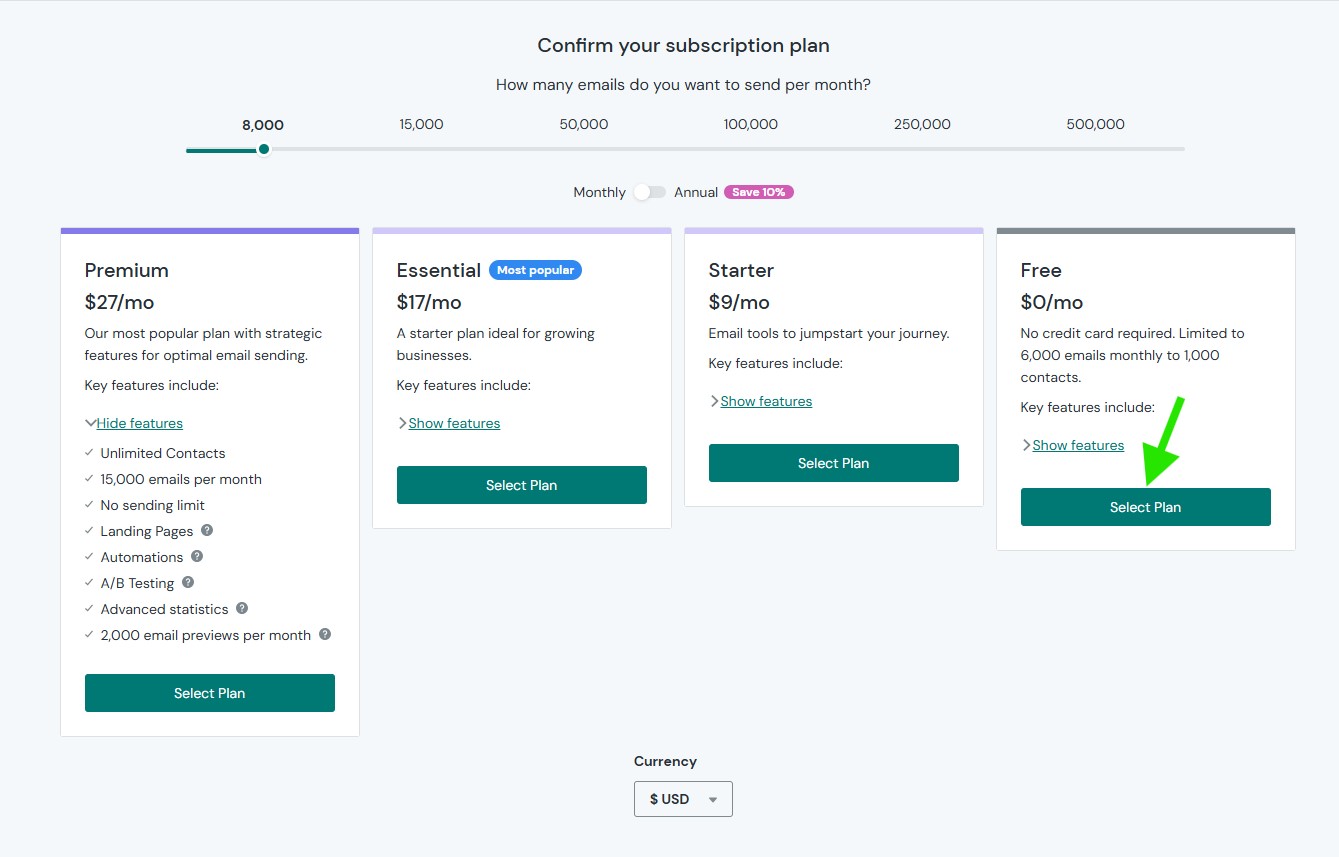
On the plan selection page, choose the Free plan, then click Select Plan to continue.
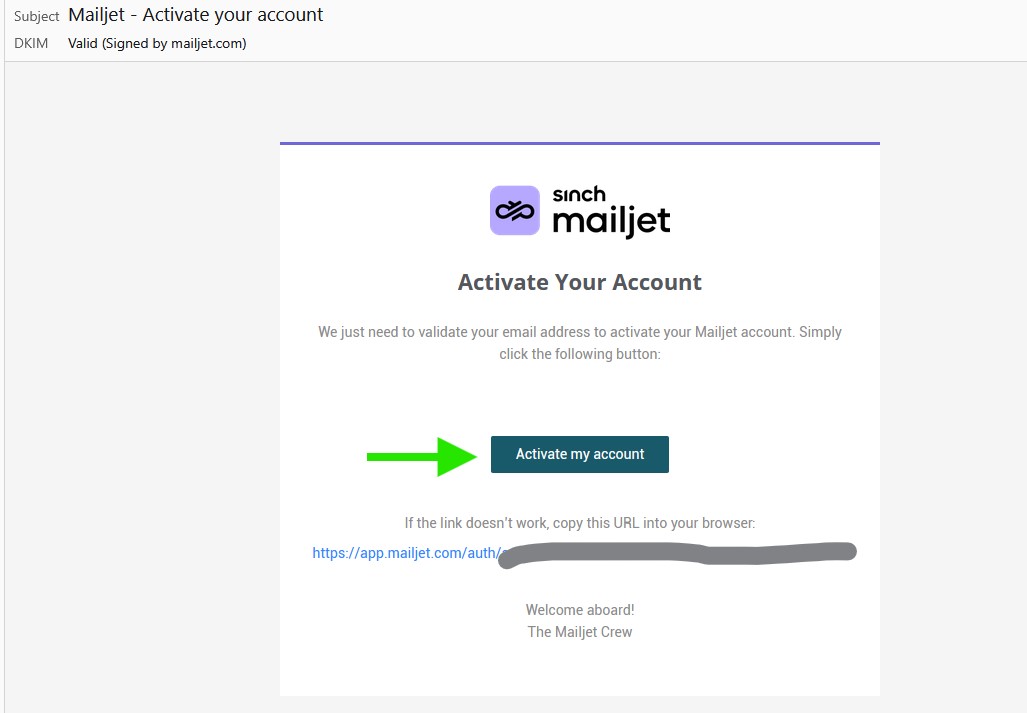
Mailjet will send a confirmation email to the address you used during signup. Open the email, then click Activate my account to verify your email address and activate your Mailjet account.
Authenticating Your Domain
Before you can start sending emails through Mailjet, you need to authenticate your domain. This confirms that you own the domain you want to send from and helps improve email deliverability.
Adding Your Sending Domain
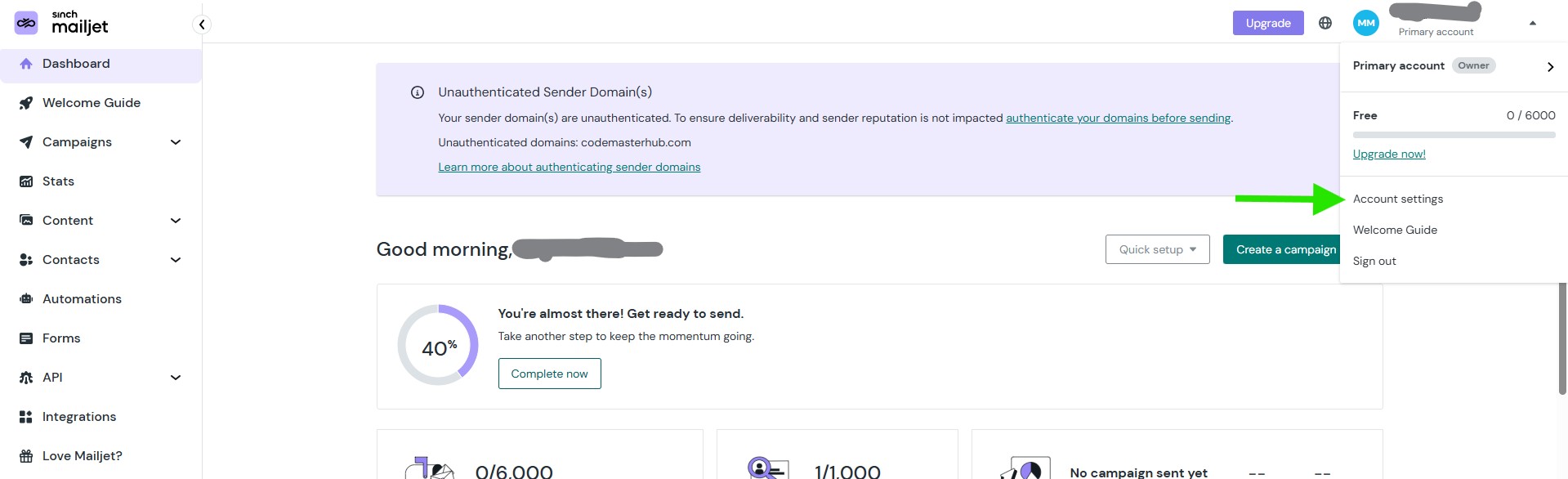
In your Mailjet dashboard, click your account menu in the top right corner, then select Account settings.
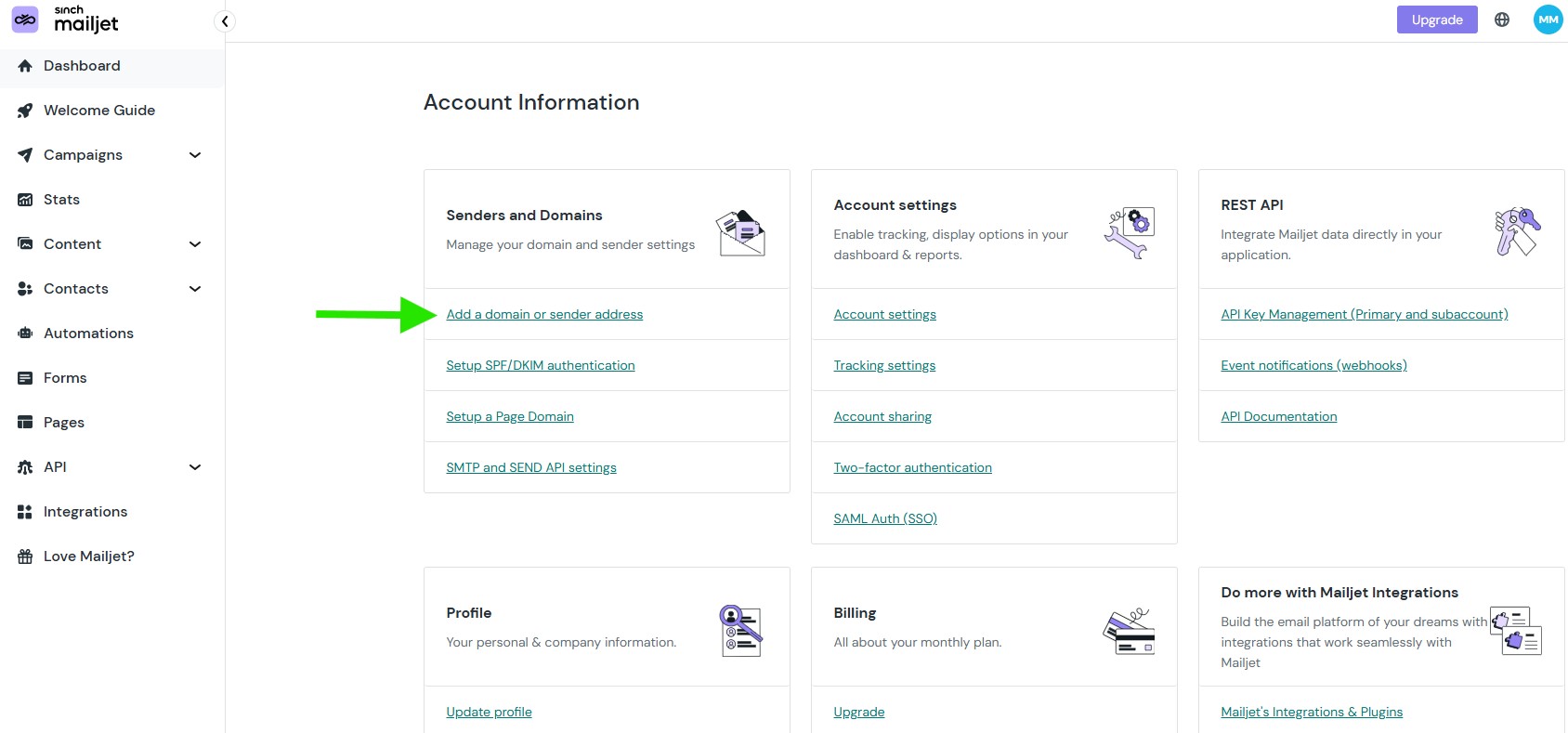
Under Senders and Domains, click Add a domain or sender address to start adding your sending domain.
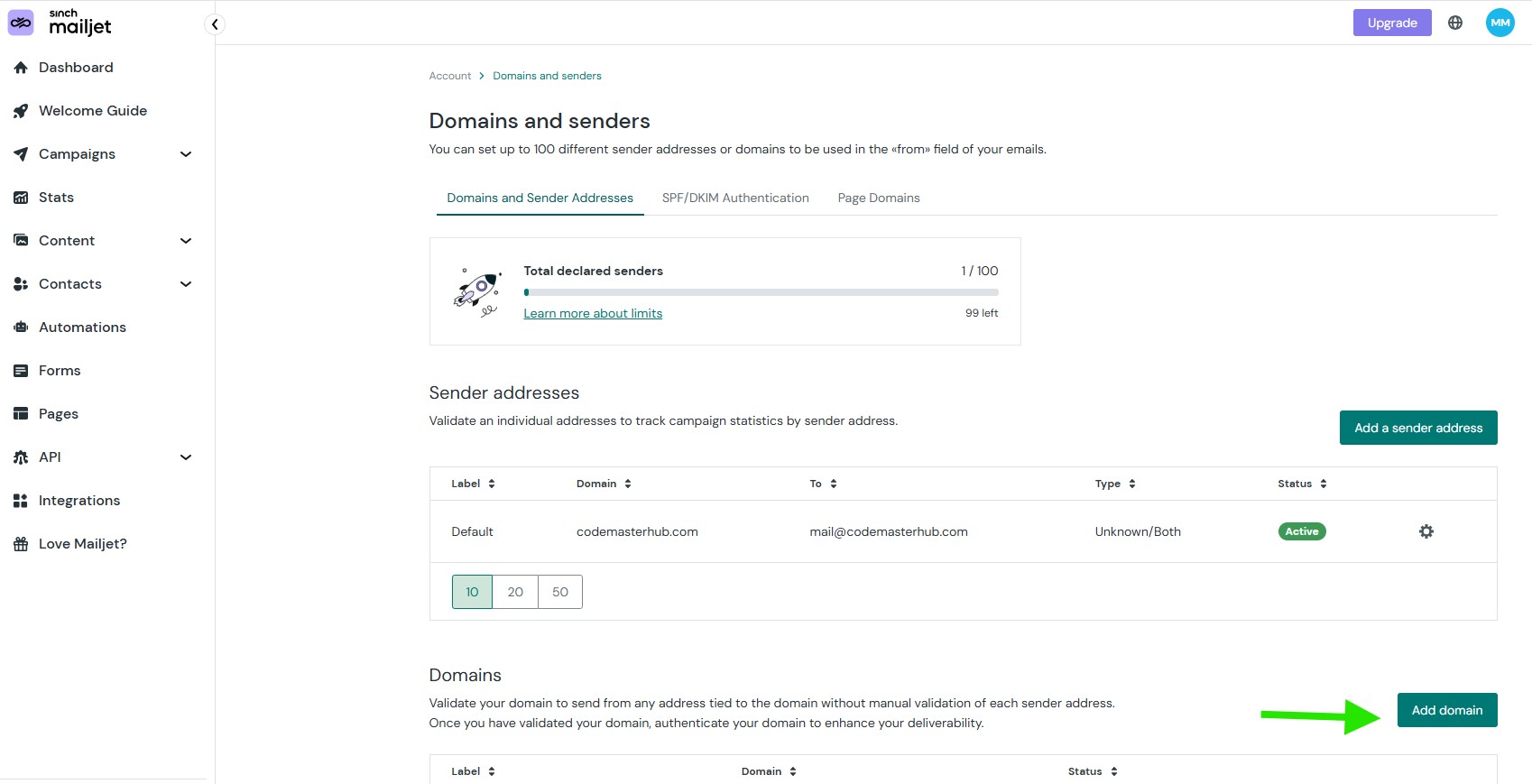
Scroll down to the Domains section, then click Add domain.
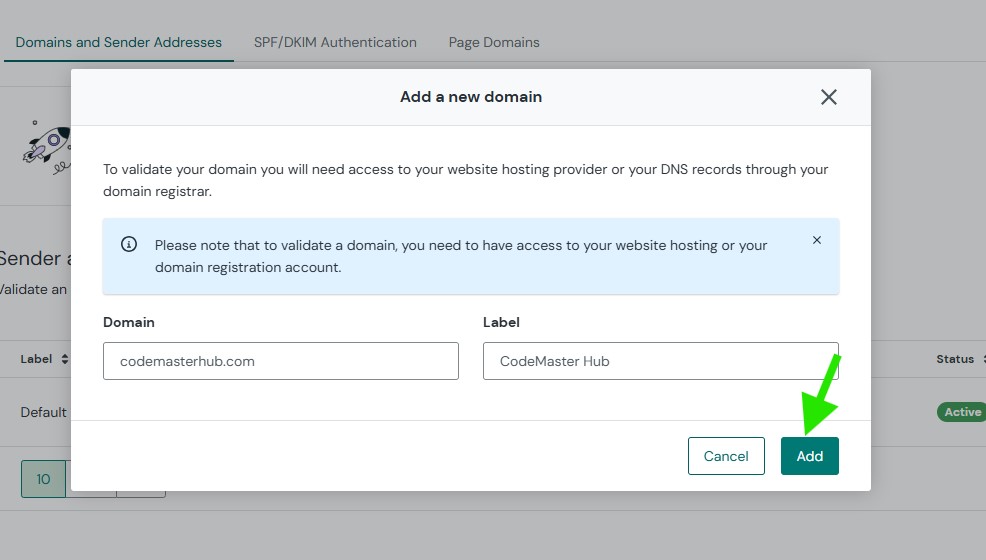
Enter your domain name, optionally add a label for easier identification, then click Add.
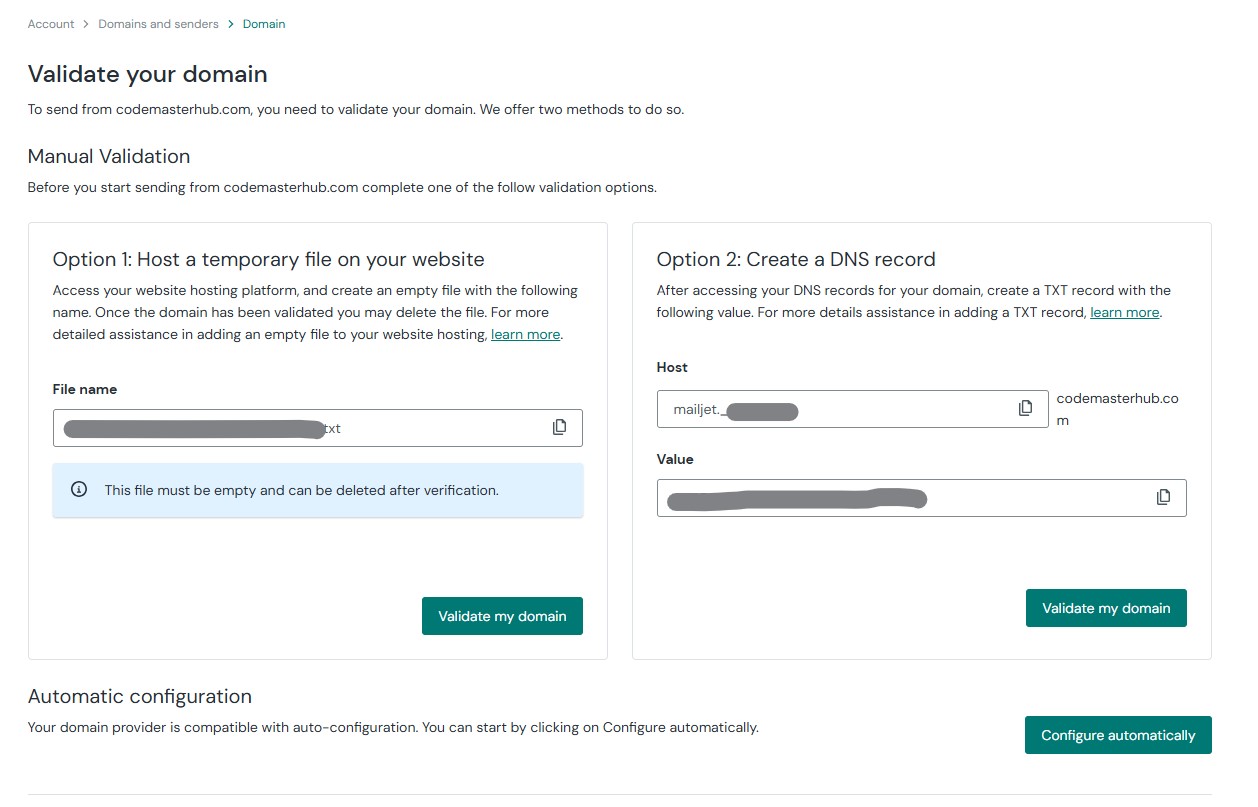
Mailjet gives you multiple ways to validate your domain. You can either upload a temporary empty file to your website, add the provided DNS record to your domain settings, or use Configure automatically if your DNS provider is supported. After completing one of these methods, click Validate my domain.
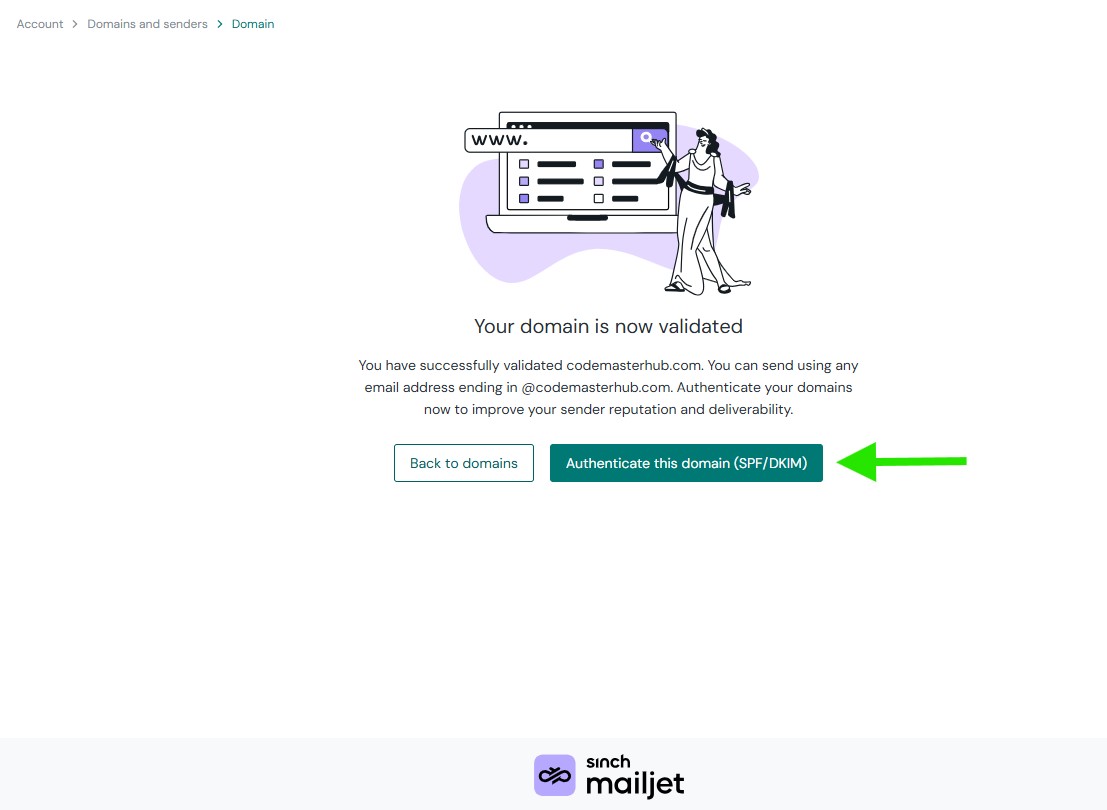
After your domain is validated, click Authenticate this domain (SPF/DKIM) to continue with domain authentication.
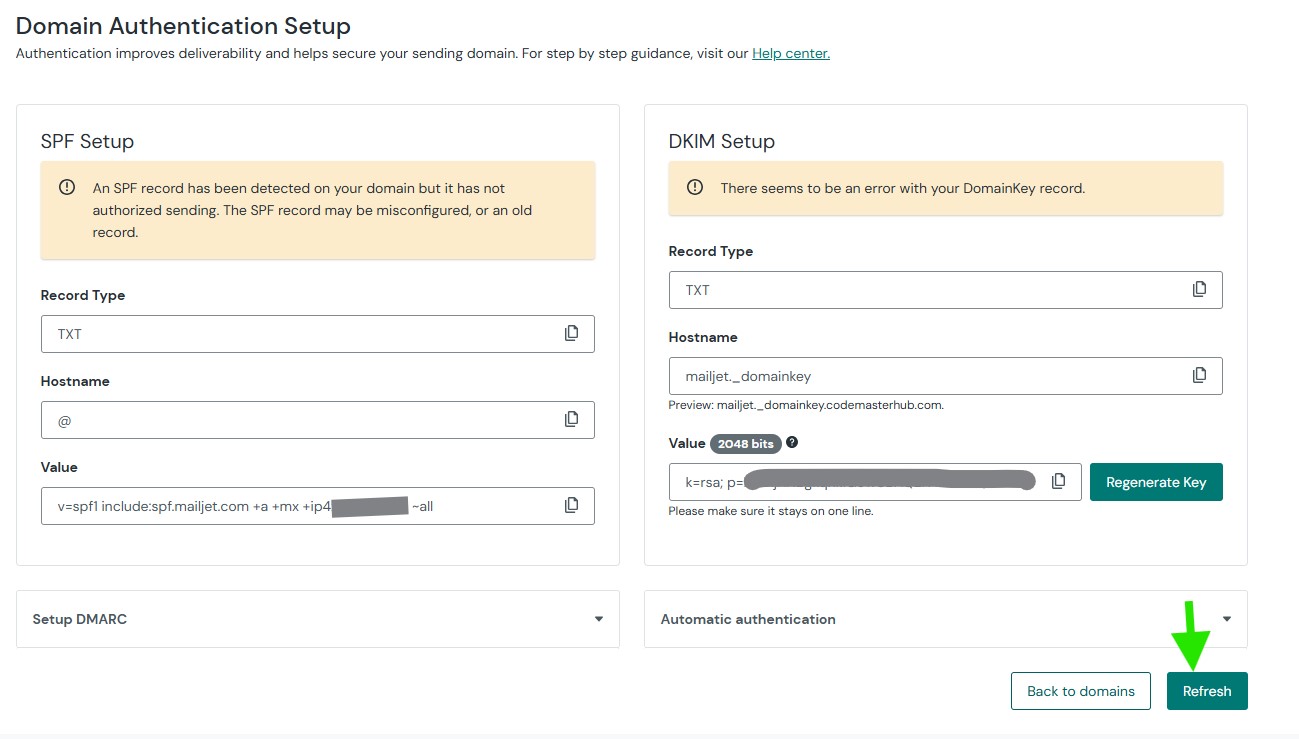
Domain Authentication Setup
Add the SPF and DKIM records shown by Mailjet to your DNS settings. For the SPF record, if your domain already has an existing SPF TXT record, do not create a second one. Instead, add the include:spf.mailjet.com part to your current SPF record. After saving the DNS changes, return to Mailjet and click Refresh.
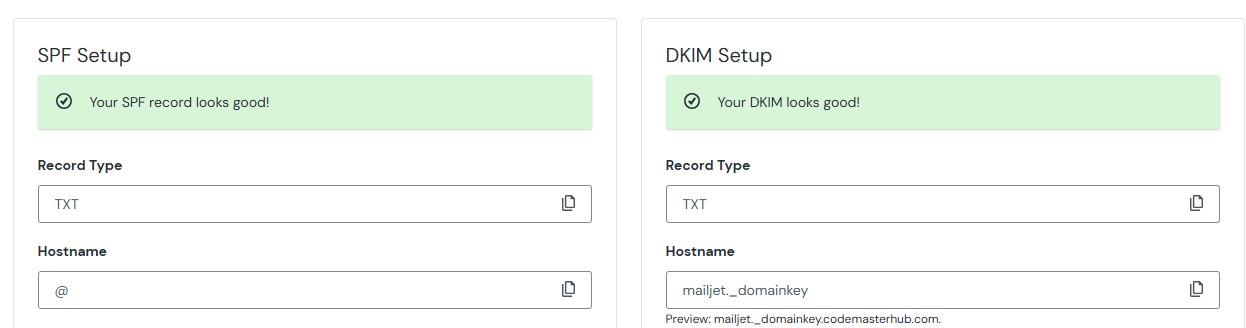
Once Mailjet shows that both SPF and DKIM look good, your domain authentication is complete.
API Key
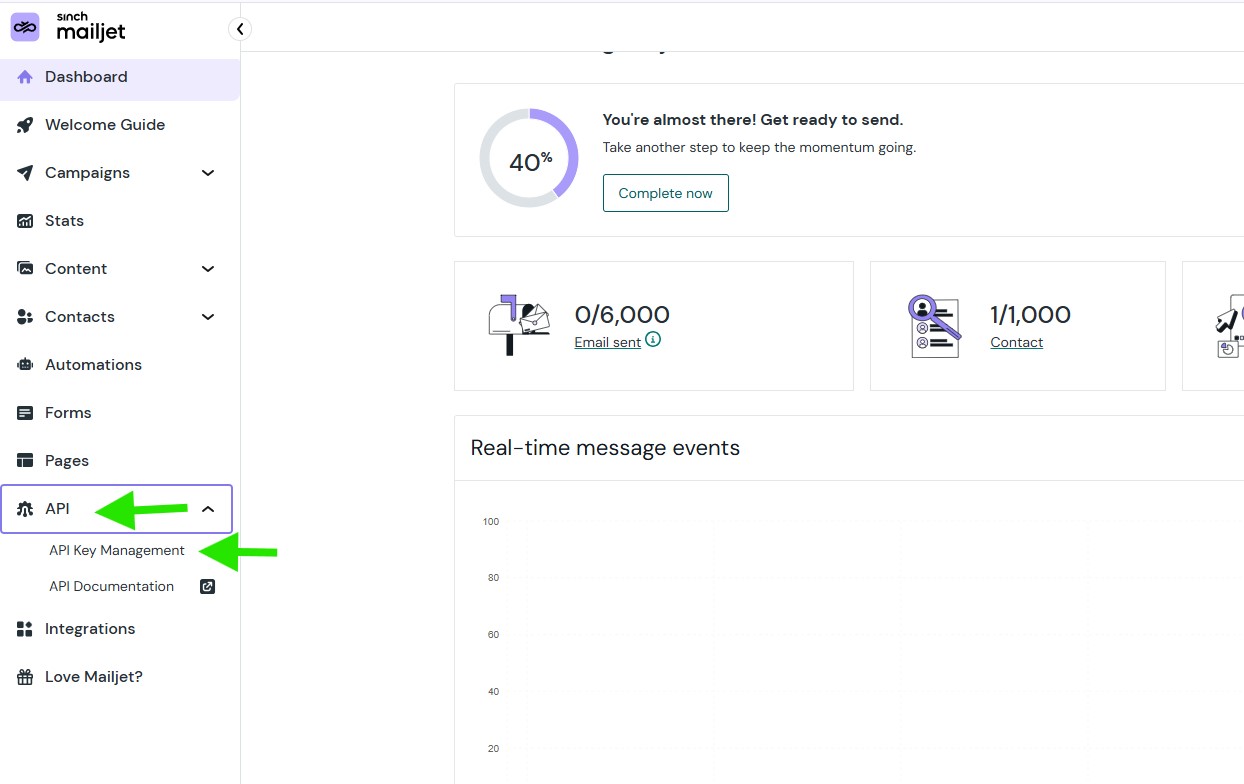
To connect your site with Mailjet, you need both your API Key and Secret Key. In your Mailjet dashboard, open the API menu in the left sidebar, then click API Key Management.
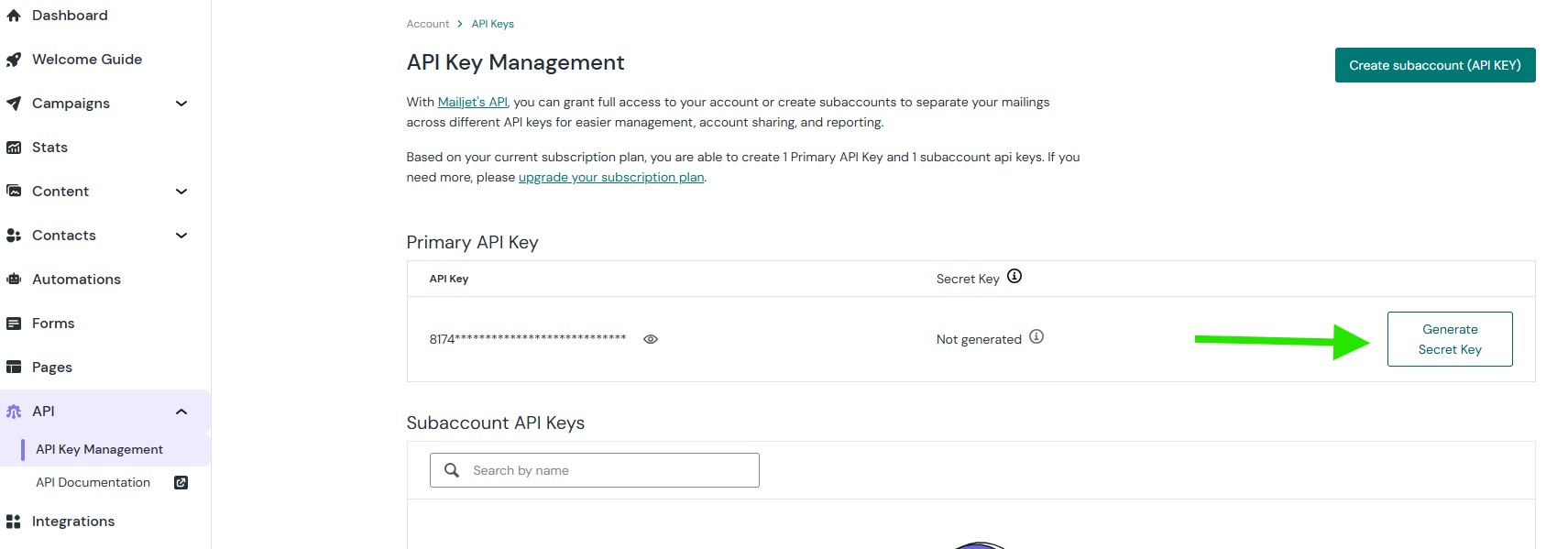
Mailjet already provides a default Primary API Key. Next to it, click Generate Secret Key to create the Secret Key you will need for Master SMTP.
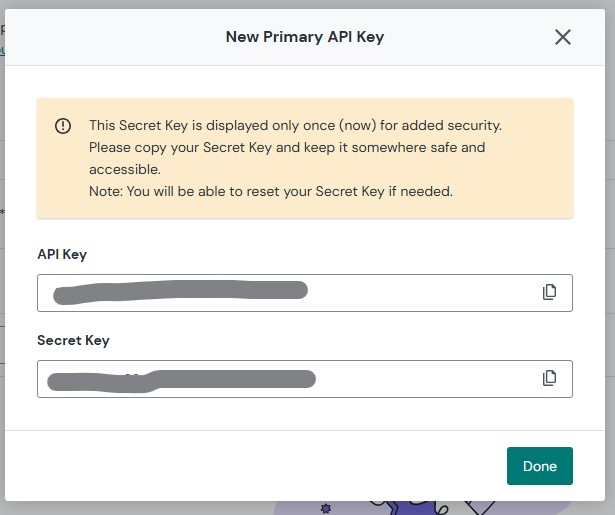
Copy both the API Key and Secret Key and save them somewhere safe. You will need both of them in the next step when configuring Mailjet in WordPress.
Mailjet Setup in Master SMTP Plugin
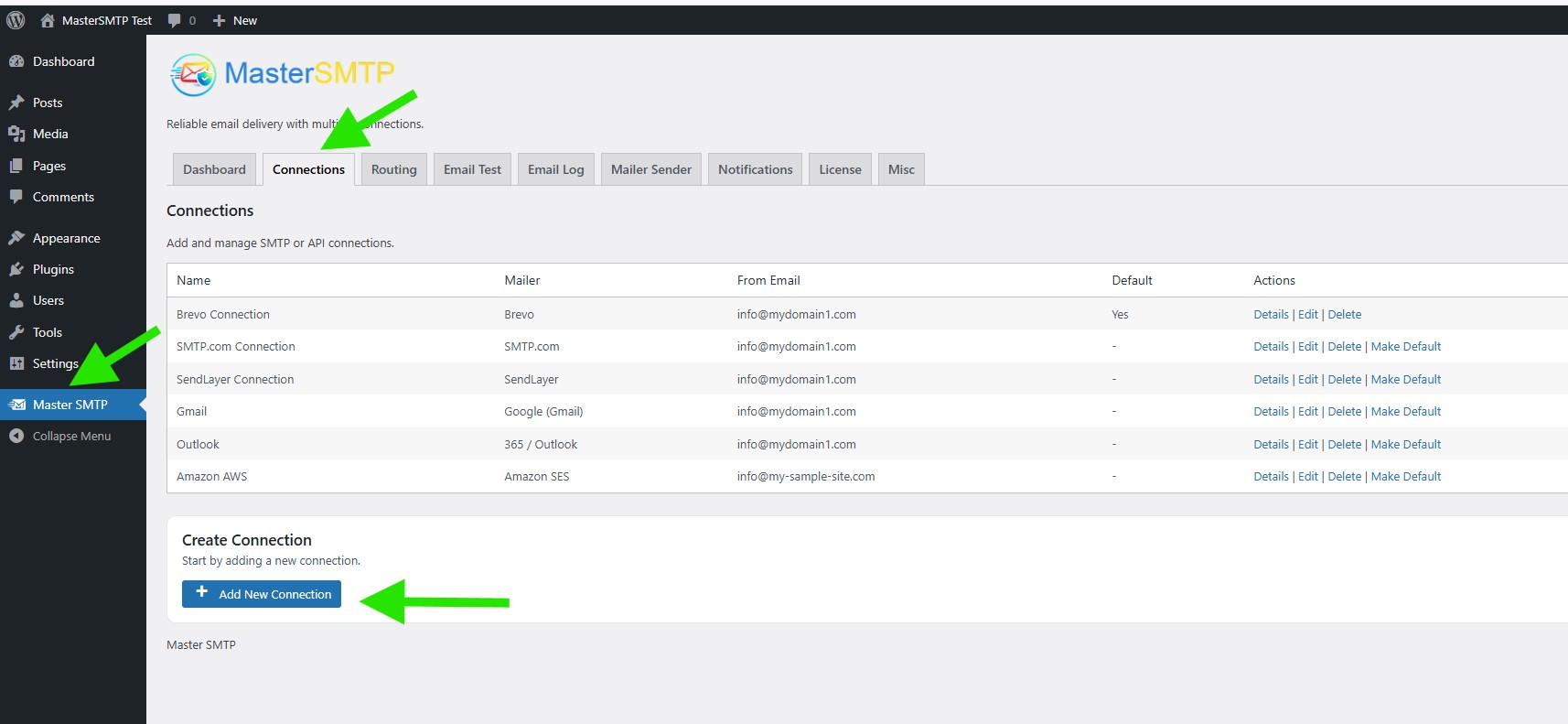
In your WordPress dashboard, go to Master SMTP > Connections, then click Create New Connection.
Configure Connection
In the Configure Connection section, fill out the Connection Details fields:
Connection Details: Enter a name for this connection. This is only for you, recipients will not see it.
Default From Email: The email address used when an outgoing email does not define a From Email.
Force From Email: If enabled, this From Email will be used for all emails, even if the email has a different From Email.
Default From Name: The name used when an outgoing email does not define a From Name.
Force From Name: If enabled, this From Name will be used for all emails, even if the email has a different From Name.
Default Reply-To Email: The Reply-To address used when an outgoing email does not define a Reply-To Email.
Force Reply-To Email: If enabled, this Reply-To Email will be used for all emails, even if the email has a different Reply-To Email.
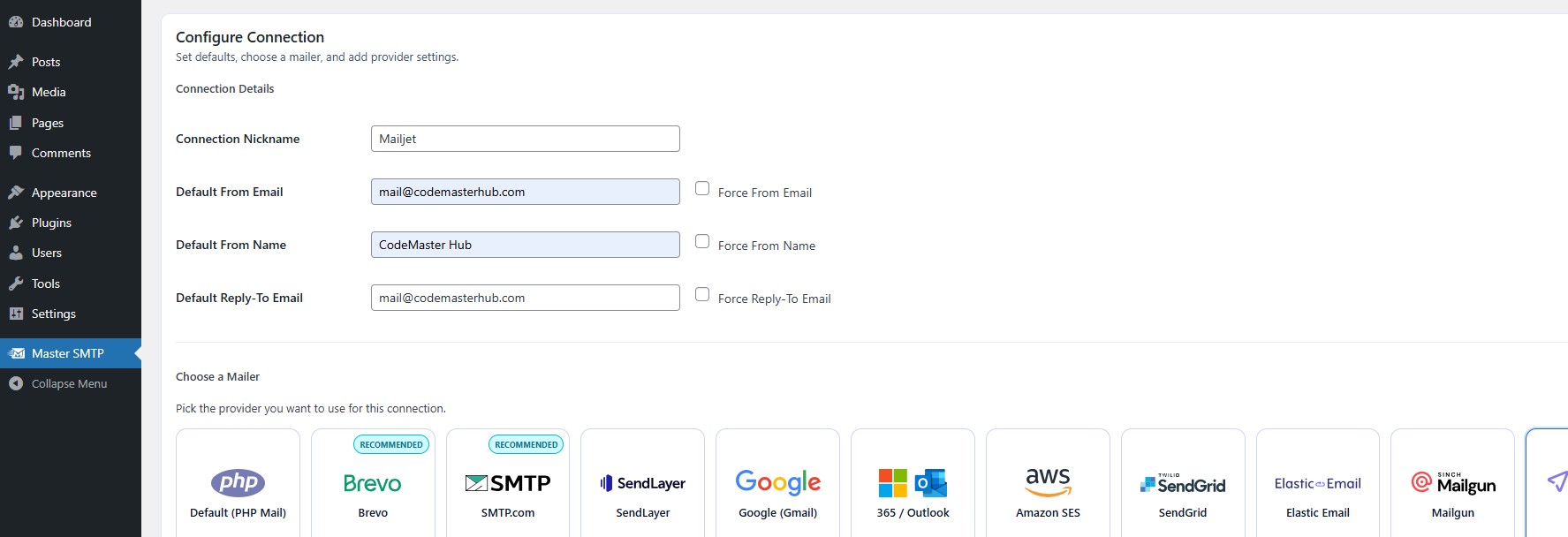
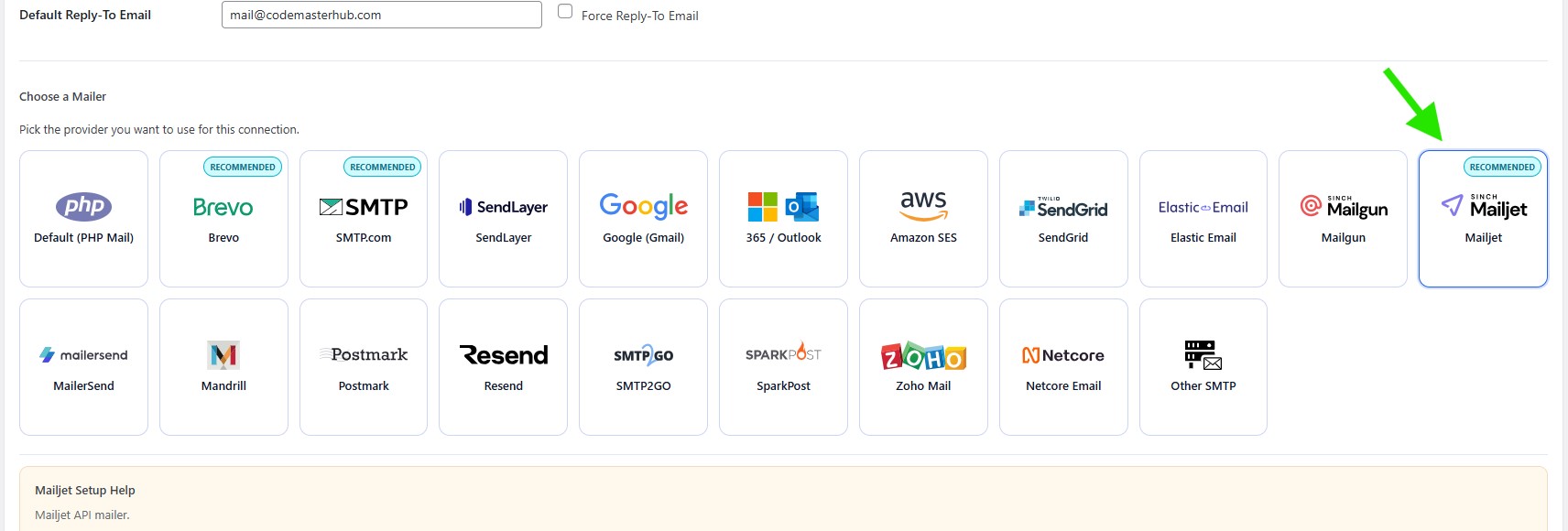
In the Choose a Mailer section, select Mailjet from the grid mailer list.
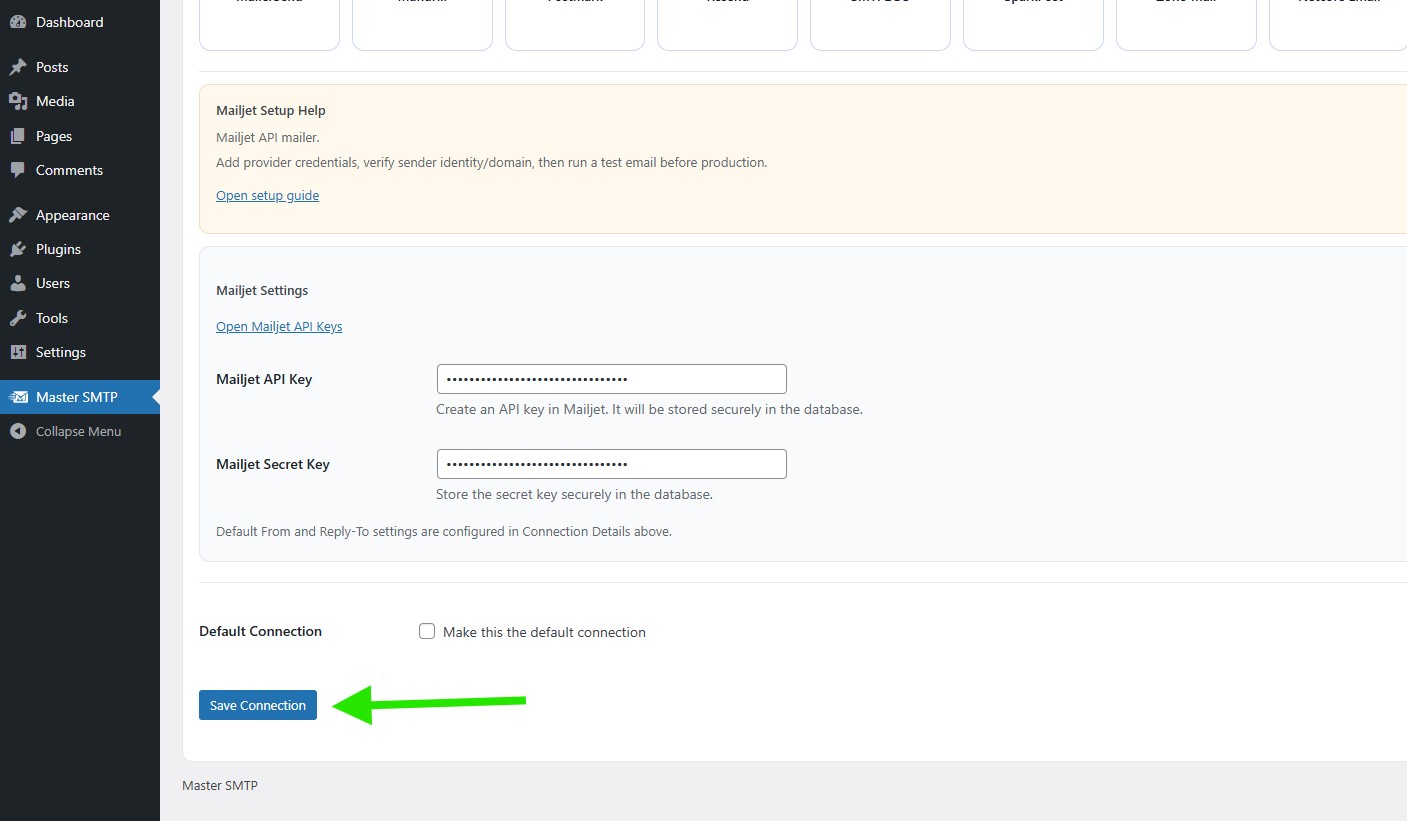
Mailjet Settings
Paste your Mailjet API Key and Mailjet Secret Key into the matching fields. If you want to use this connection as the main mailer for your website, check Make this the default connection. Then click Save Connection.
The connection will be added to the Connections list, and you should see Connection saved. at the top of the window.
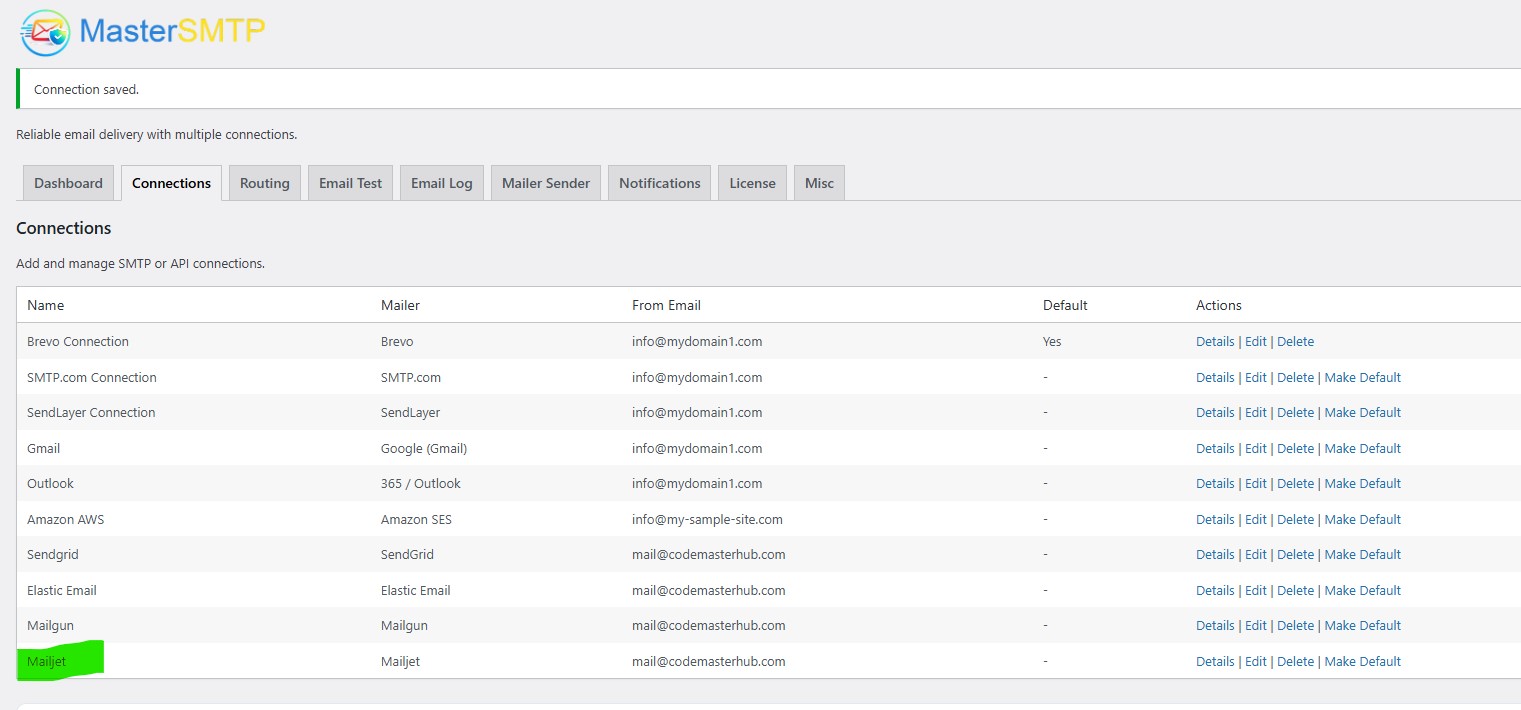
Note: The free version allows you to add only one connection. If you need multiple connections, Conditional Routing, and many other features, you should purchase the Master SMTP Pro.
Test Mailjet Connection
After saving your Mailjet connection, it is recommended to send a test email to make sure everything is working correctly. This helps confirm that your API Key , Secret Key, and connection settings have been entered properly and that your site can send emails successfully through Mailjet SMTP.
For step-by-step instructions, see the test connection guide here: